The Quiz and Survey Master Reporting and Analysis add-on allows you to analyze your quiz/survey results using a variety of charts and graphs. It allows you to filter data with quiz/survey creation dates, usernames, and categories.
You can set up custom charts for each question or view results from all the questions of a quiz/survey. The add-on remembers the custom charts you’ve set up and fetches data the next time you visit the page.
You can even show the quiz/survey results in the form of a pie chart with their % to the users after they submit the quiz/survey. And many more useful features.
INSTALLATION/SETUP
Once you have purchased the addon, you will have access to download the addon. To install, simply upload the add-on as a normal WordPress plugin. To do so, go to the Plugins page and click Add New. Then, click Upload. From there, upload the zip file that you downloaded when downloading the addon.
Once the addon has been uploaded, you should now have the plugin QSM – Reporting And Analysis listed in your list of plugins. Activate that plugin. Once activated, the plugin will add a new tab on the Addon Settings page labeled Reporting and Analysis.
SETTINGS/CONFIGURE
Before starting the reporting and analysis of your quiz or survey data, you have to enter the license key to validate the add-on.
Adding License Key
Go to the Installed tab under the Extensions > QSM, navigate to Reporting and Analysis, click the Settings button, and then go to the License tab.
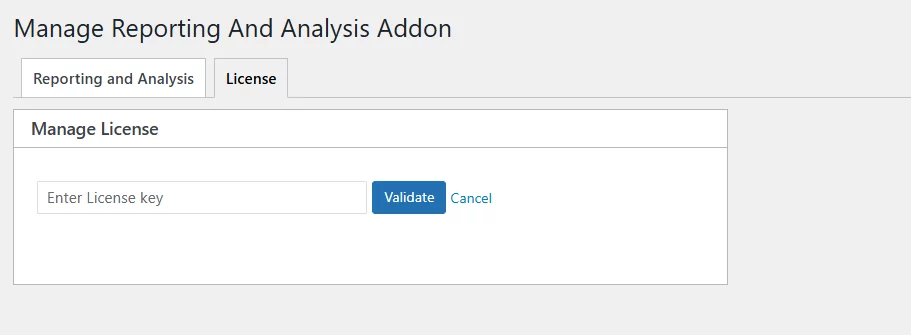
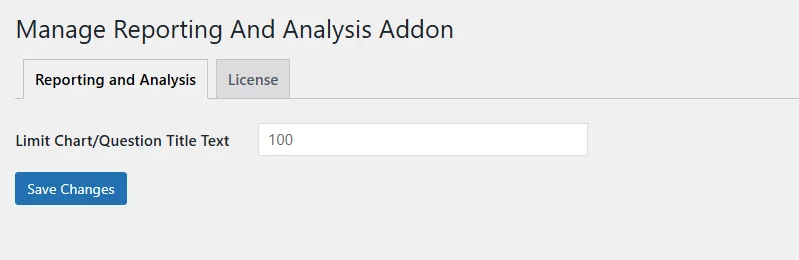
Enter your license key from your account into the “Manage License” field. You can also set the ‘Limit Chart/Question Title Text’ value here; it is set to 100 by default.
Then you can go to the add-on’s dashboard from the QSM → Reporting & Analysis option, and it displays the dashboard.
📌 Note: In the previous versions of the add-on (before 3.0v), the Reporting & Analysis add-on was available inside the QSM Results tab. However, it now has a new dashboard, and the legacy dashboard is still available to view but will be removed in a future update.
For Non-Migrated Database Users
If you’ve not migrated your data to QSM 11, then under the Results → Reporting & Analysis tab, you’ll see a message indicating that the new Reporting & Analysis dashboard is available.

To use it, you’ll first need to complete a one-time database migration.
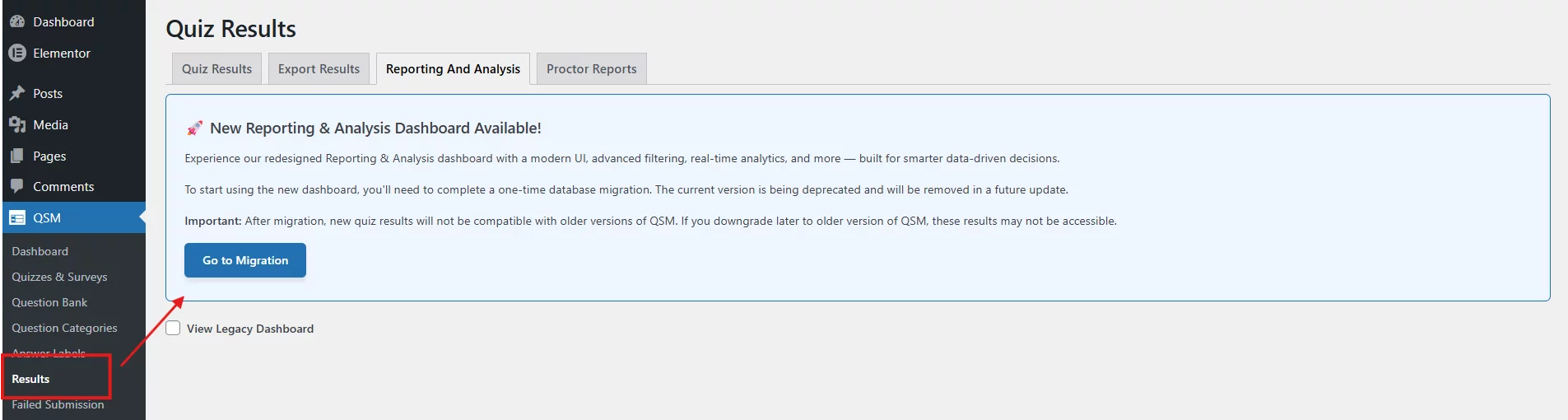
If you click on the ‘Go to Migration’ button, it will take you to the database migration page, and you can start migrating all your data.
To know how to migrate your data from older versions of QSM to QSM 11, check this documentation – Migrate Your Database to QSM 11.
You can still view the Legacy dashboard until it is removed from the future add-on release. Select the ‘View Legacy Dashboard’ option to see the old dashboard UI.
Once you’ve migrated to the latest version of QSM, you can navigate to the Reporting & Analysis dashboard right from the QSM panel options.
For New Users to QSM
If you are a first-time QSM user, you are already on the latest version and can directly access the new Reporting & Analysis dashboard from the QSM side panel; no database migration is needed.
Dashboard Overview
Once you’re in the dashboard, you’ll see an overview of all the quizzes, surveys, and tests you’ve created, along with their submission data.
At the top, you can configure two filters before hitting Apply Filters to update the view:
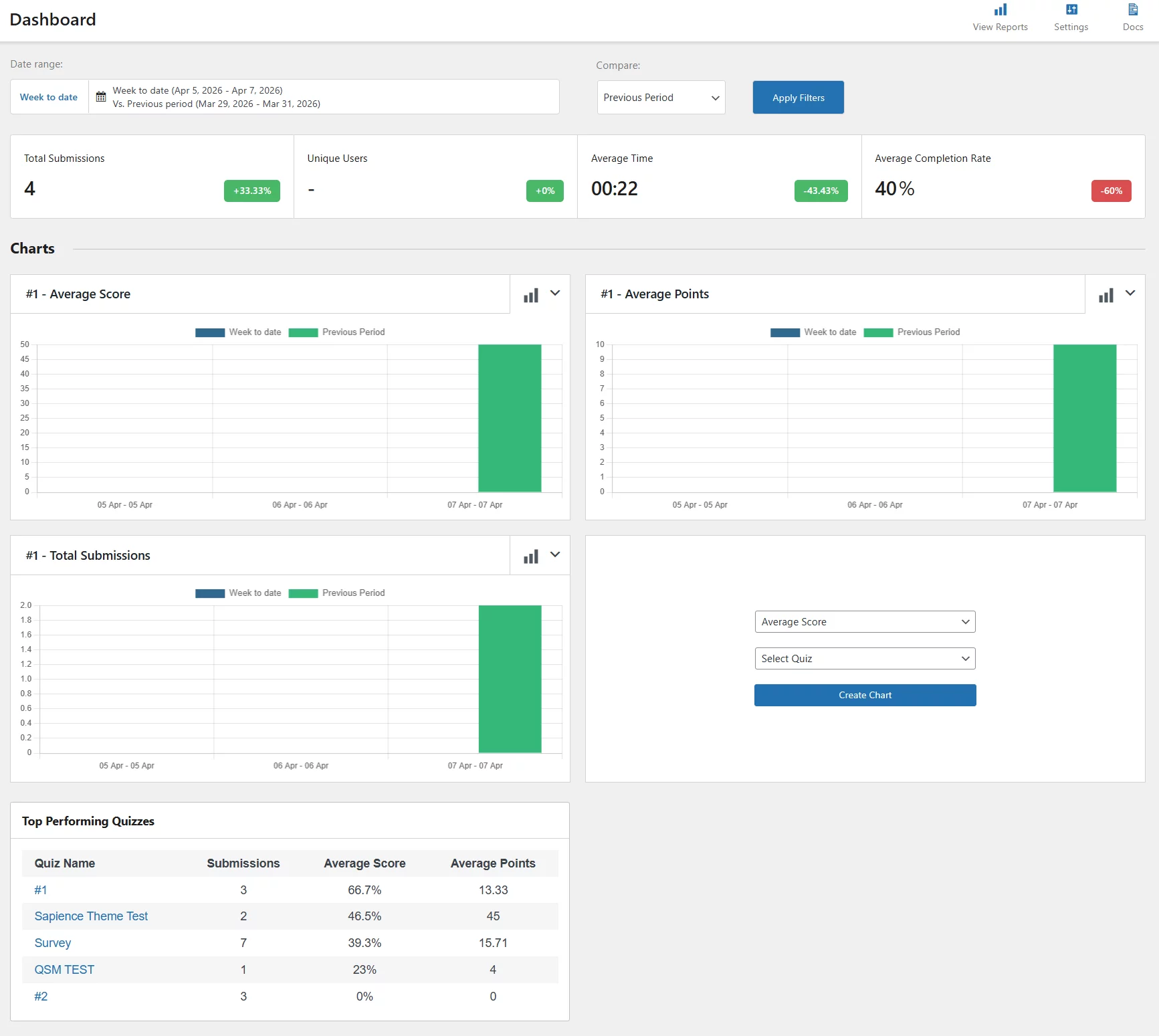
- Date Range — Select from preset options like Last Week, Last Month, and Week to Date, or set a custom date range to display results for any specific period you need
- Compare — Compare your selected date range against either the Previous Period or the Previous Year to track performance trends over time
Summary Stats
Four key metrics are displayed at the top of the dashboard:
- Total Submissions — The total number of quiz/survey submissions within the selected date range.
- Unique Users – The data displays the number of users attempting a quiz for the first time & haven’t taken any quizzes before.
- Average Completion Rate — The percentage of quiz takers who completed the quiz.
- Average Time — The average time quiz takers spent completing quizzes or surveys
📌 Note – the ‘average completion rate’ scorecard has a dependency on the Ultimate add-on, so if the Ultimate add-on is activated on your site, the card will appear on the dashboard and custom report pages; otherwise, it won’t be displayed.
Each metric also shows a percentage change compared to the previous period, giving you a quick snapshot of how performance is trending.
Charts
The Charts section displays visual graphs for your quiz performance data. Each chart shows a comparison between the current period and the previous period.
Three default charts are available:
- Average Score — Tracks the average score across submissions over time
- Average Points — Tracks the average points earned across submissions over time
- Total Submissions — Shows the number of submissions received over time
Charts can be displayed in four styles — pie, line, filled line, or bar.
Click the graph icon 📶 beside the chart name and select a chart display type to update the visual.
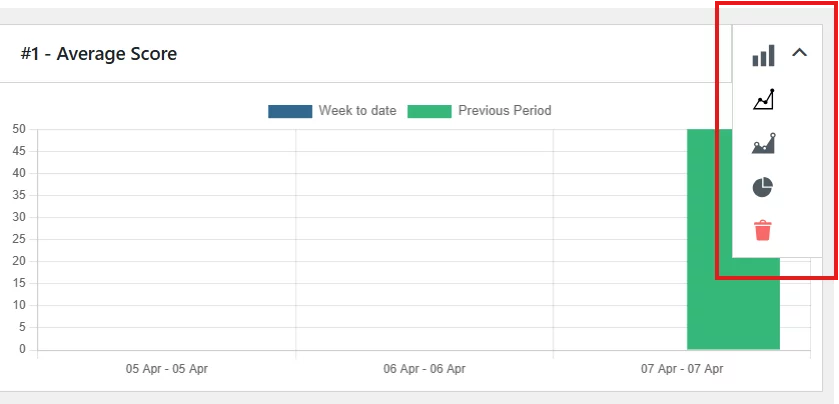
You can also create a custom chart by clicking the ➕ icon. Select the metric you want to track — average score, average points, total submissions, or average time.
Then select the quiz, survey, or test you want to chart and click Create Chart to add it to your dashboard.
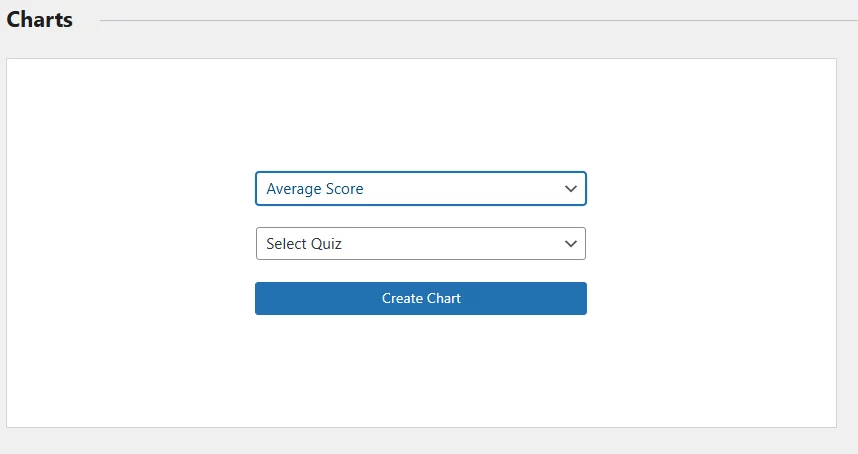
📌 Note – If you choose a survey to create a custom chart, then average points and average score will be disabled.
Top Performing Quizzes
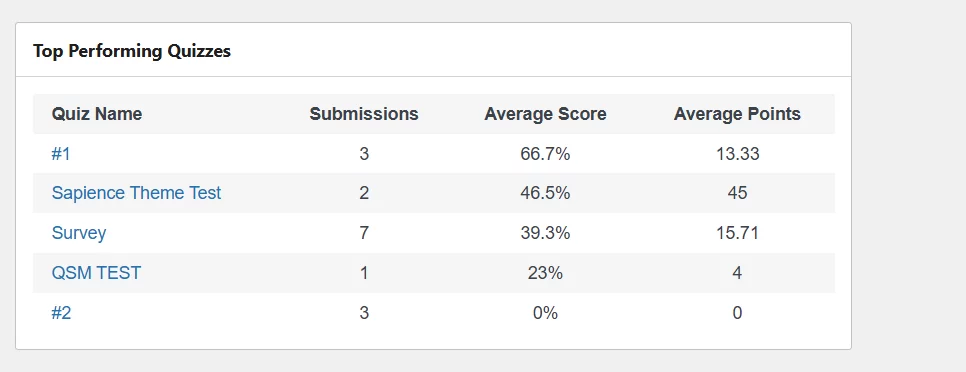
The bottom of the dashboard displays a table of your best-performing quizzes, ranked by number of submissions. For each quiz, it displays the following:
- Quiz Name
- Submissions — Total number of submissions
- Average Score — Average score as a percentage
- Average Points — Average points earned
You can choose to show or hide certain sections from the dashboard from the ‘Settings’ option at the top right of the dashboard page.
If you click on the settings option, you get the following checkboxes.
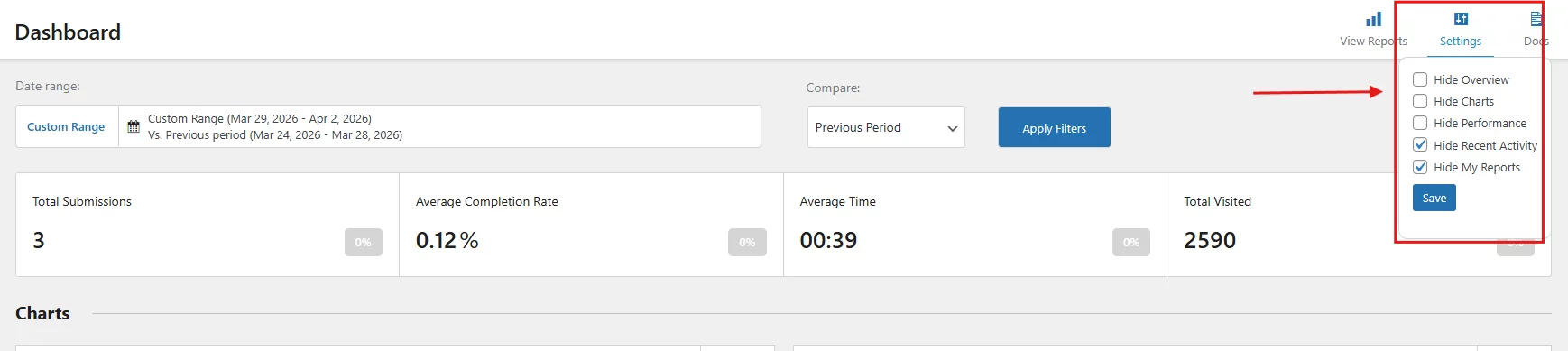
- Hide Overview — Hides the summary stats section (Total Submissions, Average Completion Rate, Average Time, Total Visited)
- Hide Charts — Hides the Charts section and all associated graphs
- Hide Performance — Hides the performance-related data on the dashboard
- Hide Recent Activity — Hides the recent activity section from the dashboard view
- Hide My Reports — Hides the My Reports section from the dashboard view
Once you’ve selected which sections to show or hide, click Save to apply your preferences.
Create and View Custom Reports
To create a new report, click on ‘View Reports’ on the top right of the dashboard, and it will navigate to the ‘Reports’ section, where all the custom reports that you create will be visible.
Then click ‘Add New’, a dialogue box will appear prompting you to enter a name for your report. Type your report name and click Save to create it.
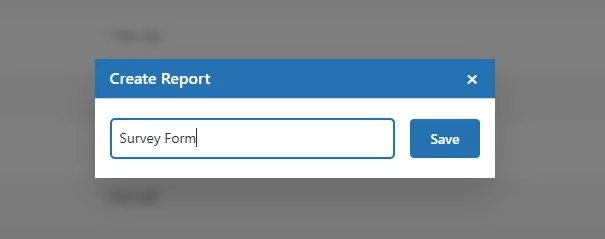
Once saved, your new report dashboard will open automatically.
Custom Report Dashboard
Each custom report has its own dedicated dashboard with filters, summary stats, and charts specific to that report.
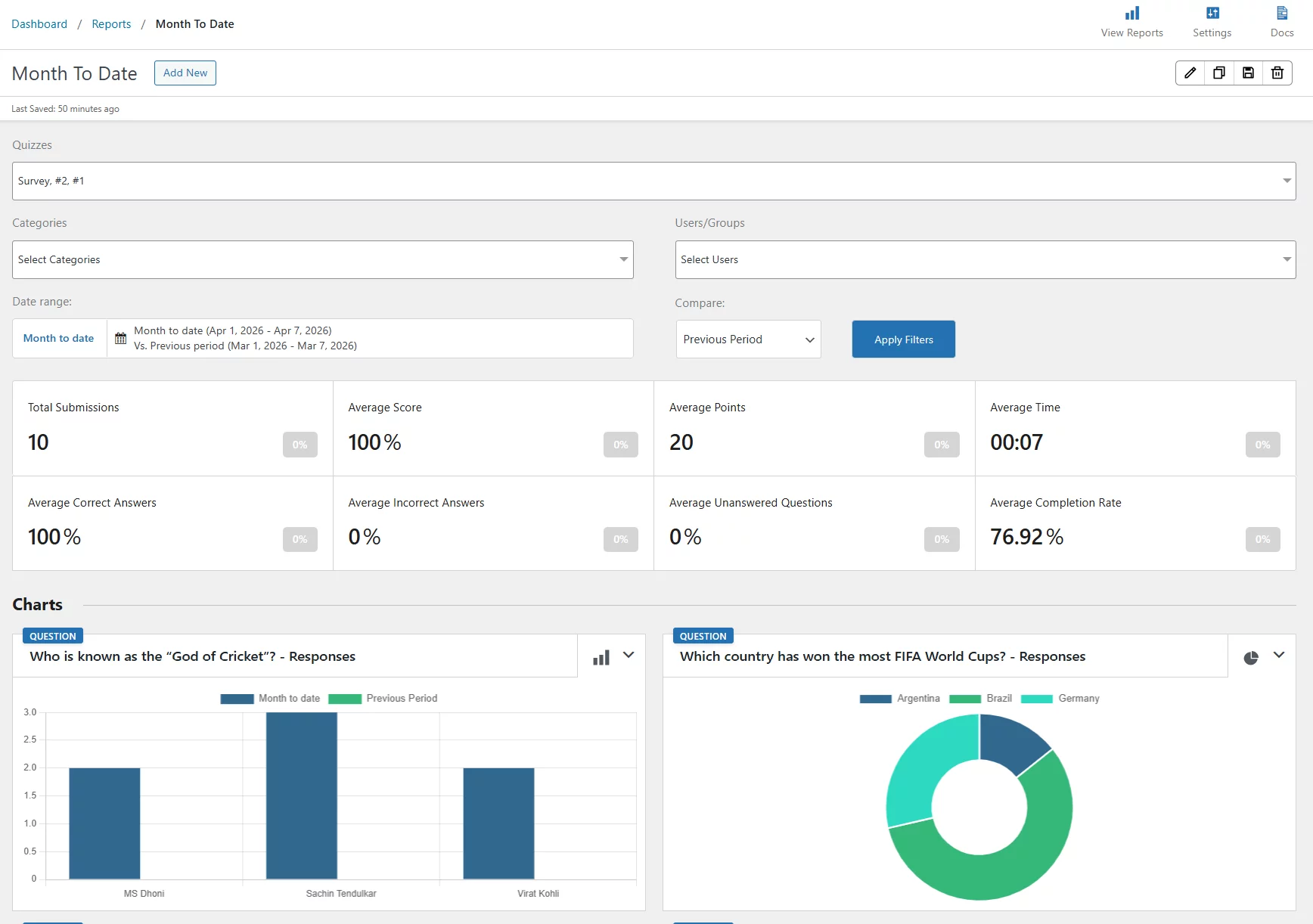
Report Actions – At the top right of each custom report, you’ll find four action icons:
- Edit
- Duplicate
- Save
- Delete
You can save this report, duplicate it, edit it, or delete it anytime. If you exit the page without saving, a confirmation dialogue will appear to prevent you from losing unsaved changes.
1. Filters
At the top of the report, you can narrow down the data using the following filters:
- Quizzes—Select one or more quizzes to include in the report
📌 Note—If you select only quizzes or quizzes and surveys, then the summary stats below the filter section will display all summary stats (shown in the image).
If you select only surveys, a limited set of metrics will be displayed: Total Submissions, Average Time, Average Completion Rate, and Average Unanswered Questions.
- Categories — Filter results by question category
- Users/Groups — Filter by a specific user or user group
- Date Range — Select from preset options or set a custom date range
- Compare — Compare against the previous period or previous year.
Once your filters are set, click Apply Filters to update the report.
2. Summary Stats
The report displays eight key metrics based on your selected filters:

- Total Submissions — Total number of quiz submissions
- Average Score — Average score as a percentage across submissions
- Average Points — Average points earned across submissions
- Average Completion Rate — Percentage of quiz takers who completed the quiz
- Average Correct Answers — Percentage of questions answered correctly on average
- Average Incorrect Answers — Percentage of questions answered incorrectly on average
- Average Unanswered Questions — Percentage of questions left unanswered on average
- Average Time — The average time taken to complete the quiz
Each metric also shows a percentage change compared to the previous period.
3. Charts
The Charts section lets you create custom charts to visualize your report data. To add a chart, click the + icon and configure the following:
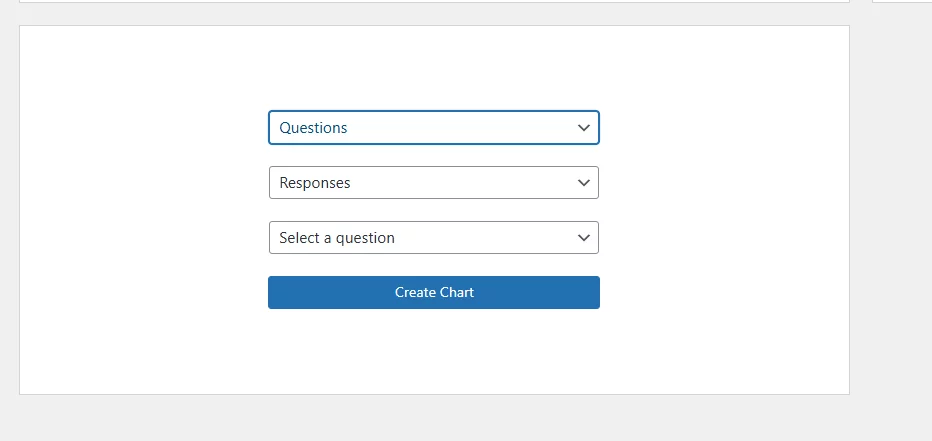
First dropdown — Choose what you want to analyze:
- Questions — View data broken down by individual questions
- Categories — View data broken down by question categories
- Users — View data broken down by individual users
- Answer Labels — Available if you have the Advanced Assessment add-on installed and answer labels configured
Second dropdown (Responses) — Choose the metric to display:
- Responses — Shows response data for the selected analysis type
- Average Points — Shows average points for the selected analysis type (it will be disabled if survey data is shown)
- Average Score — Shows average score for the selected analysis type (it will be disabled if survey data is shown)
Third dropdown — Refine your chart further:
- If you selected Questions, choose a specific question to chart
- If you selected Categories, choose a specific category
- If you selected Users, choose a specific user
Once configured, click Create Chart to add it to your report dashboard.
All your saved custom reports are listed under the Reports page. For each report, you can see:
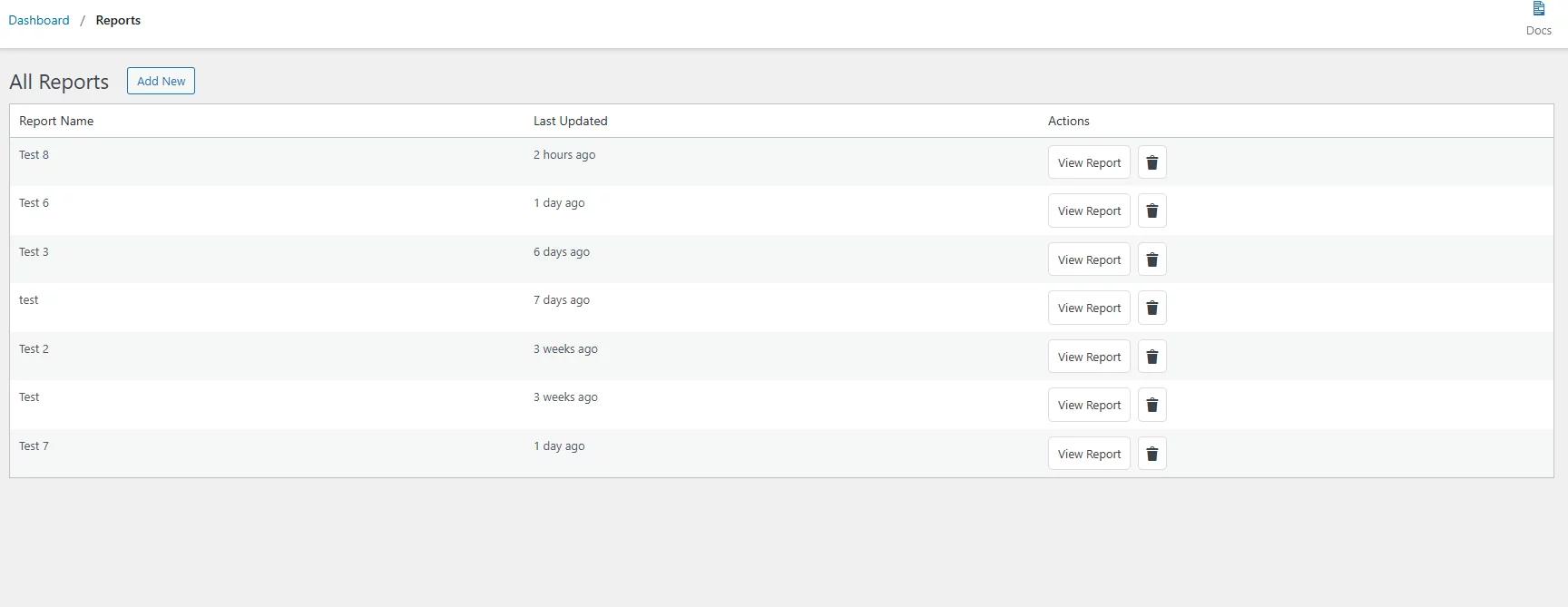
- Report Name — The name you gave the report when creating it
- Last Updated — When the report was last modified
- Actions — Click View Report to open the report or the trash icon to delete it
Display Charts on Results Page
1. Question-Level Results — Pie Chart
%QSM_PIECHART_RESULT_X%
Displays a pie chart of the answer distribution for a specific question on the results page.
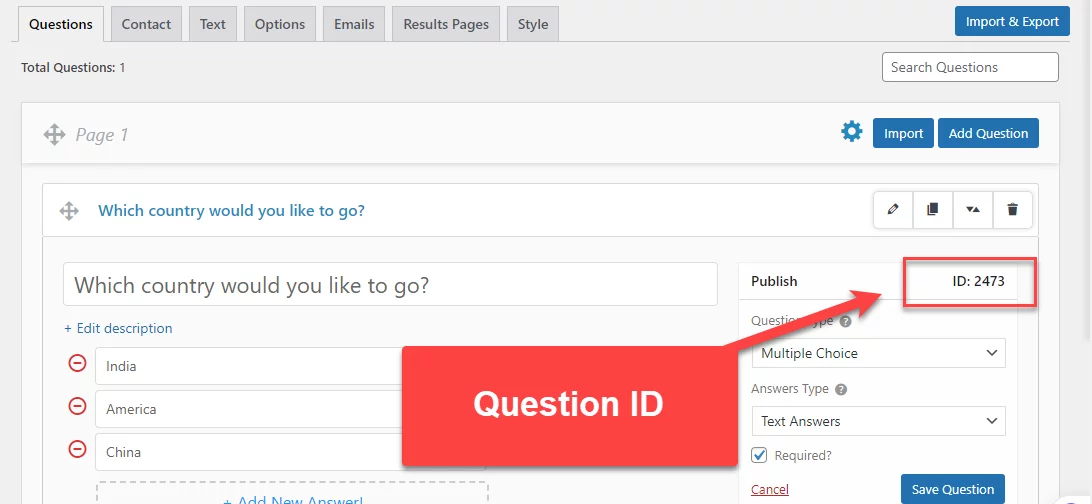
Replace X with the Question ID of the question you want to display, then save. The pie chart will render with percentage labels.
Note: Supported for multiple-choice questions only.
2. Category Points — Pie Chart
%CATEGORY_POINTS_PIECHART%
Displays a pie chart showing the points earned by the user across each category on the results page.
3. Question-Level Results — Bar Chart
%QSM_BARCHART_RESULT_X%
Displays a bar chart of the answer distribution for a specific question on the results page.
Replace X with the Question ID of the question you want to display, then save.
Note: Supported for multiple-choice questions only.
4. Category Points — Bar Chart
%CATEGORY_POINTS_BARCHART%
Displays a bar chart showing the points earned by the user across each category on the results page.
5. Category Contribution Pie Chart
%CATEGORY_CONTRIBUTION_PIECHART%
Displays a pie chart showing each category’s percentage contribution to the user’s total earned points.
Formula:
(Category Points ÷ Total Earned Points) × 100
Example:
A user earns 25 total points across three categories:
| Category | Points Earned | Contribution |
|---|---|---|
| English | 10 | 40% |
| Political Science | 10 | 40% |
| Science | 5 | 20% |
6. Category Contribution Bar Chart
%CATEGORY_CONTRIBUTION_BARCHART%
Displays a bar chart showing each category’s percentage contribution to the user’s total earned points. Each bar represents a category, and its length corresponds to that category’s share of the total.
The contribution percentage is calculated using the same formula as the pie chart:
(Category Points ÷ Total Earned Points) × 100
 Still stuck? How can we help?