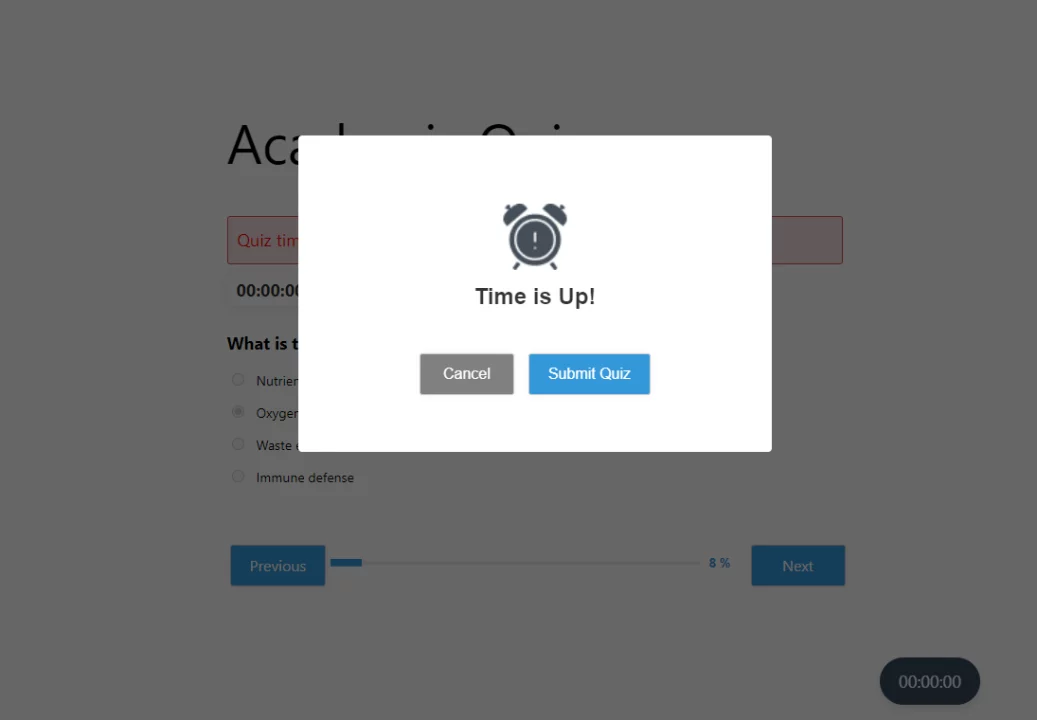
The Advanced Timer add-on for Quiz and Survey Master enhances the default timer functionality, allowing you to create time-based quizzes with greater control and flexibility.
It includes features such as a visual timer display, an optional progress bar, and advanced controls like 90% time warnings to help guide user behavior during a quiz.
The add-on supports both auto-paging and manual paging, along with per-page timers and compatibility with the Random Questions option. The timer starts automatically when a user begins the quiz or survey.
📌 Please note that you can only include one time-based quiz per webpage. Multiple time-based quizzes on a single page are not permitted. Time-based quizzes should be used individually.
Installation & Activation
If you haven’t already, install the QSM Advanced Timer Addon first; please refer to the QSM Addons Installation Documentation.
To get started, copy your license key from your QSM account on the website where you purchased the Advanced Timer add-on.
To activate the add-on, go to QSM > Addons > Installed, click “Advanced Timer,” and paste your Addon License Key.
After adding the license key, you can now configure the advanced timer setting and edit your quizzes or surveys.

Default Timer Settings
When the Advanced Timer is installed and activated, go to Timer Settings from the Options tab > Quiz Submission. You’ll be able to set the timer using three input fields: hours, minutes, and seconds.
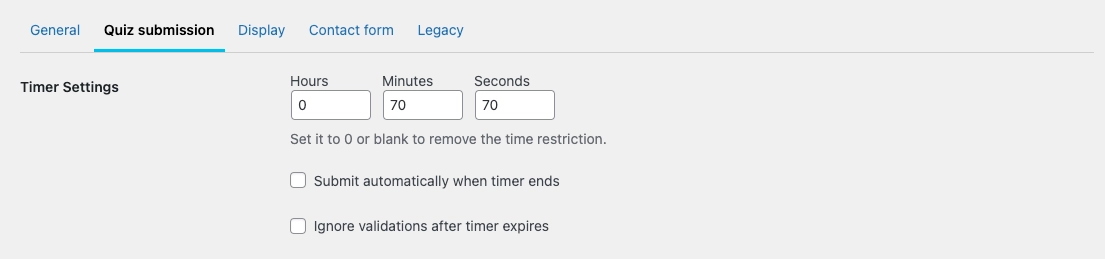
This makes it easy to manage the timer and saves you from any calculations to set a specific duration for your quizzes.
The timer input field works as follows: if you enter a value greater than 60 seconds in the seconds tab, the system automatically converts it to minutes once the timer starts. Similarly, if you enter a number surpassing 60 in the minutes section, it will be automatically converted to hours.
📌 Note: When the Advanced Timer is not installed, you will see a single input field for timer settings that accepts the time in minutes (as shown in the image below). When you install the Advanced Timer add-on, this input field will automatically change to three fields for hours, minutes, and seconds.

Advanced Timer Settings
Timer Behaviour – Choose to set how the timer would appear in the quiz as a countdown timer or count-up timer.
- Countdown Timer: The timer counts down from the total allotted time to zero, showing the remaining time to complete the quiz.
- Count-Up Timer: The timer starts from zero and counts up, displaying the elapsed time during the quiz.
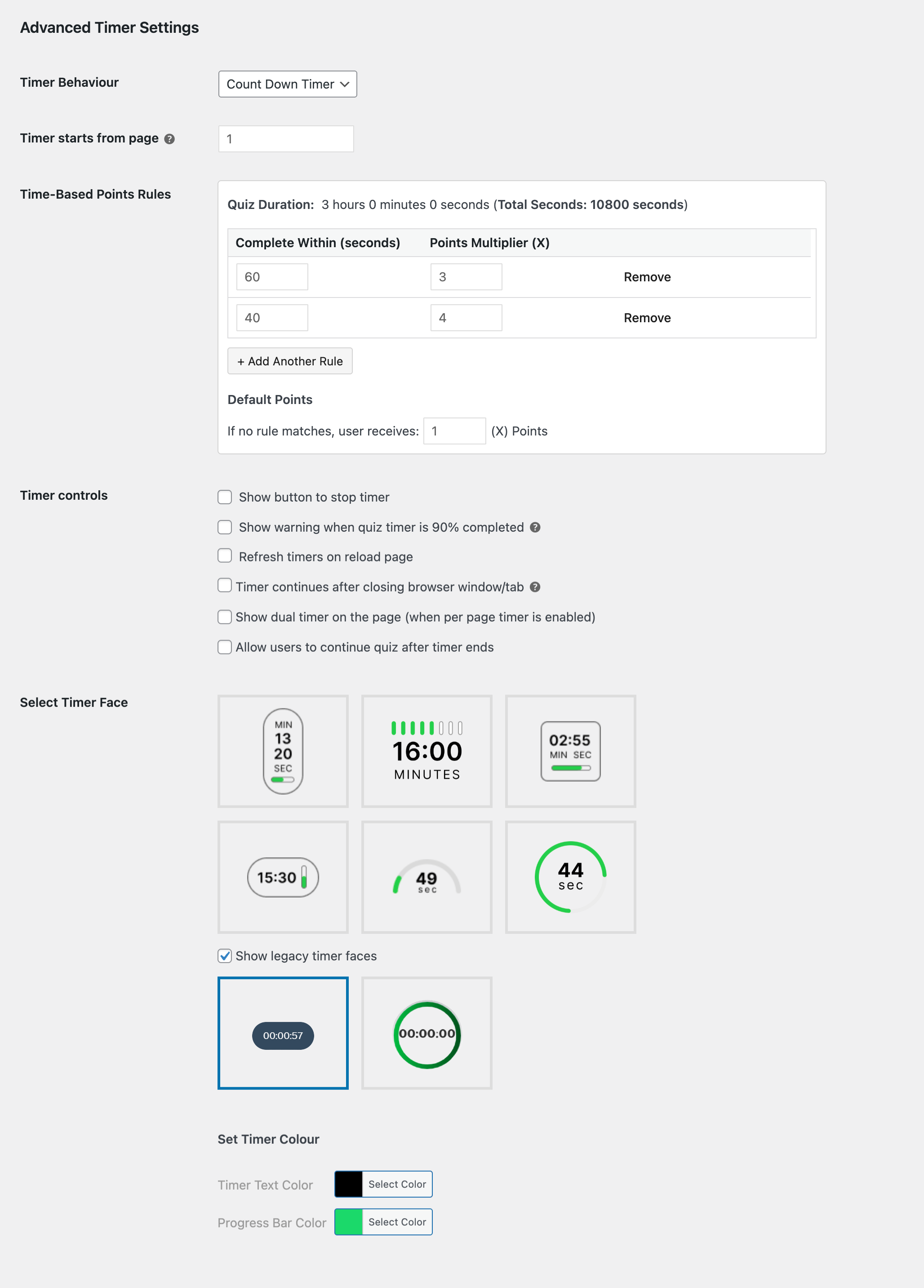
Timer start page – The option” timer starts from page” refers to the advanced timer option, where you can select to display the timer automatically from any of your desired quiz page (works only if your quiz involves multiple pages and you have enabled the pagination of the quiz option from the options tab)
Time-Based Points Rules
Time-Based Points Rules let you reward quiz takers with a points multiplier based on completing the quiz within the set time. Instead of everyone receiving the same score for correct answers, quiz takers who finish within a defined time threshold receive their points multiplied by a set value.
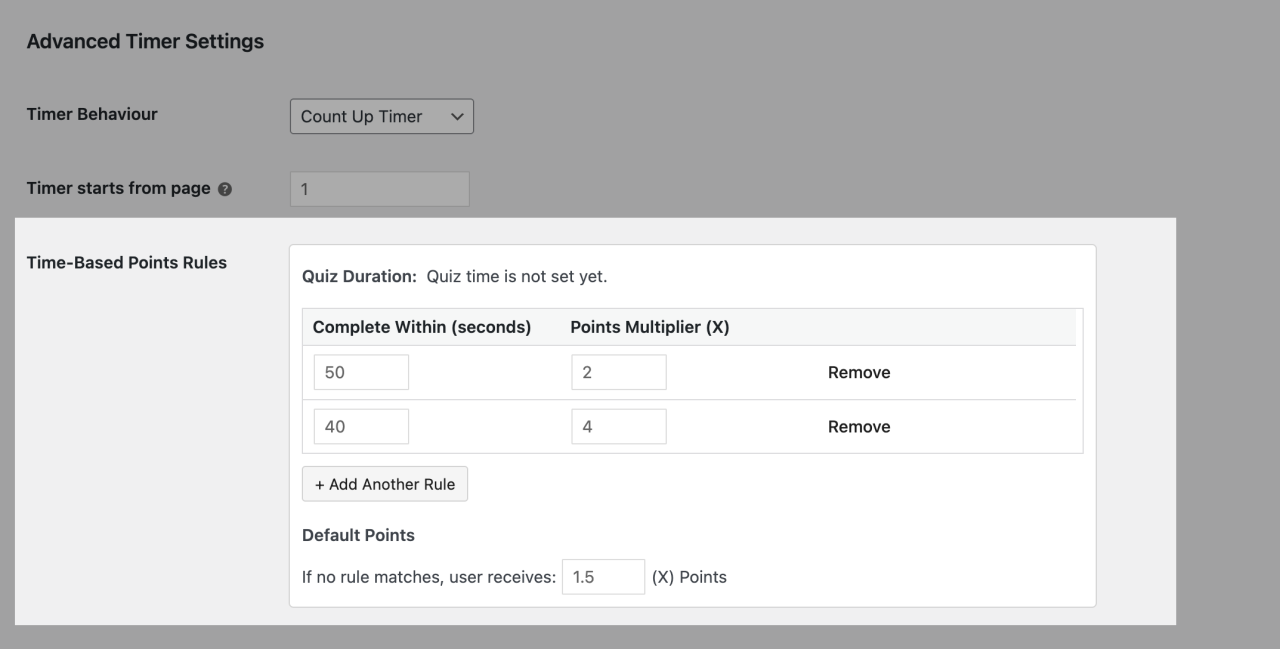
To set up a rule:
- Set your quiz duration as usual under the Options tab
- Then, under Time-Based Points Rules, configure the three fields for each rule:
- Complete within (seconds) — the time threshold the quiz taker must finish under to qualify for this rule
- Points awarded (X) — the multiplier applied to their score if they meet this threshold
- Default points (X) — the multiplier applied to quiz takers who don’t qualify for any rule. This ensures all participants receive points for completing the quiz
You can add as many rules as needed, each with its own threshold and multiplier. Rules are evaluated based on the quiz taker’s total completion time, and the matching rule’s multiplier is applied to their final score.
Timer Controls
Show Stop Timer Button:
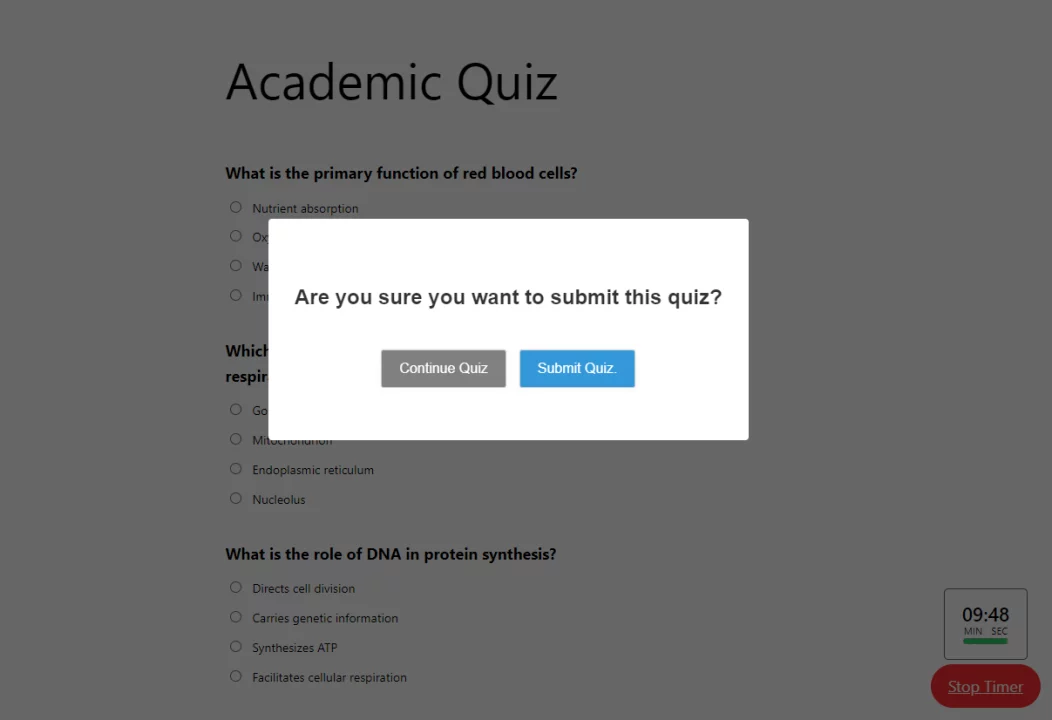
Enable this option to display a Stop Timer button at the bottom of the quiz page. This allows users to stop the quiz at any time.
When a user clicks the Stop Timer button, they will see two options:
- Submit Quiz: Stops the timer and submits the quiz. The results are then recorded.
- Continue Quiz: Resumes the quiz, and the timer continues running until the set time ends.
Show 90% Timer Warning
Enable this option to display a warning when 90% of the allotted time has elapsed. You can also add a custom warning message.
Refresh Timer on Page Reload
Enable this option to reset the timer to its original duration whenever the page is reloaded. If this option is disabled, the timer will continue from where it left off when the page reloads.
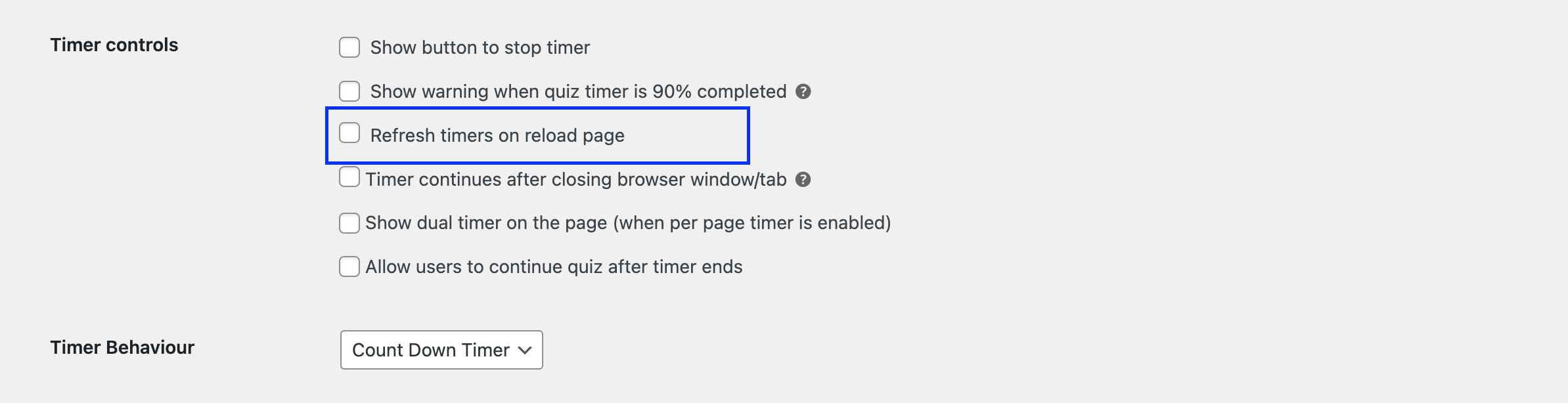
Continue Timer After Closing Browser
Enable this option to allow the timer to continue running even if the user closes the browser tab or window.
This ensures that the quiz duration is tracked independently of the browser session and continues in the background. This feature works on both desktop and mobile devices.
📌 “Timer continues after closing browser window/tab” this feature will not work on single-page quizzes
Show Dual Timer
Enable this option to display both a per-page timer and an overall quiz timer to users while taking the quiz. This works when a per-page timer is set and auto-paging is enabled, allowing users to track time at both the page and quiz level.
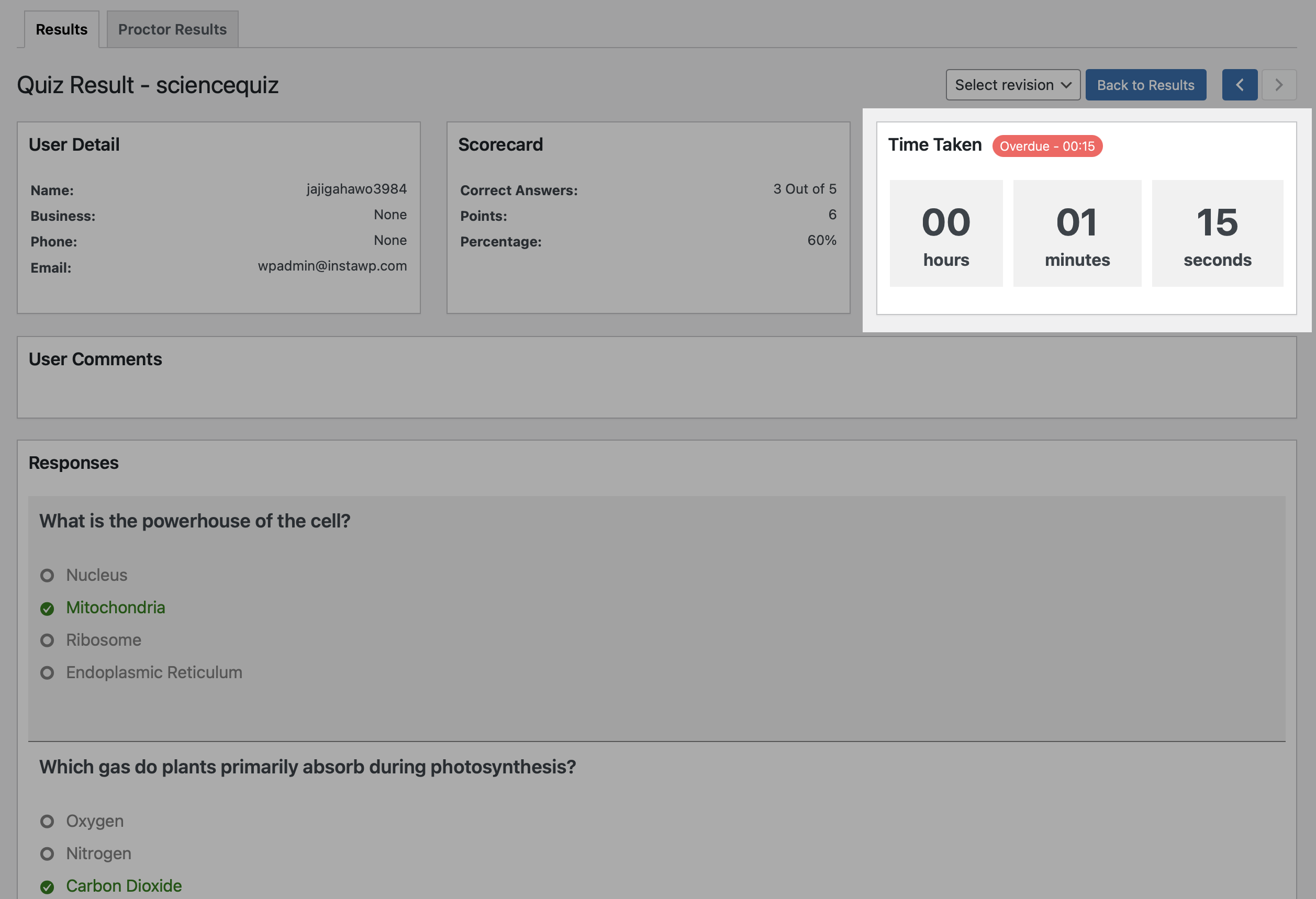
Allow Users to Continue After Timer Ends
Enable this option to allow participants to continue the quiz even after the timer has expired. Any extra time taken will be recorded and shown in the results, giving admins full visibility into the actual time spent.
Multiple Timer Faces
The advanced timer add-on comes with 6 fresh timer faces for modern websites. Each timer interface features a unique design tailored to display the timer units according to the default timer shown on the quiz.
📌 The legacy timer faces will be deprecated in the future release; we recommend users opt for the new timer faces.
Customize Timer Colours
All the modern timer faces can be customized with the timer text color and progress bar color. In some of the timer faces you can change the background color too.
If you’ve set the timer per page and enabled the pagination, the timer will keep on running and tracking time even when the browser window/tab is closed by the user. By enabling the “Per page timer continues after closing browser window/tab” option.
Learn how you can add an advanced timer function on individual pages in QSM.
If you have any trouble implementing the Advanced Timer Addon or have more questions about the process, please fill out a support ticket by going to the WordPress dashboard and selecting ‘Help’ in the QSM plugin, and our support guru will be able to help you.
Troubleshooting
Common Issues and Solutions
If you encounter issues, ensure you meet the compatibility requirements:
- Use the latest QSM Core.
- Activate your license key correctly.
- Add MailerLite’s API key correctly.
Receiving Updates
Check your QSM account for the latest Advanced Timer add-on updates. Subscribe to our newsletter for release notifications.
Recommended Maintenance
Use the latest QSM Core and Advanced Timer versions for security and performance.
Contacting Support
For assistance, reach out to our support team on the Support Page or email us at [email protected]
Additional Resources
Find user guides and video tutorials on our Documentation Page and YouTube Channel.
 Still stuck? How can we help?