With the release of QSM 11, the plugin introduces a rebuilt core, a new frontend rendering engine, and an updated database structure. To support this, QSM 11 provides a one-time migration wizard that handles the database upgrade process.
The wizard checks add-on compatibility, displays progress during the update, and confirms once the migration is complete. All existing quizzes, data, and results are preserved during the migration.
This documentation walks you through the complete migration process from earlier versions of QSM to v11.0.
Set up Database Migration
Update the QSM plugin from your WordPress dashboard under the Plugin tab as you normally would.
Once the update is complete, QSM 11 will be activated on your site.
1. Migration Prompt on Dashboard
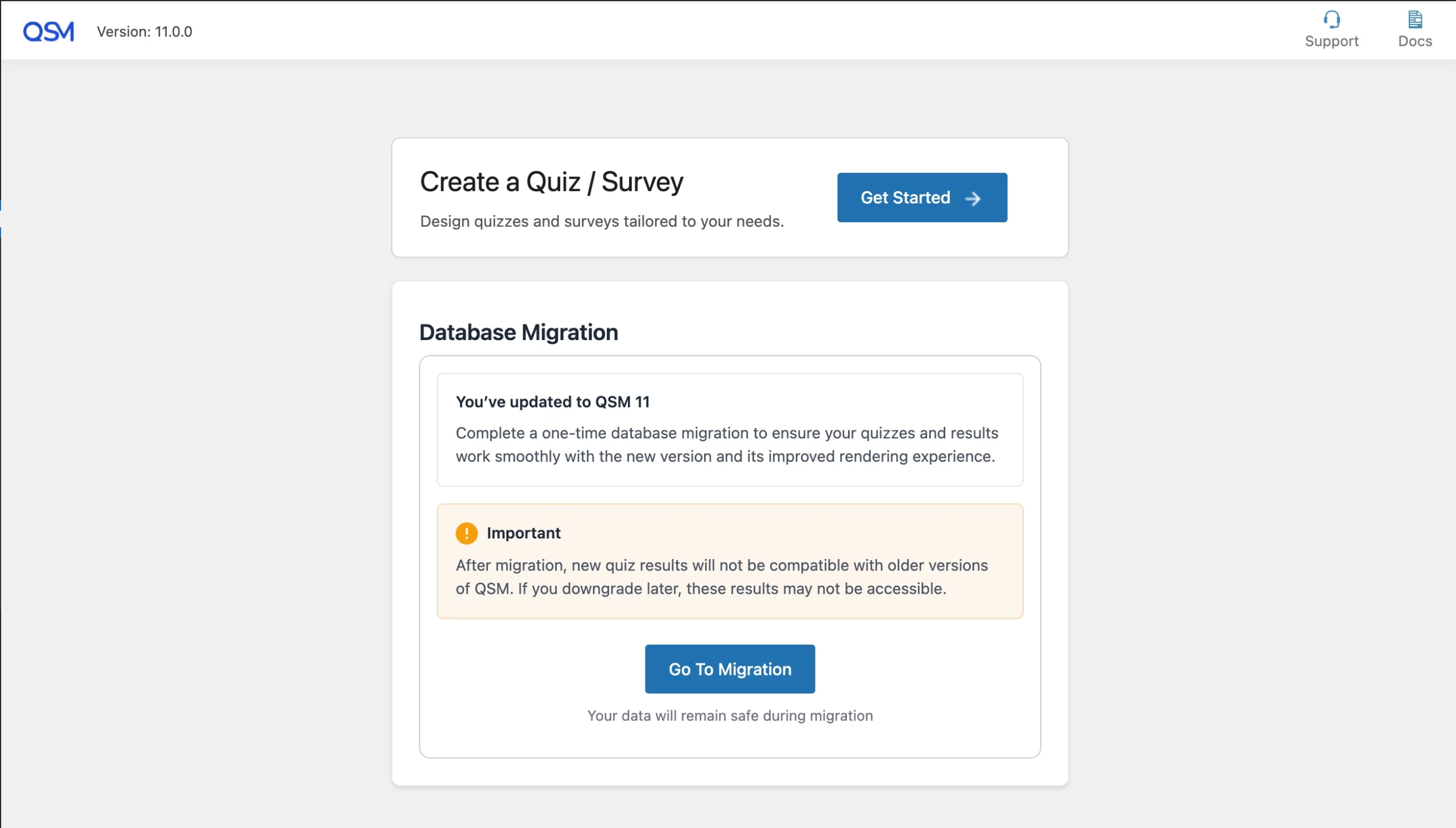
After updating, a Database Migration notice will appear on the QSM dashboard.
This prompt confirms that the plugin has been successfully updated to QSM 11 and requests the completion of a one-time database migration.
It also highlights that:
- Your existing quizzes and results will continue to work after migration
- New results generated after migration will not be compatible with older QSM versions if you downgrade later.
To proceed, click the Go To Migration button. This will open the Migration tab under QSM → Tools → Migration, where you can begin the process of migrating your existing data to work with QSM 11.
2. Start the Migration Process
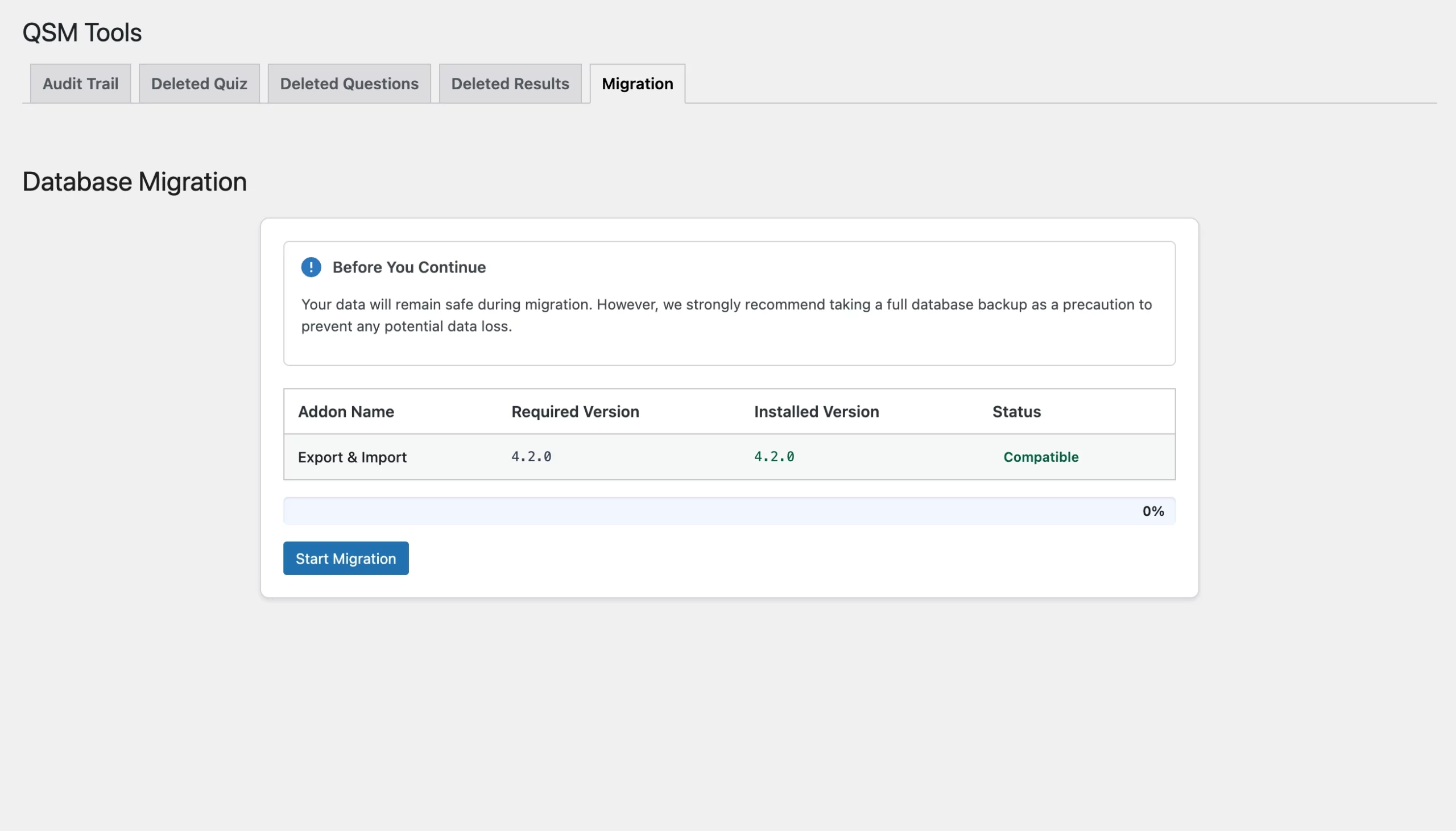
Once you’re in the Migration section, you’ll see a disclaimer – “to take a full database backup before proceeding.”
All the add-ons and themes that were installed in the previous version will be displayed with the required version, installed version, and compatibility status. So you can verify everything is ready for migration. Make sure all add-ons are compatible before continuing.
To begin, click Start Migration.
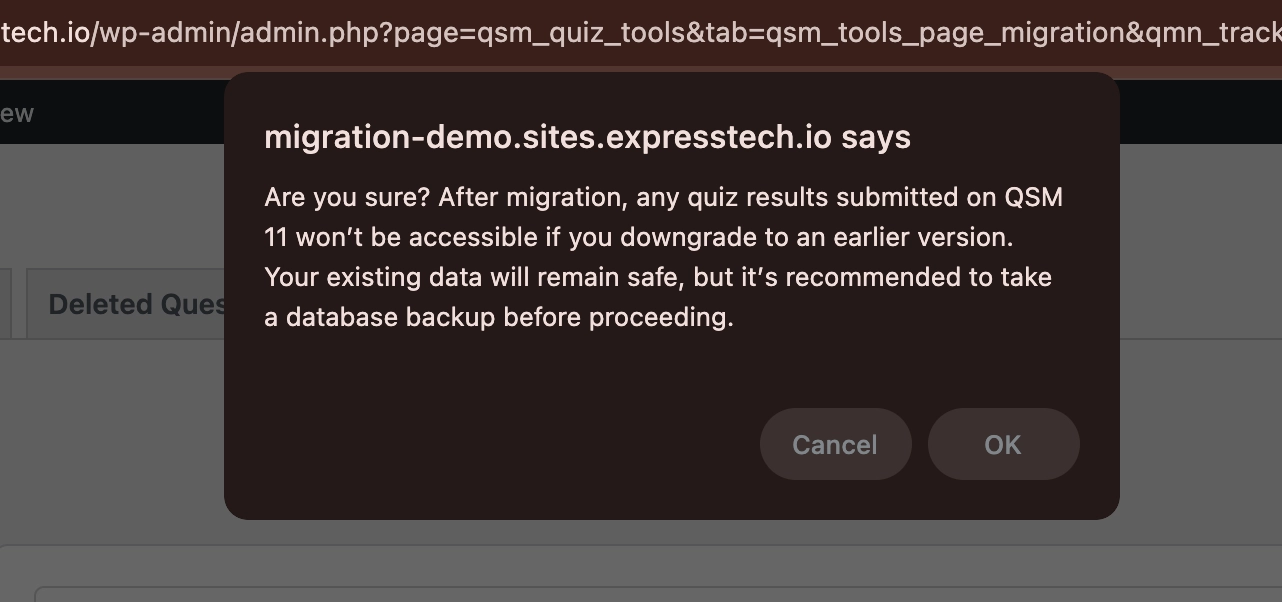
A confirmation dialog will appear asking you to confirm the action.
It will also inform you that your existing data will remain safe during the process and that any new results generated after migration may not be accessible if you downgrade to an earlier version.
Click OK to proceed with the migration.
Once started, a progress bar will display the migration status. The process may take a few seconds to a few minutes, depending on the size of your data
Do not close or refresh the page during this process.
Once the migration process is complete, the progress bar will reach 100%, and a confirmation message will be displayed indicating that the migration has finished successfully.
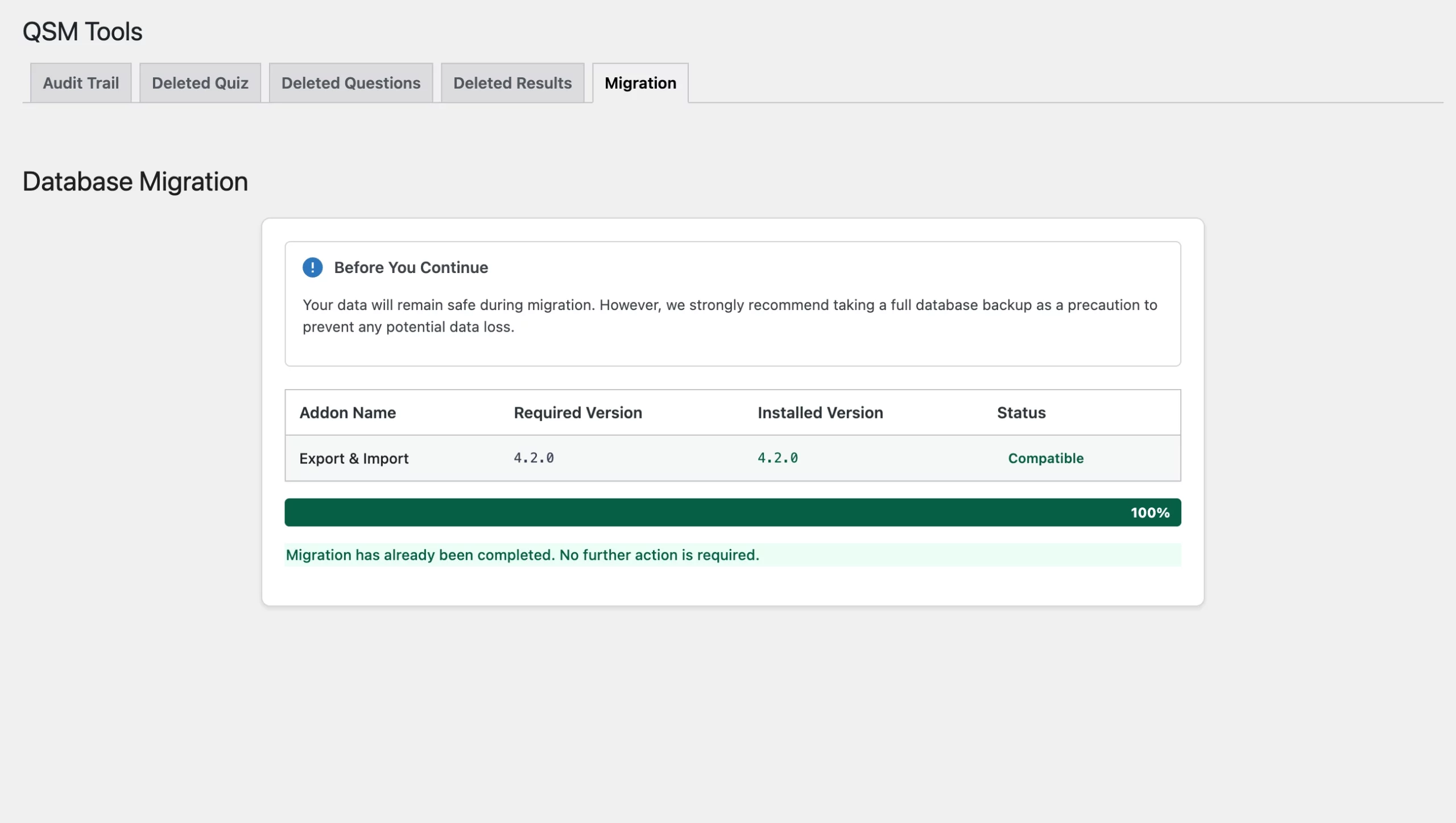
At this point, no further action is required.
Important Points
- This is a one-time process and does not need to be repeated
- Existing quizzes and results remain intact after migration
- It is recommended to take a full database backup before starting
- After updating the plugin to v11.0, if you don’t find the migration popup in the dashboard, you can access it from QSM → Tools → Migration
- As a current user who migrates to QSM 11, you will not see the guided question creation wizard tour, as it is displayed to first-time users. However, you can always access the tour inside the quiz under the Help → Take a Tour on the top right.
 Still stuck? How can we help?