The centralized question bank is a single, dedicated library for all your questions across every quiz you’ve ever built.
In versions before QSM 11, the question bank lived inside each individual quiz, which meant searching through quizzes to find and reuse questions. Now everything lives in one place. Create questions independently, organize them, search and filter, and pull them into any quiz whenever you need them.
This guide shows how the question bank works, how to add questions, and how to import them into any quiz in your account.
Accessing the Question Bank
The Question Bank is a centralized place where you can store, manage, and reuse questions across multiple quizzes.
To access it, go to the QSM menu in your WordPress admin dashboard and click on Question Bank. This will open the question list, where all your saved questions are stored.

By default, questions added here in the Question Bank are not tied to any specific quiz. This means you can create and organize questions independently and then import them into any quiz whenever needed.
You can add questions to the bank in multiple ways:
- Create them manually
- Upload them in bulk
- Saved questions from existing quizzes
All questions are stored in one place and remain available until you choose to edit or delete them.

How to Add Questions to the Question Bank
There are two ways to add questions to your question bank: adding individual questions manually or bulk upload
Adding a Single Question
To add one question manually, click the Add Single Question button at the top of the page in the question bank. This opens the question editor, which is the same editor used when adding questions in QSM.

The left side of the editor covers the question content:
- Question text: Type your question in the main text field at the top. You can also click Edit description to add supporting context below the question.
- Answers: Then, add answers along with the correct answers & points.
- Answer Limit, Grading Mode, Add Poll Type, Correct Answer Info, Comment Box, and Hint are available as collapsible sections below. Expand only the ones relevant to your question.
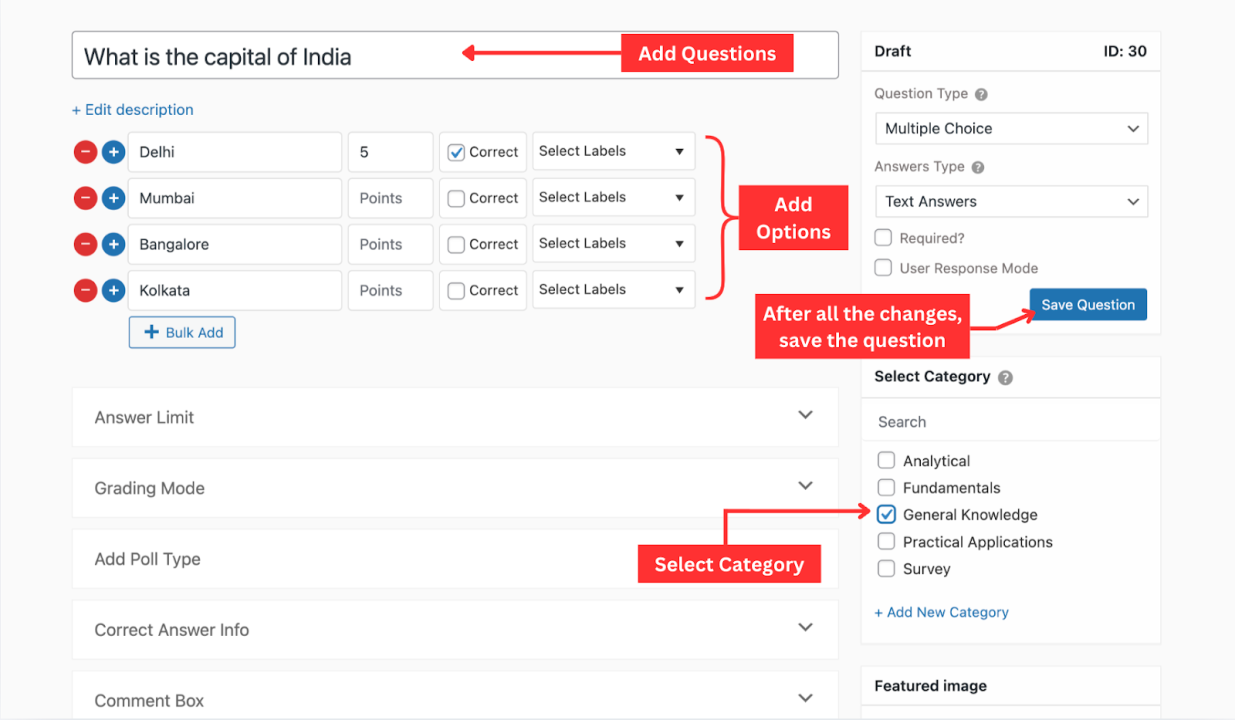
The right panel handles question settings:
- Question Type: Defaults to Multiple Choice. Choose the type to match your question format.
- Answer Type: Set to Text Answers by default.
- Required: Select this option if the question is required to be answered before submitting the quiz.
- User Response Mode: Enable this option if the question is collecting open responses without a correct or incorrect answer.
- Select Category: Assign the question to an existing category or create a new one using Add New Category. This field is optional. If you leave it unselected, QSM assigns the question to Uncategorized automatically.
Once you are done, click Save Question; it will be saved as a draft and not published.
The question appears immediately in your Question Bank list, unattached to any quiz, and ready to import whenever you need it.
Bulk Uploading via CSV
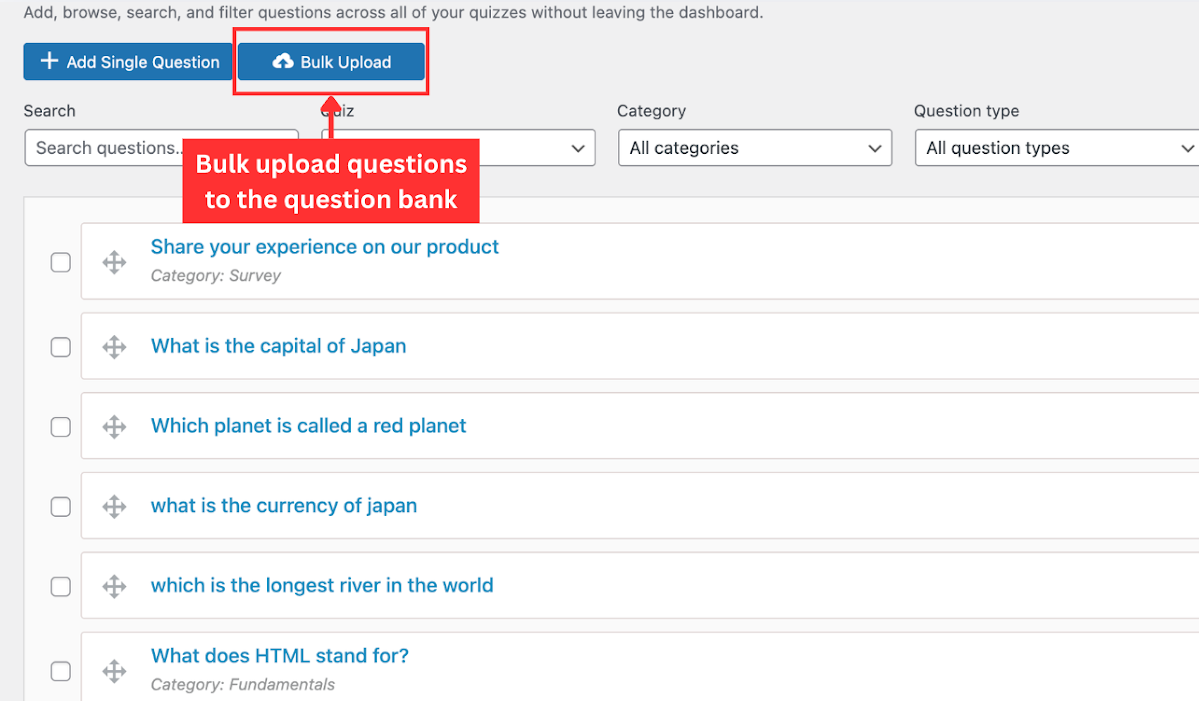
If you have a large set of questions to add, bulk upload is the faster route. Click Add Bulk Questions at the top of the Question Bank page.
QSM accepts only CSV formats, and the file must follow QSM’s predefined column structure.
The upload screen tells you exactly what it needs: a CSV file that matches the question bank schema, where each question row is followed by its answer rows.
If you are not sure about the format, click Download sample CSV at the top right of the modal to get a reference file before you build your own.
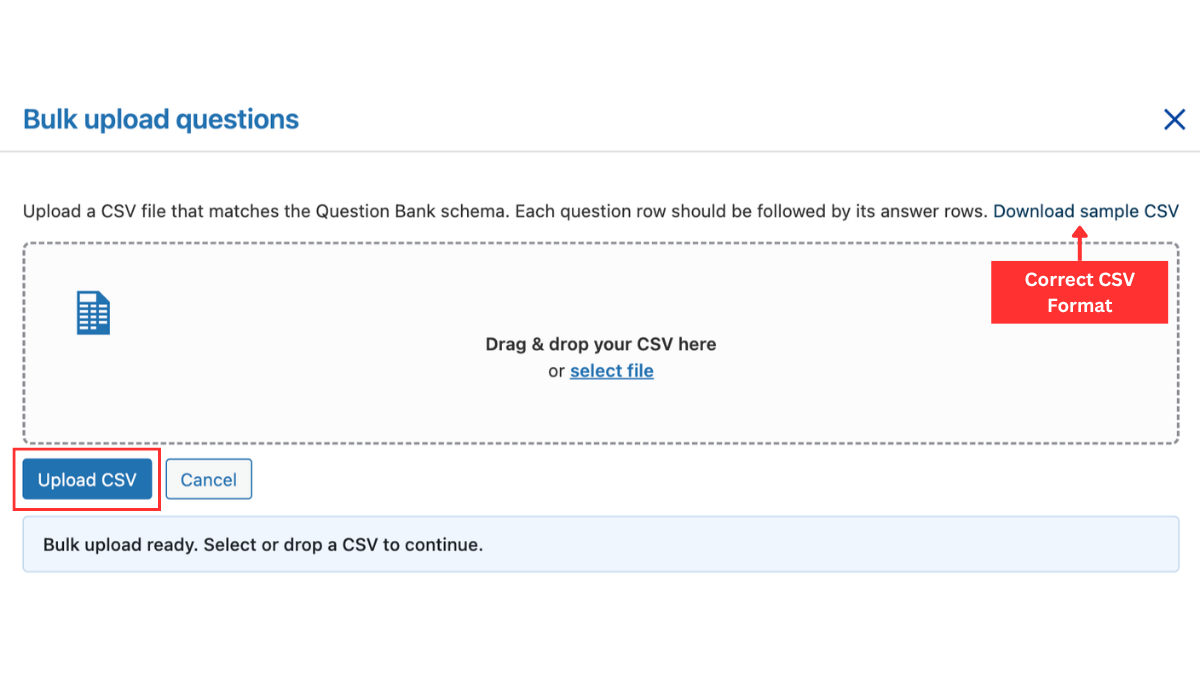
To upload, either drag and drop your CSV into the upload area or click “Select file” to browse from your device.
Once your file is in place, click “Upload CSV” to proceed.
Before any questions are imported, QSM validates the file. If the CSV contains errors, the import fails, and no data is added. This prevents incomplete or corrupt questions from entering your library.
Once the upload is complete, all valid questions appear in the Question Bank list, unattached to any quiz, and immediately available for use.
Viewing and Managing Your Question Bank
The default Question Bank view shows every question you own, regardless of how it was created.
Questions from quizzes, single additions, and bulk uploads all appear in the same list. Each question displays its text, category, question type, and source.
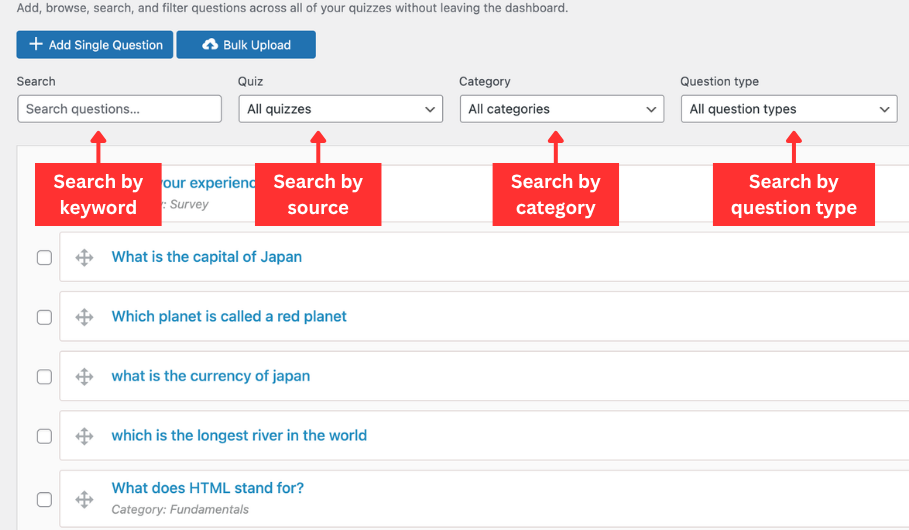
Search by Keyword
Use the search bar to find questions based on any word or phrase in the question text. This is useful when your library grows large enough that scrolling through the list becomes inefficient.
Filter by Category, Question Type, and Source
Three filter options let you narrow down the list:
- Category: Filter by any assigned category, including Uncategorized
- Question type: Narrow by format, such as multiple choice or true/false
- Quiz: Filter by the quiz or form name under which the question was created or added.
You can combine filters to identify a specific subset of questions quickly.
Quick Actions: Edit, Duplicate, Delete
Each question in the list has quick-action options. You can edit a question directly from the list, which opens the same question editor used during creation.
Changes made here apply to future usage only. Past quiz attempts that included that question remain unaffected, so editing a question does not alter any existing response data.

Duplicate—lets you create a copy of a question, which is useful when you want a variation of an existing question without modifying the original. Deleting removes the question from the bank permanently.
How to Import Questions into a Quiz from the Question Bank
The import step is where the question bank connects directly to your quiz workflow. When you are inside any quiz in QSM, click the Import button on the quiz editor page.
This opens the question bank pop-up, which displays all added questions in your library.
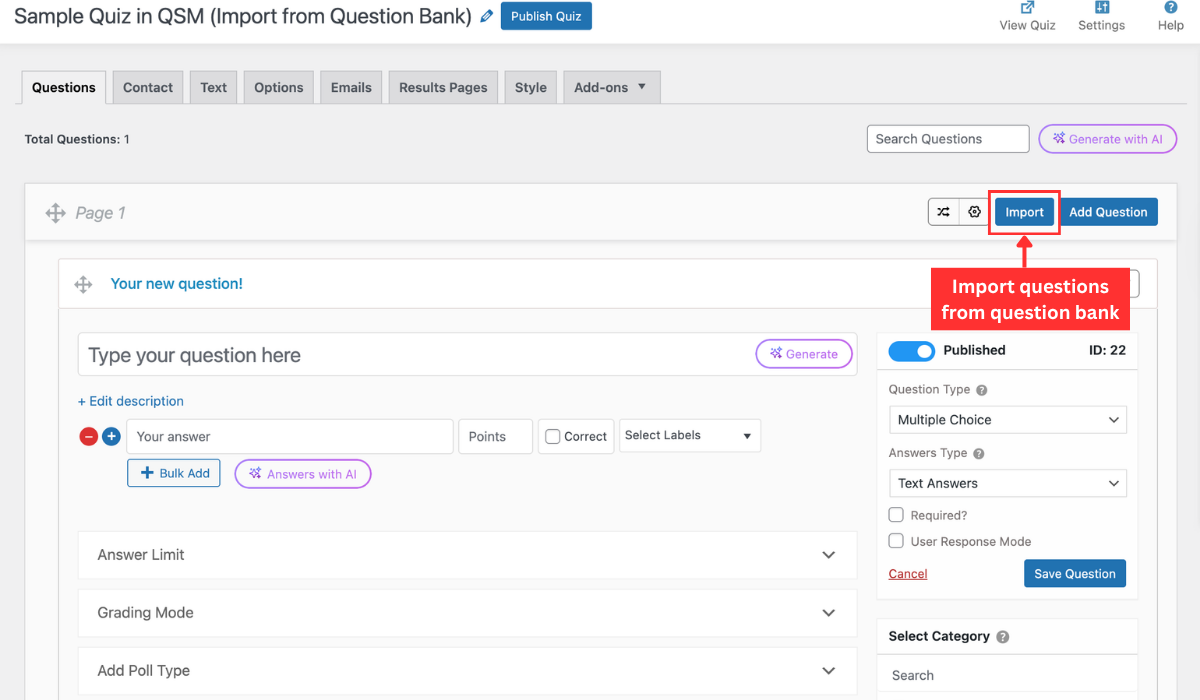
Select the questions you want, and they are added to the quiz immediately. The originals remain in the question bank unchanged.
You can import the same question into multiple quizzes, and each import is independent. Editing a question in one quiz doesn’t change the version in another, and the original in the bank stays the same.
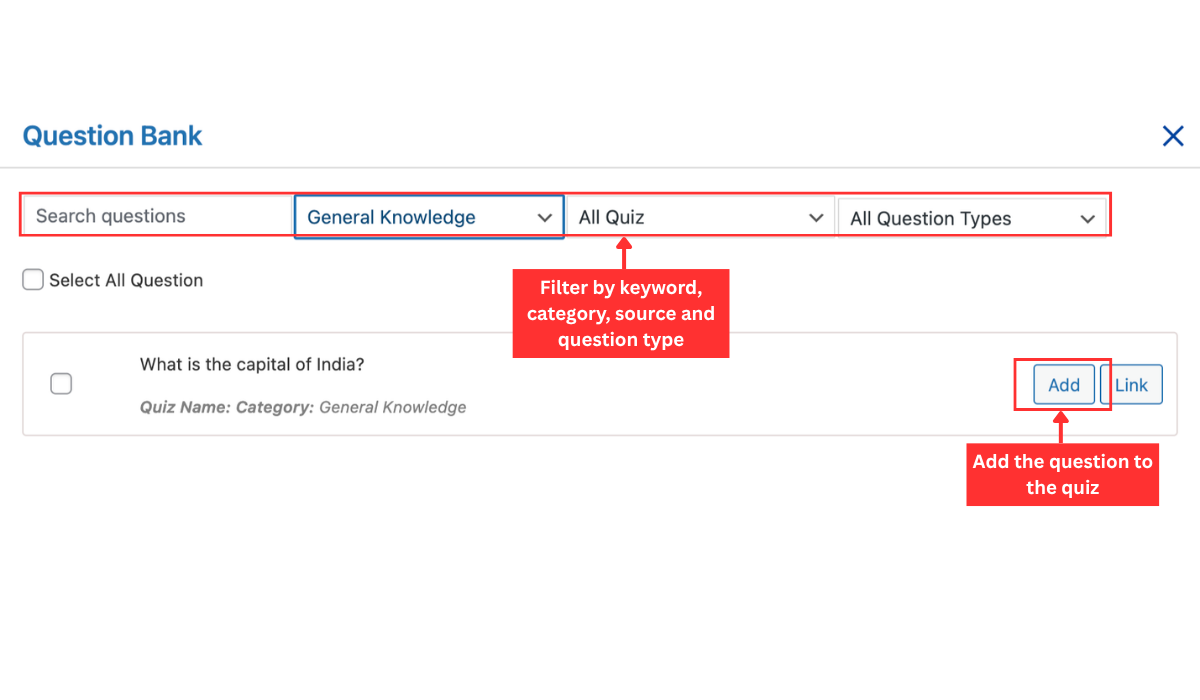
This pop-up uses the same filters available in the main Question Bank view, so you can search by keyword or filter by category and type to find what you need without scrolling through the full list.
 Still stuck? How can we help?