Creating a trivia quiz in WordPress is one of the simplest ways to get people to stay longer on your website and actually interact with your content. Instead of just reading and leaving, visitors get involved. They click, think, answer, and wait for results. That small shift makes a big difference.
The good part is that you don’t need coding skills or technical knowledge to build one. With Quiz and Survey Master plugin, you can set up a trivia quiz in WordPress in less time than it takes to write a blog post. From viral quizzes to trivia quizzes to consumer feedback surveys to employee surveys, there something for everyone. This plugin is the ideal marketing tool for your website.
In this guide, we’ll take you through clear steps that show you how to build a working trivia quiz in WordPress, customize it, and use it in a way that benefits both you and your audience.
Table of Contents
What is a Trivia Quiz in WordPress?
A trivia quiz is a short question-and-answer activity based on facts, general knowledge, or a specific topic. Each question usually has multiple choices, and users select what they think is the correct answer. At the end, they receive a score or result based on their responses, which helps you generate more user engagement.
In the context of a trivia quiz in WordPress, these quizzes are often used as quick, interactive content that fits easily into a page or post without feeling heavy or time-consuming.
Where trivia quizzes are commonly used
- Educational websites and classrooms
- Blogs and content platforms
- Brand and marketing pages
- Community or internal team sites
Why Play a Trivia Quiz?
People enjoy trivia quizzes because they are simple, quick, and mentally engaging without pressure. Here’s why they work so well:
- Enhance Our Understanding- Users pick up new facts while answering questions.
- Intelligence in Motion- The brain stays active through recall and quick thinking.
- Cortisol Levels Are Reduced- Light quizzes can help lower stress when there’s no high stake.
- Cross-Training for the Brain- Memory, focus, and attention work together during play.
- Emotions and Happiness- Curiosity and small wins create a positive experience.
How to create a Trivia Quiz in WordPress?
Before getting into the steps, you’ll need a quiz plugin. To build a trivia quiz in WordPress, install and activate Quiz and Survey Master (QSM) from the WordPress plugin directory. Once it’s active, you can create, edit, and publish quizzes without any coding. For setup help, you can refer to QSM’s installation documentation.
Now, let’s get into the actual process.
Step 1: Add Trivia Questions and Answer Options
After creating a new quiz in QSM, the first real task is adding questions. This is the core of your trivia quiz in WordPress, so keep questions: short and clear, focused on facts and easy to understand at a glance.
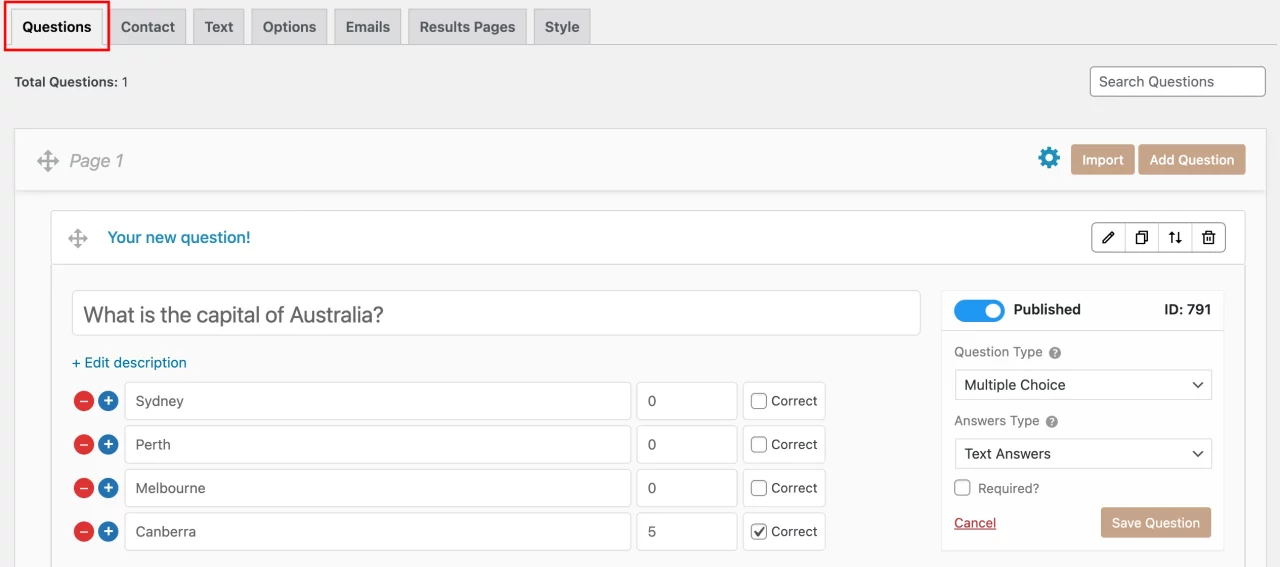
Use question types like multiple choice or true/false. Make sure each question has one clearly correct answer. Avoid long sentences or tricky wording. Trivia works best when users don’t feel confused about what’s being asked.
Step 2: Create Contact Form
In QSM, the contact form is set up from the Contact tab inside your quiz editor. This is where you decide how and when the form appears as part of your trivia quiz in WordPress.
You can choose whether the contact form shows before the quiz begins or after the quiz ends. Showing it after the quiz usually works better for trivia, because users first focus on answering questions and then share details to see or receive results.
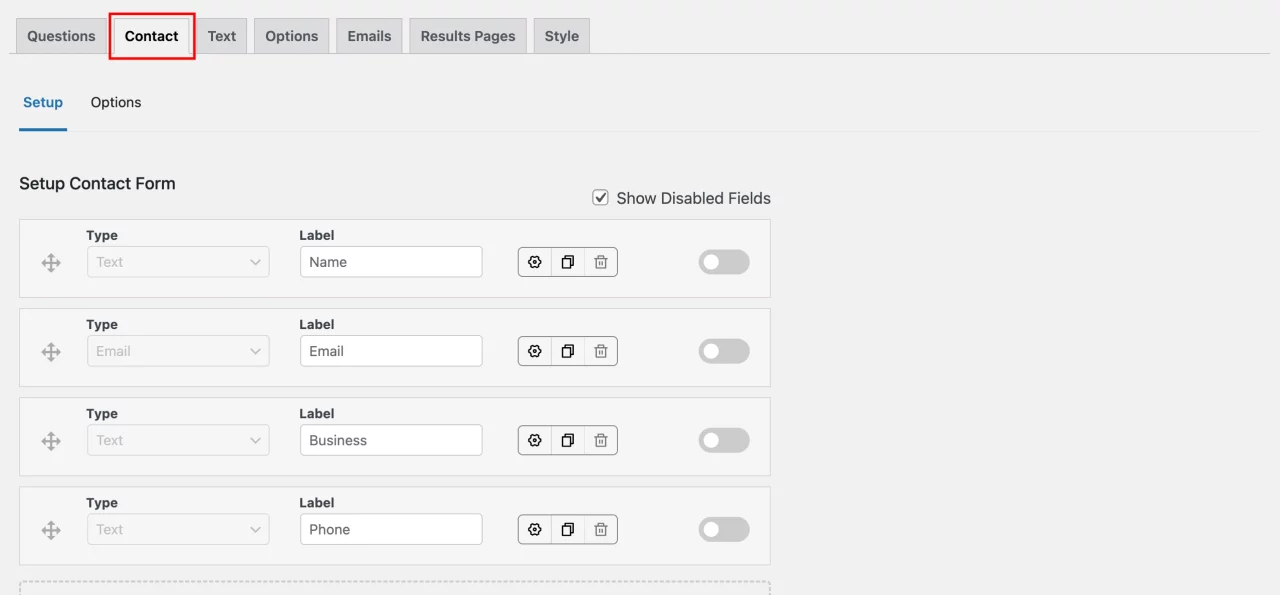
There are a few important options you can control from the same section. You can hide the contact form for logged-in users so returning users don’t see it again. You can allow logged-in users to edit their contact details if needed. If you don’t want browsers to auto-fill fields, you can disable auto fill for contact inputs.
You also have control over flow and data quality. You can disable the first page of the quiz so users move straight into questions. Server-side validation can be enabled to make sure emails and inputs are correctly filled before submission. All of this happens inside the contact form settings, without breaking the quiz experience.
Step 3: Add Custom Texts
Once your questions and contact form are in place, the next step is adding custom texts. These texts appear at different points in your trivia quiz in WordPress and help users move through the quiz without confusion.
From the Text tab, you can start with the Text Before Quiz. This appears right before the first question loads and works best when it sets clear expectations. A simple line such as, “Answer the questions below and see how well you know this topic. Your score will be shown at the end,” prepares users for what’s coming.
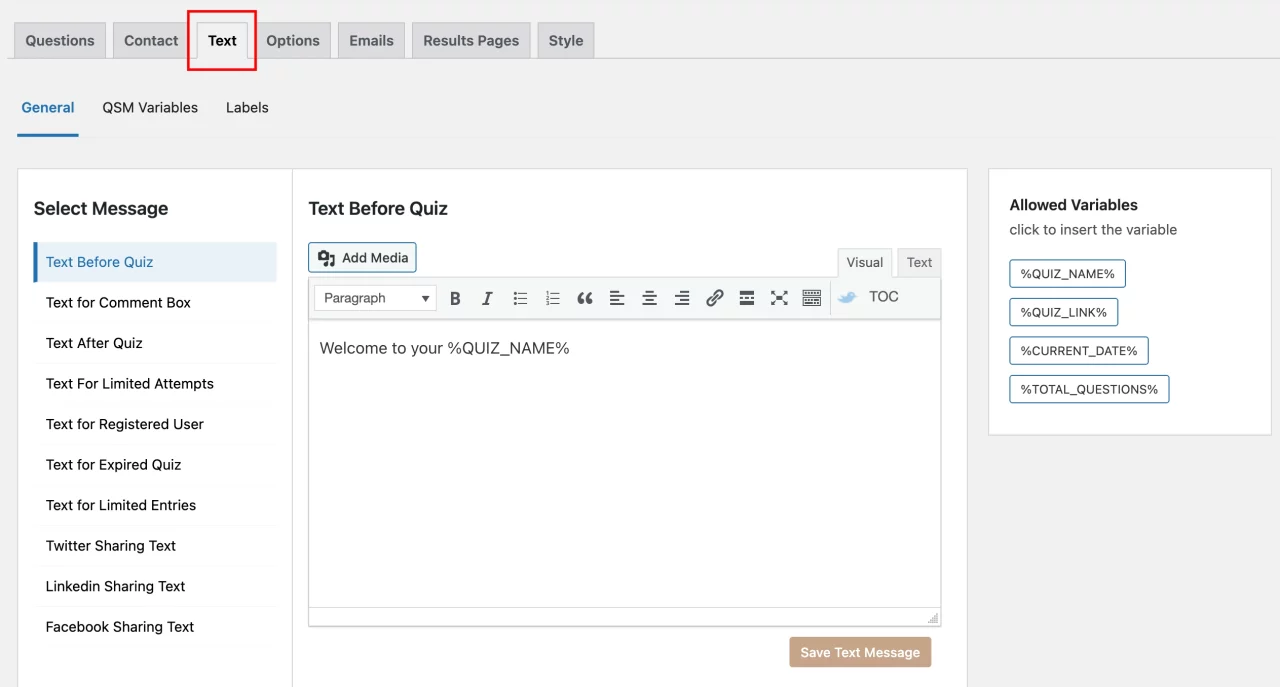
After the quiz is submitted, the Text After Quiz appears above the results. This is useful for confirming that the quiz has ended and guiding users toward their score. A message like, “Thanks for taking the quiz. Your score and answers are shown below,” keeps the transition smooth.
If you limit how many times a quiz can be taken, the Text for Limited Attempts becomes important. Instead of users feeling blocked without context, a clear message such as, “You’ve reached the maximum number of attempts for this quiz,” explains the restriction in a straightforward way.
These texts can also be enhanced using built-in variables, allowing the quiz to show relevant details dynamically without extra setup. Keeping these messages short and clear ensures your trivia quiz in WordPress stays easy to follow from start to finish.
Step 4: Customize Settings
After adding questions, contact form, and custom texts, the next step is adjusting the quiz settings. This controls how your trivia quiz in WordPress behaves once users start answering.
From the settings panel, you can decide whether questions or answer options appear in a fixed order or get shuffled for each attempt. Shuffling works well for trivia quizzes, especially when you expect repeat plays. You can also control how many times a user is allowed to take the quiz and whether results appear immediately after submission or only after certain conditions are met.
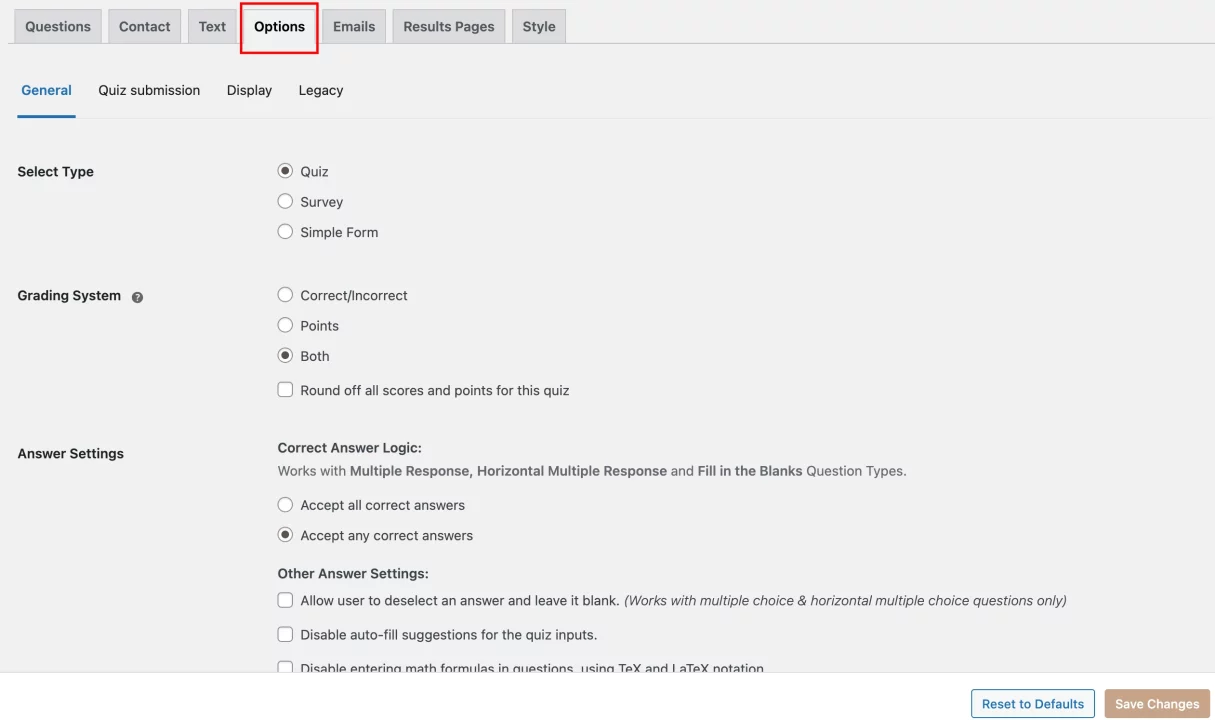
Another important part of this step is deciding how transparent the quiz should be. You can choose to show correct answers, hide them, or display short explanations. For trivia quizzes, showing results clearly usually keeps users engaged and curious to try again.
The goal here is to keep the quiz flexible, easy to complete, and free from friction.
Step 5: Create Personalized Emails and Results Page
Once the quiz logic is set, the next step is defining what happens after a user completes your trivia quiz in WordPress. This is handled from the email and results configuration area.
Emails in QSM work on a simple condition-based flow. You first define when an email should be sent. For example, you can choose to send an email when a user completes the quiz or when a certain score condition is met. These conditions help you control exactly who receives what message, without manual sorting.
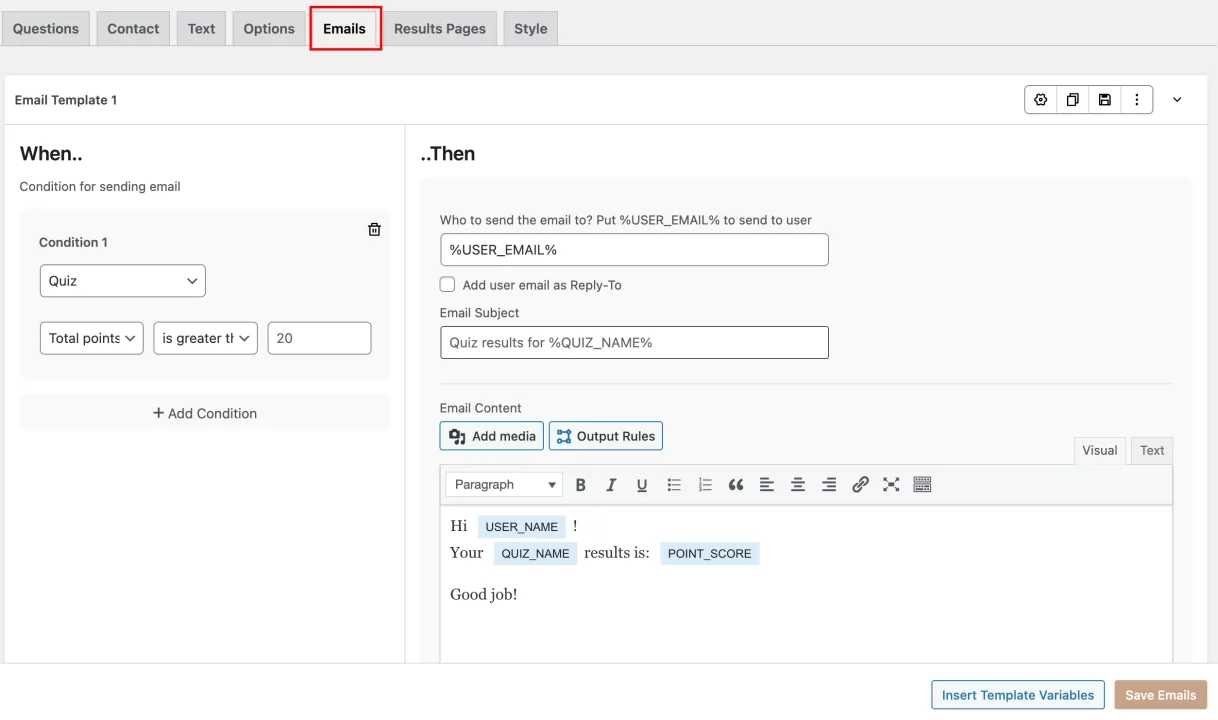
After setting the condition, you decide who the email goes to. If you want the email to be sent to the quiz participant, you simply use the variable %USER_EMAIL%. This pulls the email entered in the contact form and sends the result directly to the user. You can also add the same email as the reply-to address, so responses come back to the participant if needed.
The email subject can be customized using variables as well. A common format is “Quiz results for %QUIZ_NAME%” which automatically updates based on the quiz title.
In the email content, you can include score details, short result messages, or next steps. Since the email is triggered automatically after submission, it feels like a natural extension of the quiz rather than a separate action.
The results page follows a similar logic. Based on the user’s score, the system displays the appropriate result message directly on the screen.
This ensures users immediately see their outcome, while the email acts as a follow-up they can revisit later. Together, the results page and email setup complete the loop of your trivia quiz in WordPress, moving users smoothly from completion to feedback without extra steps.
Step 6(Optional): Use Addon’s
Once your basic trivia quiz in WordPress is ready, add-ons help you extend its functionality without changing the quiz flow. These are useful when you want better engagement, faster setup, or smoother follow-ups.
- AI Integration– Helps you generate trivia questions directly inside the quiz builder. This is useful if you create quizzes frequently or need multiple question sets on similar topics.
- Advanced Question Types– Allows you to add image-based or matching questions instead of only text options. This makes a trivia quiz more interactive while keeping it simple for users.
- MailerLite / ActiveCampaign Integration– Automatically sends quiz participants to your email lists. This works well if you plan to share more trivia quizzes, newsletters, or related content later.
- Landing Page Add-on– Lets you place the trivia quiz on a clean, distraction-free page. This is helpful when sharing quiz links externally or running a focused campaign.
- Advanced Leaderboard– Displays top scores on the results page, encouraging users to retake the quiz and improve their ranking. This increases repeat participation.
- Ultimate Add-on– Bundles multiple features together, making it easier to manage and scale your trivia quizzes over time.
These add-ons are optional, but when used well, they make your trivia quiz in WordPress more engaging, efficient, and easier to grow.
Do’s and Don’ts of a Trivia Quiz in WordPress
A well-made trivia quiz in WordPress feels simple to take and clear to understand. These do’s and don’ts help you keep the quiz effective without overthinking the setup.
Do’s
- Keep questions short and focused on one idea at a time. Trivia works best when users can read and answer quickly.
- Use clear answer options. Each question should have one obvious correct answer to avoid confusion.
- Show results in a clean and readable way so users know how they performed.
- Test the quiz before publishing to make sure questions, results, and emails work as expected.
- Allow retries when possible. This encourages users to engage with the quiz more than once.
Don’ts
- Don’t add too many questions. Long quizzes often lead to drop-offs before completion.
- Don’t use tricky or unclear wording that makes users guess what the question means.
- Don’t force users to fill a contact form without explaining the value, such as receiving results.
- Don’t overload the results page with too much text or unrelated visuals.
- Don’t ignore performance data. Reviewing quiz results helps improve future trivia quizzes.
Following these simple guidelines helps your trivia quiz in WordPress stay engaging, easy to complete, and useful for both you and your users.
FAQs
1. How to create a quiz on a WordPress website?
To create a quiz on a WordPress website, you need to install a quiz plugin like Quiz and Survey Master. After activation, you can create a new quiz, add questions, adjust settings, and publish it using a shortcode or block. The entire process happens inside the WordPress dashboard.
2. Can I embed quizzes on my website?
Yes, quizzes can be embedded easily. Once your quiz is created, you can place it on any page or post using the provided shortcode or WordPress block. This allows the quiz to appear exactly where you want it on your website.
3. Can I create trivia quizzes without coding?
Yes, you can create a trivia quiz in WordPress without any coding. Quiz plugins provide a visual interface where you add questions, answers, and settings using simple options and tabs. No technical background is required.
4. How to create trivia questions?
Trivia questions should be short, fact-based, and easy to understand. Focus on one idea per question, provide clear answer choices, and avoid confusing wording. Good trivia questions are simple to read and quick to answer.
Putting Your Trivia Quiz to Use
Creating a trivia quiz in WordPress does not need to feel complex or time-consuming. Once the structure is in place, the entire process becomes straightforward. You add questions, decide how users move through the quiz, control when results appear, and choose whether to send follow-up emails. Each step connects naturally to the next without adding extra effort.
What truly makes a trivia quiz effective is clarity. Clear questions help users respond with confidence. Clear answer options reduce confusion. Clear results make the experience satisfying and complete. When users understand what is expected and what they will see at the end, they are far more likely to finish the quiz and return for another attempt.