Have you taken the Euphoria character quiz yet? No? Well, no need to search here or there, let us make a euphoria character quiz using the QSM plugin!
Euphoria has one of those shows where people don’t just watch it. They see themselves in the characters. That’s exactly why “Which Euphoria character are you?” quizzes get clicked, finished, and shared so often. Fans are not looking for random trivia. They want answers that feel personal.
A well-made Euphoria character quiz taps into emotions, choices, and behavior. It asks simple questions, but the results feel accurate. That’s what keeps users hooked till the end and makes them share their results on social media.
In this guide, you’ll learn how to create a Euphoria character quiz using the QSM plugin on WordPress. We’ll walk through character selection, question planning, result setup, and quiz customization without making it complicated.
👀 You can take our demo Euphoria quiz ⬇
Table of Contents
Why Euphoria Character Quizzes Work So Well
Euphoria character quizzes work because they are driven by emotion, not memory. People are not trying to prove how well they know the show. They want to see which character matches their mindset, choices, and reactions. This makes the quiz feel personal and keeps users engaged till the end.
Another reason these quizzes perform well is their share value. When the result feels accurate, users are more likely to post it on social media. That sharing brings new users back to the quiz and helps it spread without extra promotion.
Euphoria Characters You Can Include in Your Quiz
- Jules: Curious and expressive, Jules aligns with questions about freedom, identity, and emotional openness.
- Rue Bennett: Emotional and impulsive, Rue represents inner conflict and vulnerability. Her traits work well for questions around coping, honesty, and emotional control.
- Nate Jacobs: Dominant and reactive, Nate fits questions about control, anger, and how someone handles power and pressure.
- Maddy Perez: Confident and outspoken, Maddy suits questions focused on self-image, bold choices, and social presence.
- Cassie Howard: Sensitive and approval-seeking, Cassie works well for questions around relationships, validation, and emotional dependency.
- Kat Hernandez: Defined by growth and confidence shifts, Kat fits questions about self-worth, identity, and personal change.
How to Create an Euphoria Character Quiz?
To create a euphoria character quiz, you are required to install the QSM Plugin. Not sure which tool fits? You can first compare the top WordPress quiz plugins to see how QSM handles personality-style results. But before creating a quiz, you must take note of what questions you be adding to the quiz.
Step 1: Add Questions and Answer Options
This is where your quiz actually takes shape. Since this is a character quiz, you are not testing right or wrong answers. You are mapping personality traits to characters.
In QSM, start by adding questions. This question type works best for character quizzes because users can quickly pick what feels closest to them.
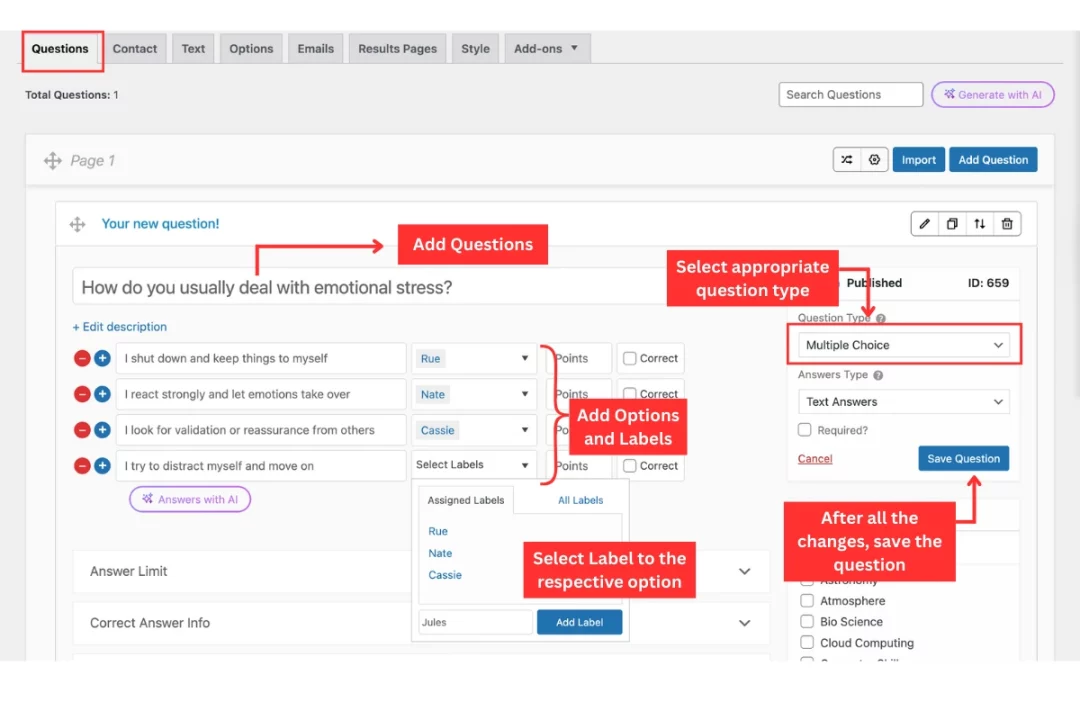
Write questions that reflect choices, emotions, and reactions, not facts. For example, how someone reacts to conflict, weekends, friendships, or attention. Each answer option should subtly match a character trait.
Now comes the important part. Use the Advanced Assessment Addon. Instead of points, you assign labels like Rue, Maddy, Cassie, and so on. For each answer option, assign one or more labels. You can also adjust weight if one answer strongly fits a character. There is no correct answer here. The final result depends on which label appears the most.
Step 2: Create a Contact Form
Once your questions are ready, you can decide if you want to collect user details. In QSM, this is done using the Contact tab.
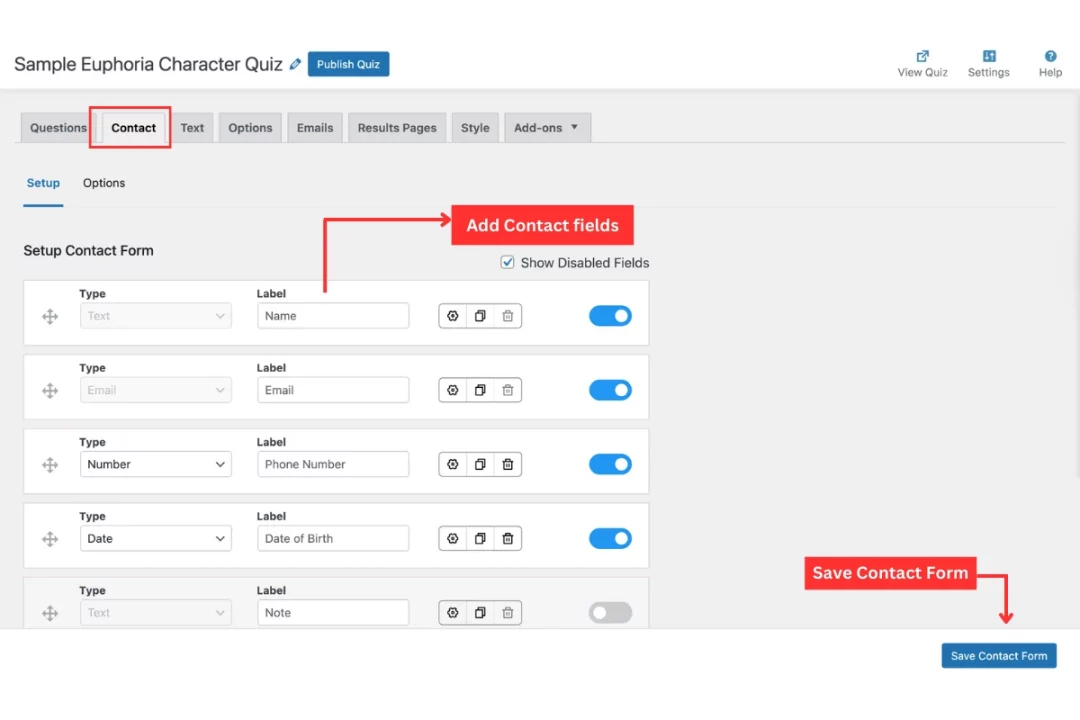
Keep it simple. Ask only what you need, like name or email. You can place the form before results if lead collection matters, or after results if you want better completion rates. For character quizzes, placing it after results usually works better.
You can also customize field labels so they match the tone of the quiz instead of sounding formal.
Step 3: Customize the Quiz
QSM gives you enough control here to shape how users experience the quiz from start to finish.
In the Text tab, you can edit almost every piece of text a user sees. This includes text before the quiz starts, instructions shown during the quiz, placeholder text for comment boxes, and the message shown after submission.
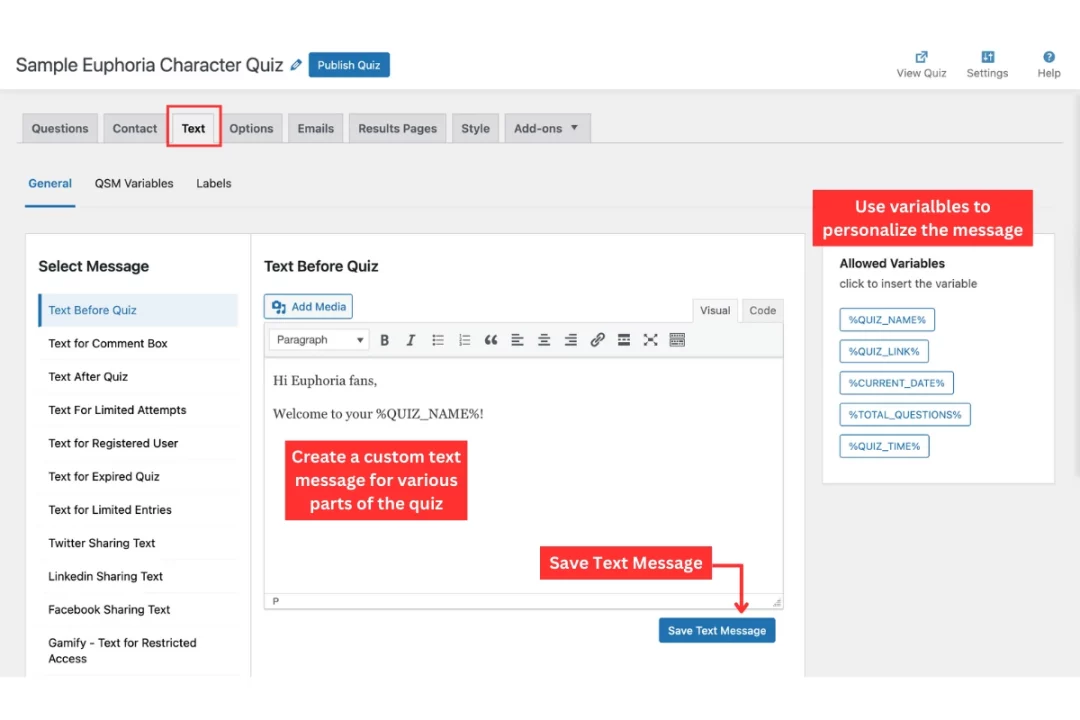
You can also customize button labels so they feel natural, not system-generated. A useful feature here is the allowed template variables. These let you personalize messages by inserting things like the user’s name or score into the text, which makes the quiz feel more personal and less automated.
The Options tab is where behavior and flow are defined. You can choose the grading system that works best for character quizzes, adjust answer settings, and decide whether questions, answers, or pages should be randomized. Randomization helps when you want repeat users to get a slightly different experience each time.
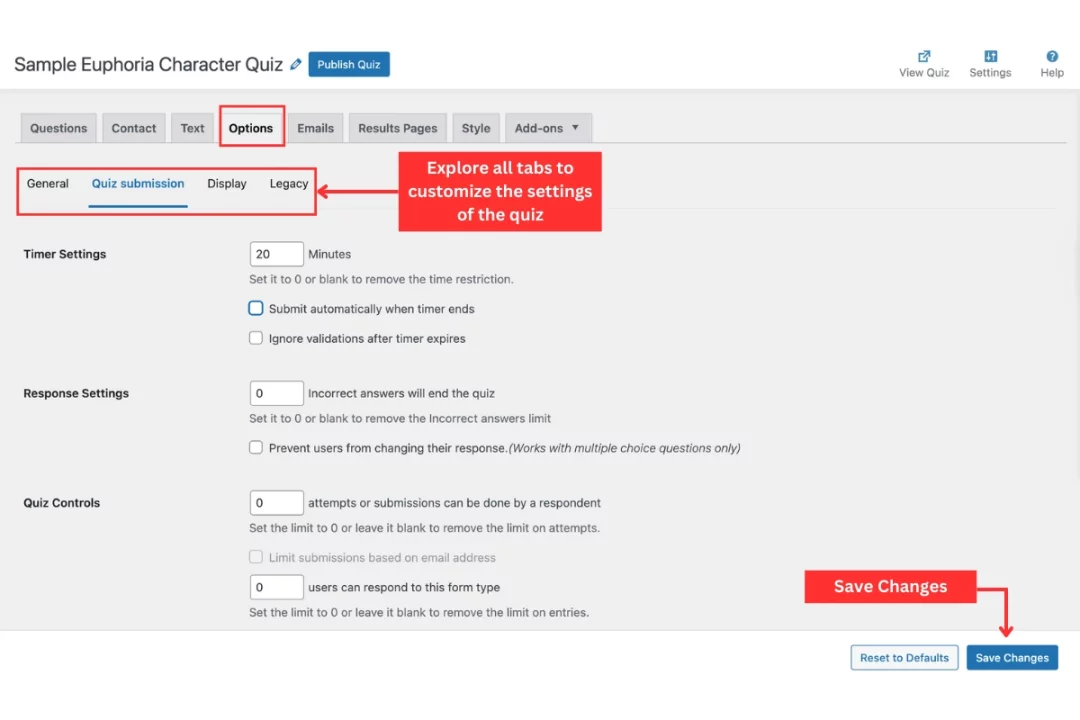
You can also limit the number of questions, control user access using quiz dates, and decide whether the progress bar should reflect total questions or pages. For personality quizzes, showing progress based on pages usually feels smoother.
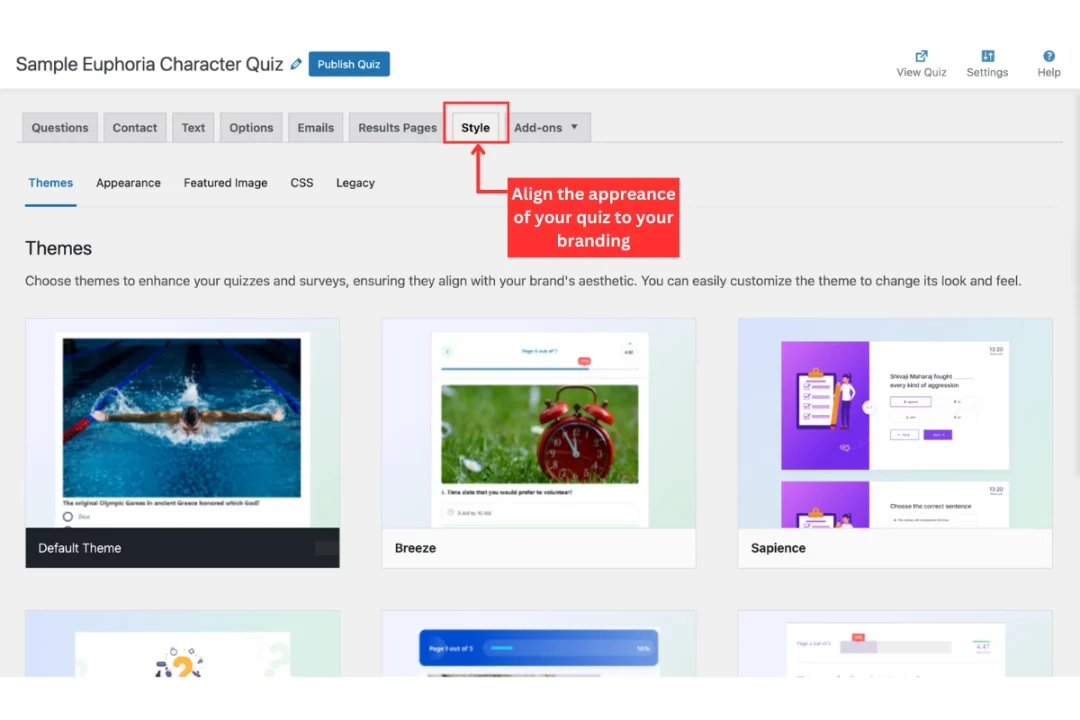
In the Style tab, you can either select from QSM’s ready-made templates or fine-tune the look using custom CSS. For most users, starting with a template and adjusting colors and fonts is enough. The goal here is readability and comfort. If the quiz looks clean and familiar, users are more likely to finish it.
Step 4: Set Up Results Page and Email
In a character quiz, the results page decides whether the quiz feels worth taking or not. In QSM, you can create multiple result pages and control exactly when each one appears using conditional logic.
For an Euphoria character quiz, each result page represents one character. You define conditions such as showing a result page when a specific label has the highest count. For example, if the label assigned to “Maddy” appears the most across the selected answers, the Maddy result page will be shown. This makes the outcome feel accurate rather than random.
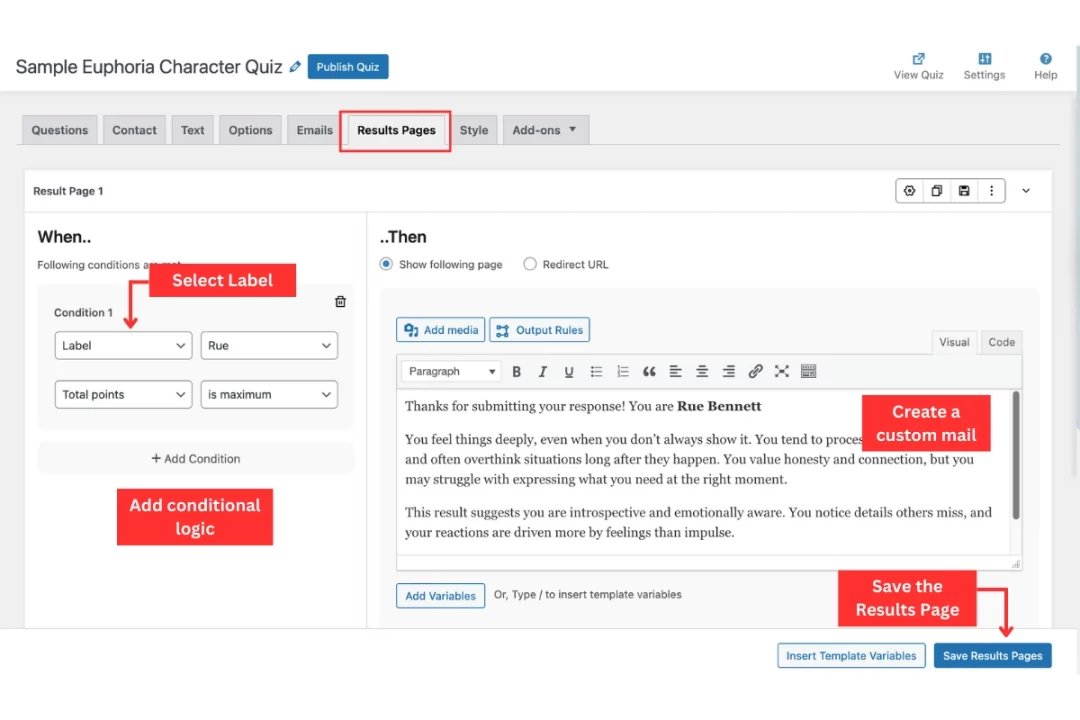
Each result page can be fully customized. You can add the character name, a short description, and a few lines explaining why the user matches that character. This is where you connect the quiz answers back to the user’s personality so the result feels personal and relatable.
The email setup works the same way. You can apply the same conditional logic to emails, so the message sent depends on which character result the user gets. This keeps the experience consistent and avoids sending generic follow-ups.
Step 5: Embed the Quiz
Once your quiz is ready, it needs to show up where users can take it, and QSM gives you several ways to do that without coding. The simplest method for most blogs is the embed shortcode. In the QSM dashboard, click the shortcode icon next to your quiz to copy it, then paste that shortcode directly into the blog post or page where you want the quiz to appear. When the page is published, the quiz will load right inside your content so users can start taking it without leaving the page.
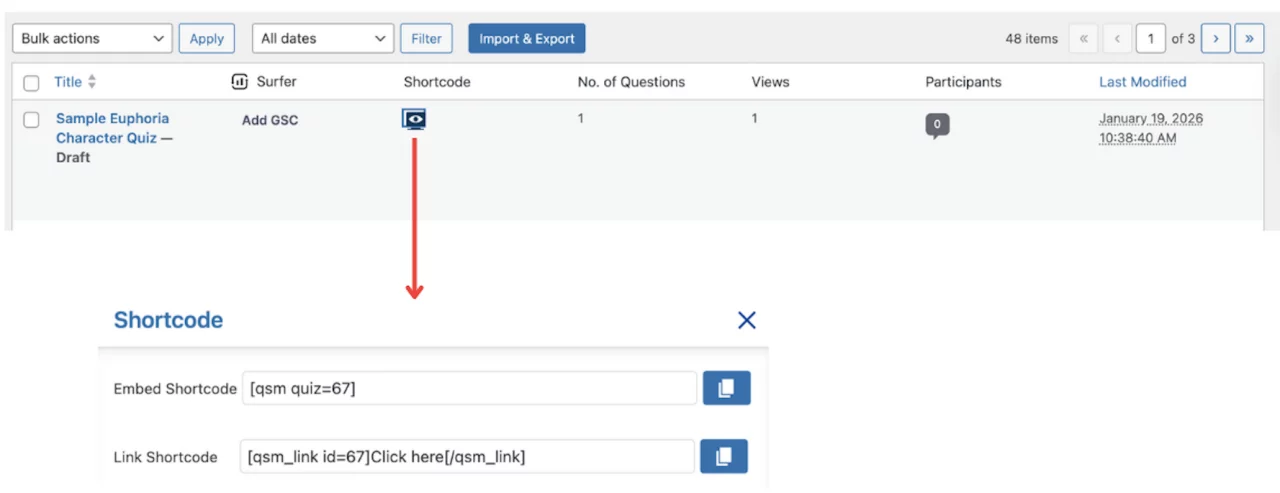
If your theme or layout supports widgets, you can also display the quiz in a sidebar or footer. Simply go to Appearance > Widgets, add a text widget, and paste your quiz shortcode there. This works well if you want the quiz visible across many posts or pages.
Another smooth option is the QSM Gutenberg block. When editing a page or post with the block editor, search for “QSM” and insert the block. Then choose your quiz from the dropdown, no shortcode copying needed.
There are more advanced embed methods too, like creating a popup quiz experience using a QSM popup addon or linking to the quiz from a button or menu item, but most blog use cases are covered with the shortcode, widget, or block options.
Tips to Get More Plays and Shares
Placement on the page
Where you place the quiz matters more than most people think. If users have to scroll too much before seeing it, many will leave without playing. Place the quiz near the top of the page, ideally right after a short intro. If the page is long, you can also add a second embed or a clear jump link that brings users back to the quiz.
Clear call-to-action
Don’t assume users will know what to do. Use direct and simple CTAs like “Take the quiz now” or “Find out which Euphoria character you are.” Place the CTA just before the quiz and again after a short explanation. This removes hesitation and nudges users to start.
Sharing on social media
Character quizzes are made to be shared. Encourage users to post their results by adding a line like “Share your result with friends” on the results page. If possible, include a short, share-friendly description with the result so users don’t have to explain it themselves. The easier sharing feels, the more organic traffic your quiz will get.
FAQs
Who is the most loved character in Euphoria?
There isn’t one single most loved character, but Rue Bennett is often the most emotionally connected character in Euphoria. Many viewers relate to her struggles and honesty. Maddy Perez is also a fan favorite, known for her confidence and strong screen presence.
Which Euphoria character am I most like?
This depends on your personality, emotional reactions, and choices. That’s why character quizzes focus on behavior instead of show facts.
Who is the most popular Euphoria character?
Popularity changes by season, but Rue, Maddy, Cassie, and Jules consistently rank high among fans for different reasons.
How do I create an Euphoria character quiz in WordPress?
You can create an Euphoria character quiz in WordPress by using a quiz plugin like QSM, adding personality-based questions, and mapping answers to characters using labels instead of right or wrong scoring.
Final Notes on Creating an Euphoria Character Quiz
An Euphoria character quiz works only when it is built with clear logic and relatable questions. Focus on mapping emotions and choices to characters instead of overloading the quiz with too many questions. Keep the flow simple, results clear, and outcomes easy to understand.
QSM gives you the flexibility to build this without code. Use multiple-choice questions, labels instead of points, and conditional result pages to keep outcomes accurate. Place the quiz where users can access it quickly and guide them with clear calls to action.
If you follow these steps, you can create a character quiz that gets completed, shared, and revisited, not one that users abandon halfway.
If you liked this article, you might be interested in how to create a Haikyuu character quiz and how to create a personality quiz.
The label-based results in this guide use QSM’s Advanced Assessment addon — see QSM pricing to pick the plan that unlocks it.