The FunnelKit Integration add-on connects Quiz And Survey Master (QSM) to FunnelKit Automations. When someone submits a quiz or survey, QSM can create or update their FunnelKit contact, add tags, put them on a list, fill contact fields with their quiz answers, and start any FunnelKit automation that listens for the Quiz Completed event.
Use it to:
- send a follow-up email sequence to everyone who completes a quiz;
- tag leads by result, for example
passedorhigh-score; - add quiz takers to a newsletter list, with or without an opt-in checkbox;
- store answers, scores and contact details on the FunnelKit contact for segmentation.
Requirements
- Quiz And Survey Master 11.1.1 or newer.
- FunnelKit Automations, free or Pro, installed and active.
- A valid FunnelKit Integration license. The add-on is also included in the Pro Bundle and All Access plans.
If FunnelKit Automations is not active, the FunnelKit tab in the quiz editor shows a notice and nothing is sent.
Installation and license activation
- Download the add-on zip from your QSM account.
- Go to Plugins → Add New → Upload Plugin, upload
qsm-funnelkit-integration.zip, then click Activate. - Go to QSM → Addons → FunnelKit and open the License tab.
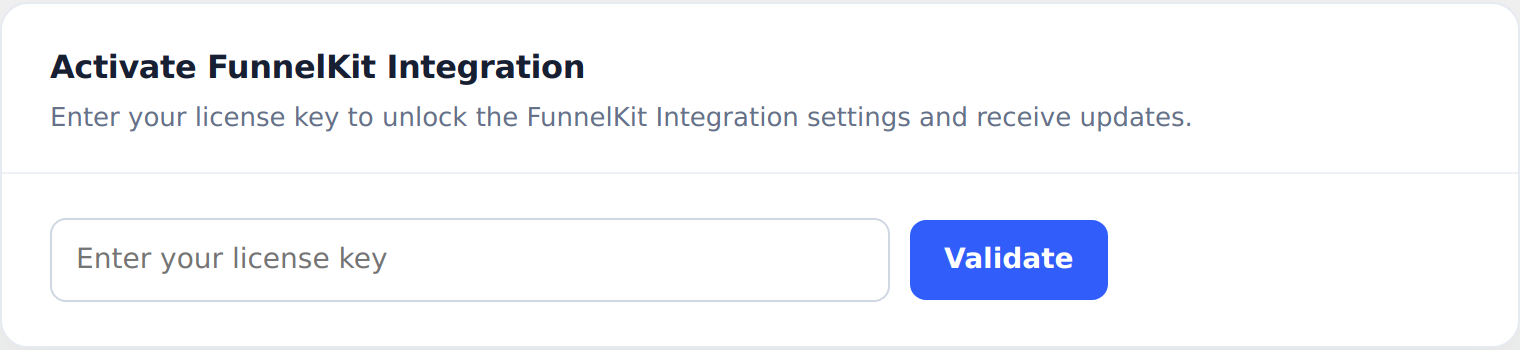
- Paste your license key and click Validate. When it is accepted, the card shows Active and the date your license is valid until.
To switch to a different key later, click Change License on the same screen.
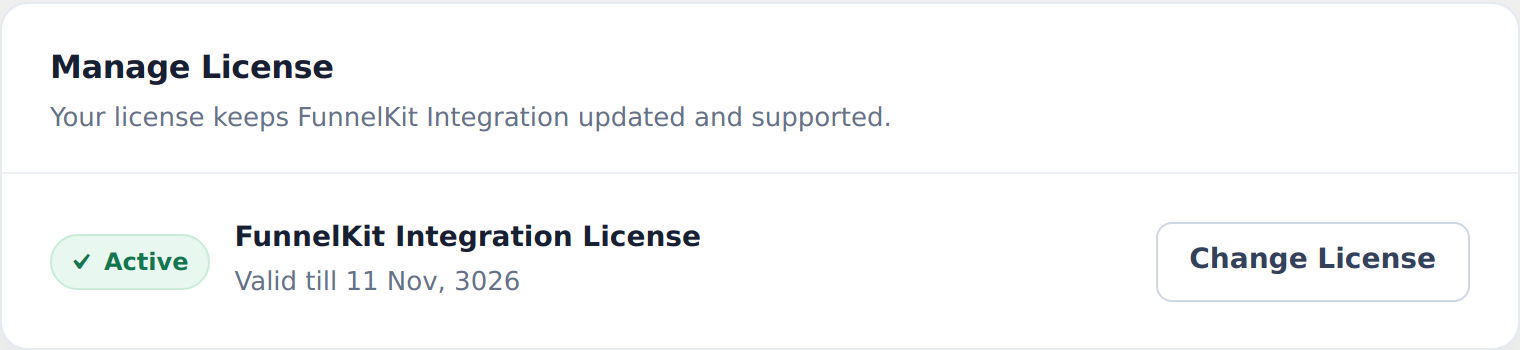
The quiz-level settings stay locked until a valid license is active.
Set up the integration on a quiz
Open the quiz in the QSM editor and click the FunnelKit tab. Every quiz has its own settings, so you can connect some quizzes and leave others off.
1. Enable the integration
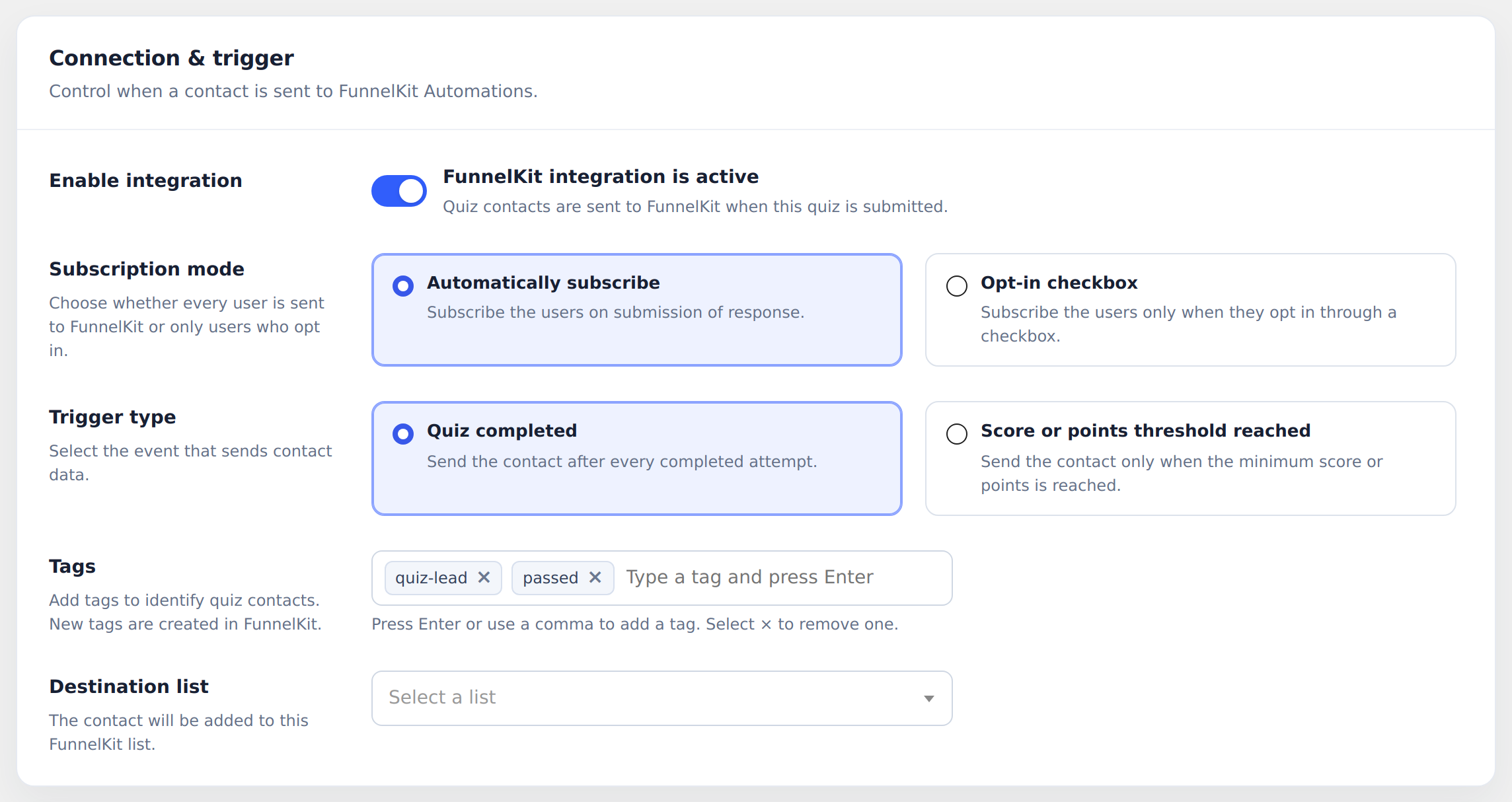
Turn on Enable integration. While it is off, no quiz contacts are sent to FunnelKit and the other settings are greyed out.
2. Choose the subscription mode
- Automatically subscribe sends every quiz taker to FunnelKit when they submit.
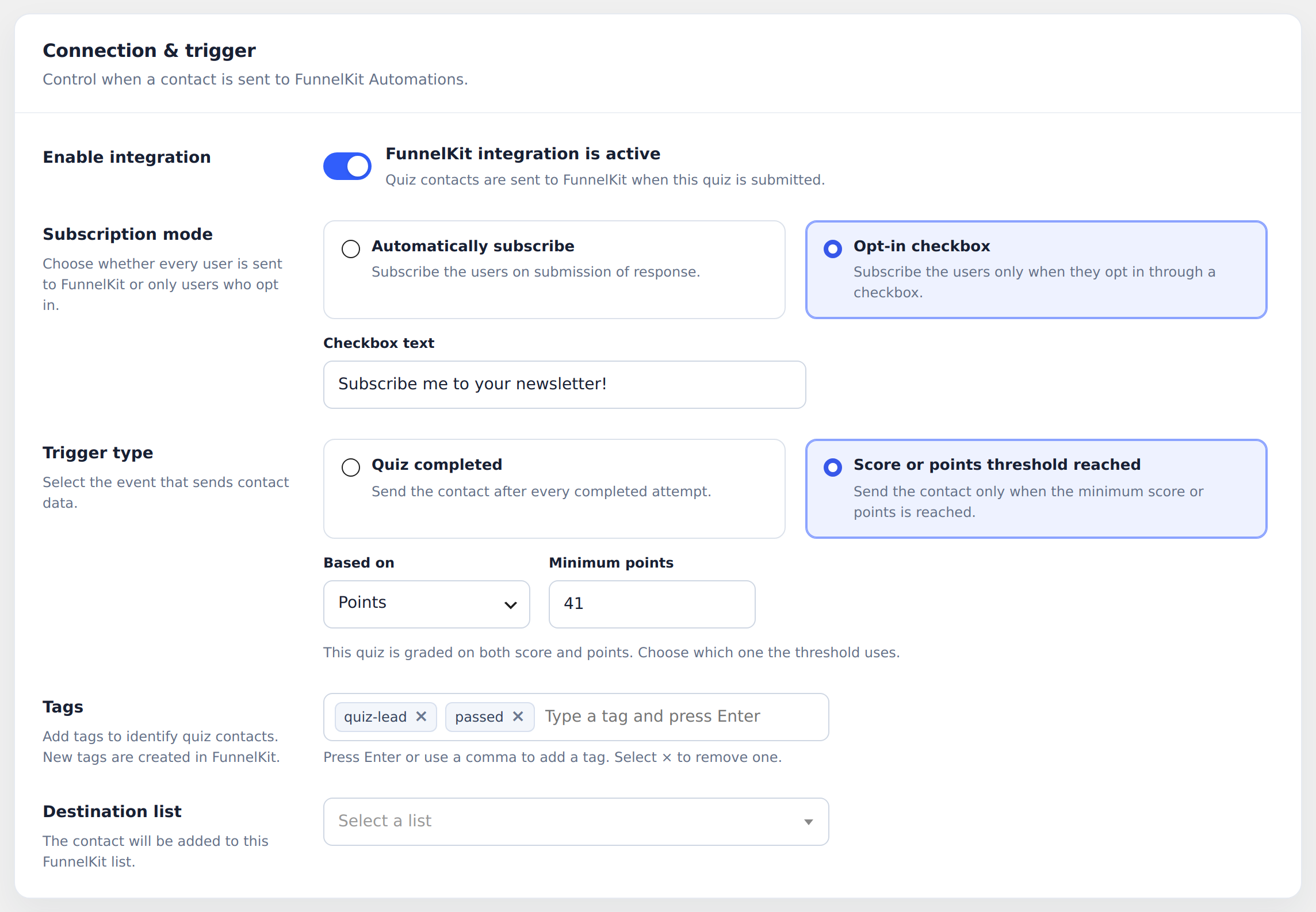
- Opt-in checkbox adds a checkbox to the quiz, and only people who tick it are sent. You can change the checkbox text. The default is “Subscribe me to your newsletter!”.
3. Choose the trigger
- Quiz completed sends the contact after every completed attempt.
- Score or points threshold reached sends the contact only when the result reaches a minimum. The threshold follows the quiz’s grading system:
- Correct/Incorrect quizzes compare against the score (%).
- Points quizzes compare against the total points.
- Quizzes graded on both let you choose Score (%) or Points in Based on.
4. Add tags (optional)
Type a tag and press Enter, or type a comma, to add it. Select × to remove one. Tags that don’t exist yet are created in FunnelKit automatically.
5. Choose a destination list (optional)
Select the FunnelKit list the contact should join. If the dropdown is empty, create a list first in FunnelKit Automations → Contacts → Lists.
6. Map quiz data to contact fields (optional)
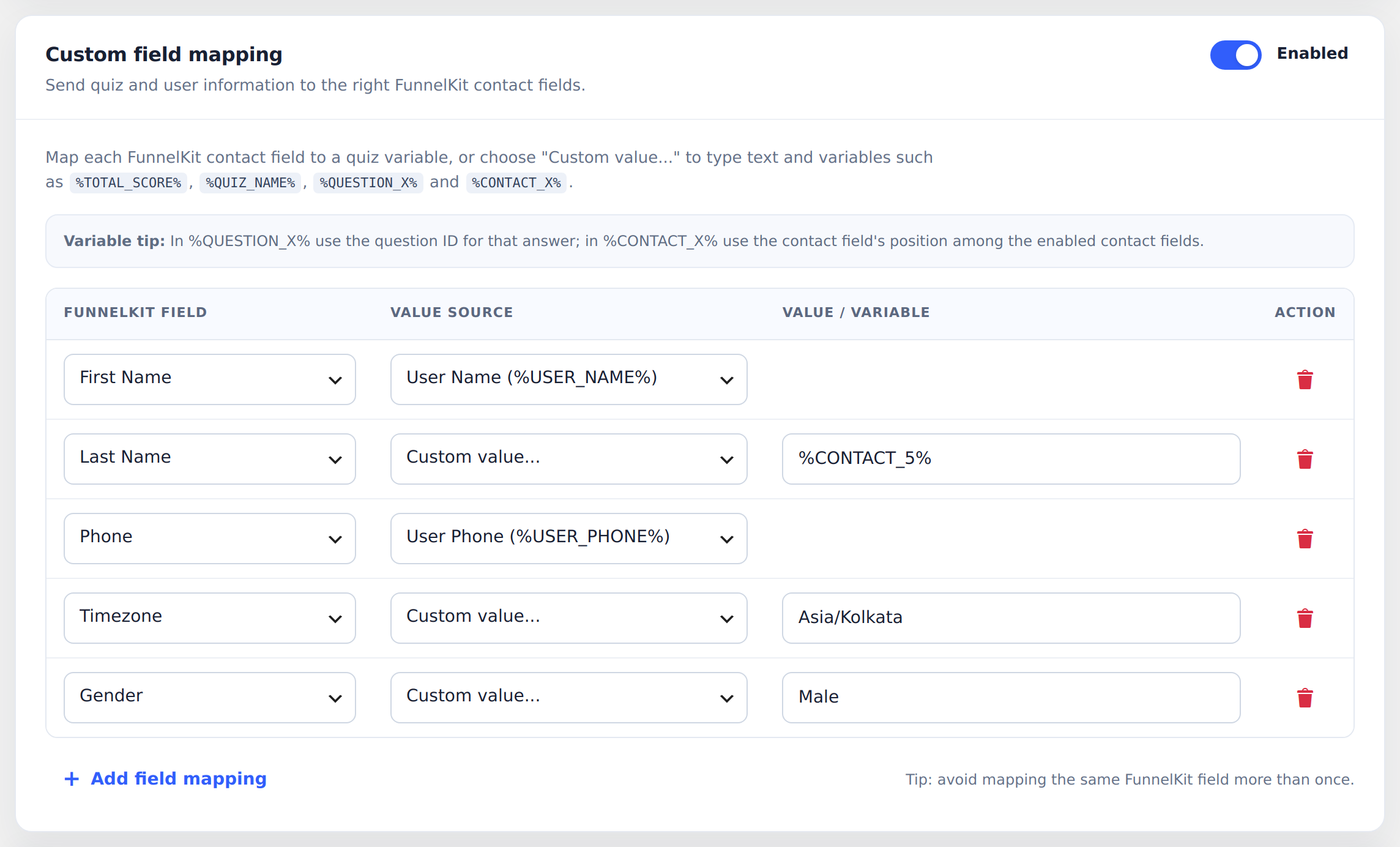
Turn on Custom field mapping, then click Add field mapping for each field you want to fill:
| Column | What to choose |
|---|---|
| FunnelKit field | A FunnelKit contact field: a Contact field (such as first name or phone), an Address field, or one of your Custom Fields. |
| Value source | A QSM variable from the list, or Custom value… to type text that can include variables. |
Examples:
- First Name ←
%USER_NAME% - Phone ←
%USER_PHONE% - A custom field “Quiz score” ←
%AMOUNT_CORRECT%/%TOTAL_QUESTIONS% - A custom field “Favourite plan” ←
%QUESTION_12%(the answer to question ID 12)
Variable tip: in %QUESTION_X%, replace X with the question ID. In %CONTACT_X%, replace X with the contact field’s position among the enabled contact fields on the quiz’s contact form.
Map each FunnelKit field only once.
FunnelKit limits Address 1 and Address 2 to about 100 characters. For long values such as
%QUESTIONS_ANSWERS%, map them to a textarea custom field instead.
7. Save
Click Save settings.
Start a FunnelKit automation from a quiz
- In WordPress, go to FunnelKit Automations → Automations and create a new automation.
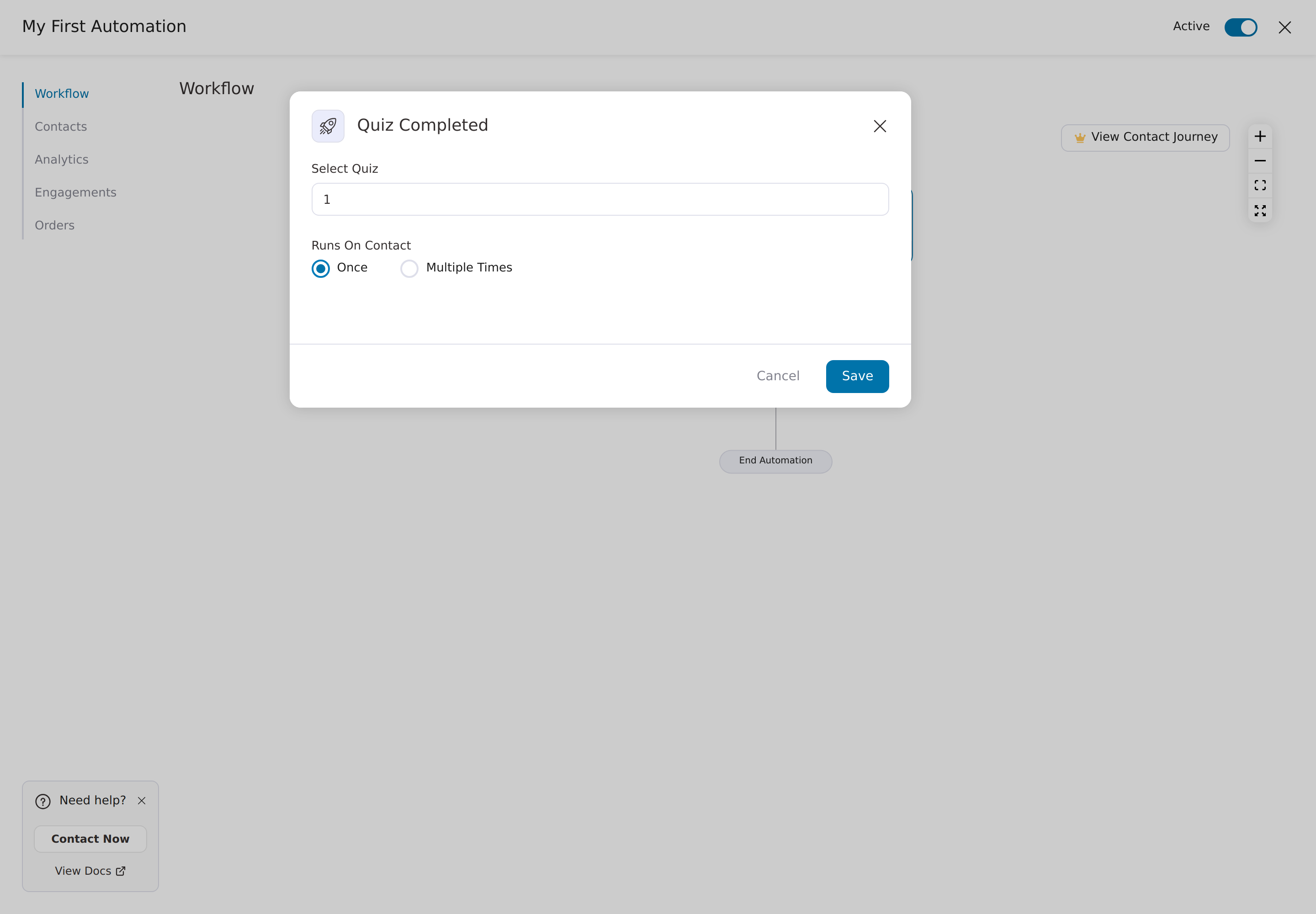
- For the event, choose Quiz & Survey Master → Quiz Completed.
- Select Quiz (optional): leave it empty to run for every quiz, or enter one or more quiz IDs separated by commas, for example
5, 12. - Add your actions, for example send an email, wait, or add a tag, then activate the automation.
Tags, the list and mapped fields are saved on the contact before the event fires. Rules and conditions in your automation can therefore already use them, for example “contact has tag passed“.
The automation only runs for submissions that pass the quiz’s FunnelKit settings: the integration is enabled, the person opted in (in opt-in mode), and the threshold was met (in threshold mode).
How the contact’s email is found
The contact is identified by email:
- the email field in the quiz’s contact form; or
- if that is empty and the person is logged in, their WordPress account email.
If neither is available, no contact can be created, so add an email field to the quiz’s contact form for guests.
Checking that it worked
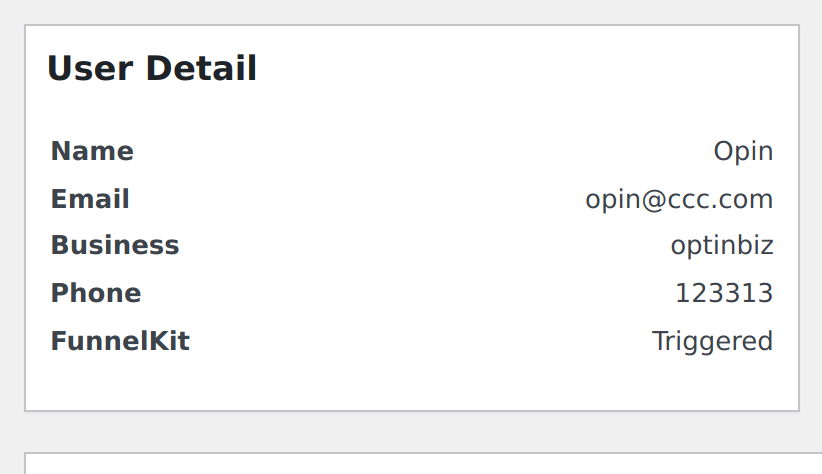
- QSM → Results: open a result; an entry that was sent shows FunnelKit: Triggered under User Detail.
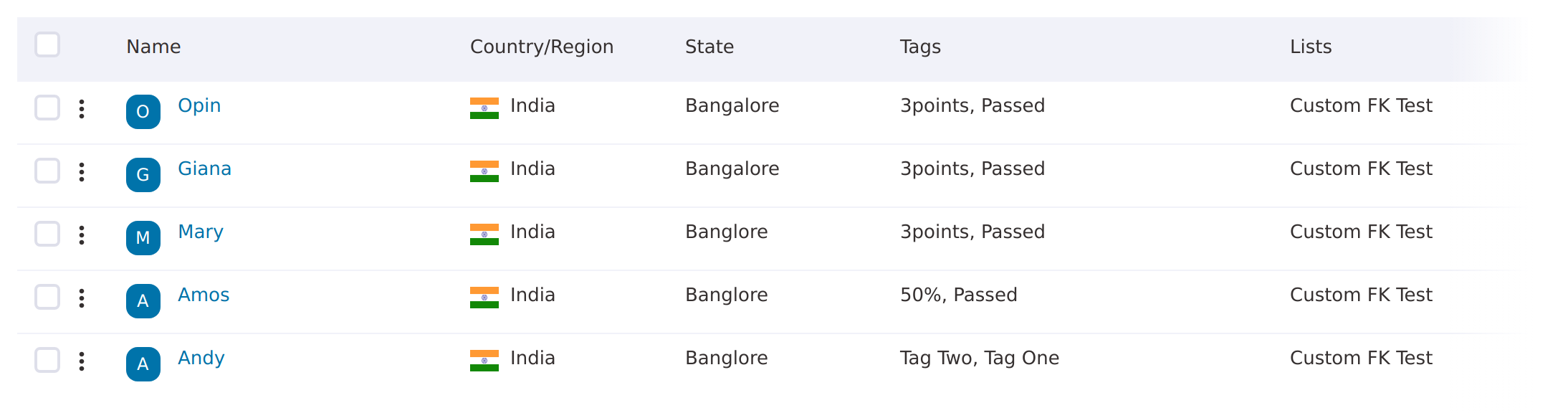
- FunnelKit Automations → Contacts: the contact appears with the tags, list and fields you set.
- QSM Logs (WordPress admin menu): a failure, such as a contact that could not be created or tags that could not be applied, is logged here. Successful steps are not logged.
Troubleshooting
| Problem | What to check |
|---|---|
| The FunnelKit tab shows a license form | Activate your license in QSM → Addons → FunnelKit → License. |
| “FunnelKit Automations plugin is not active” | Install and activate FunnelKit Automations. |
| No lists in the dropdown | Create a list in FunnelKit Automations → Contacts → Lists, then reload the quiz editor. |
| Contact not created | Make sure the quiz collects an email, or that the user is logged in. In opt-in mode, the checkbox must be ticked. |
| Automation didn’t start | Confirm the event is Quiz Completed, the automation is active, and the Select Quiz field is empty or includes this quiz’s ID. |
| Threshold quiz never sends | Check the minimum score or points and which basis the quiz uses (score % vs points). |
| A warning about the QSM version | Update Quiz And Survey Master to 11.1.1 or newer. |
FAQ
Does it work with the free version of FunnelKit Automations? Yes. The add-on works with FunnelKit Automations free or Pro.
Can I use different tags or lists for different quizzes? Yes. Settings are saved per quiz.
Is anything sent for quizzes where the integration is off? No. Nothing is sent unless Enable integration is on for that quiz.
 Still stuck? How can we help?