The AI Integration add-on revolutionizes how you create quizzes & surveys by integrating AI directly into the QSM plugin. Instead of creating a quiz manually, the add-on allows you to generate high-quality questions & answers by simply describing what you need to the AI and saving you hours of creating a quiz.
In this documentation, we’ll walk you through the process of setting up QSM AI to create quizzes or surveys instantly.
Installation Setup
After purchasing the QSM AI add-on, you’ll receive a zip file. Download it onto your device. Then,
- Go to your WordPress site,
- Navigate to Plugins > Add New,
- Select the zip file & upload it to the site.
- Click Install Now, and once installed, click Activate Plugin to enable QSM AI.
To start using the add-on, enter the license key provided with your purchase.
- Go to the QSM > Extensions > AI Integration and click on Settings
- Copy the license key from your QSM account.
- Paste the license key in the ‘Manage License’ tab within the settings
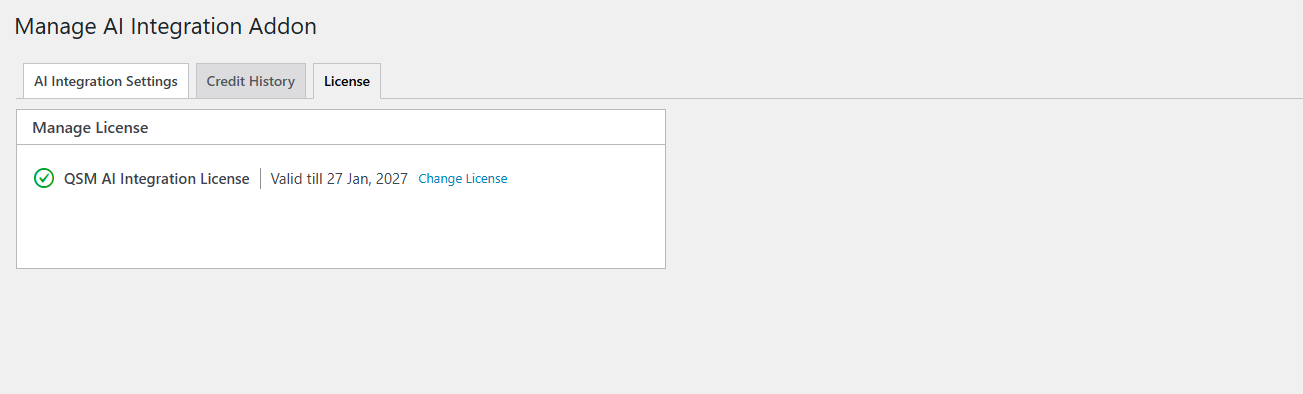
Note – If you already have the QSM Add-on Installer, things get even simpler. Just go to QSM > Extensions, find QSM AI, and click Install & Activate. No manual upload needed!
📌 For a full guide, check our detailed tutorial: How to Install Add-ons
AI Integration Settings
Once the add-on is activated with the license key, you can move to the AI Integration Settings tab.
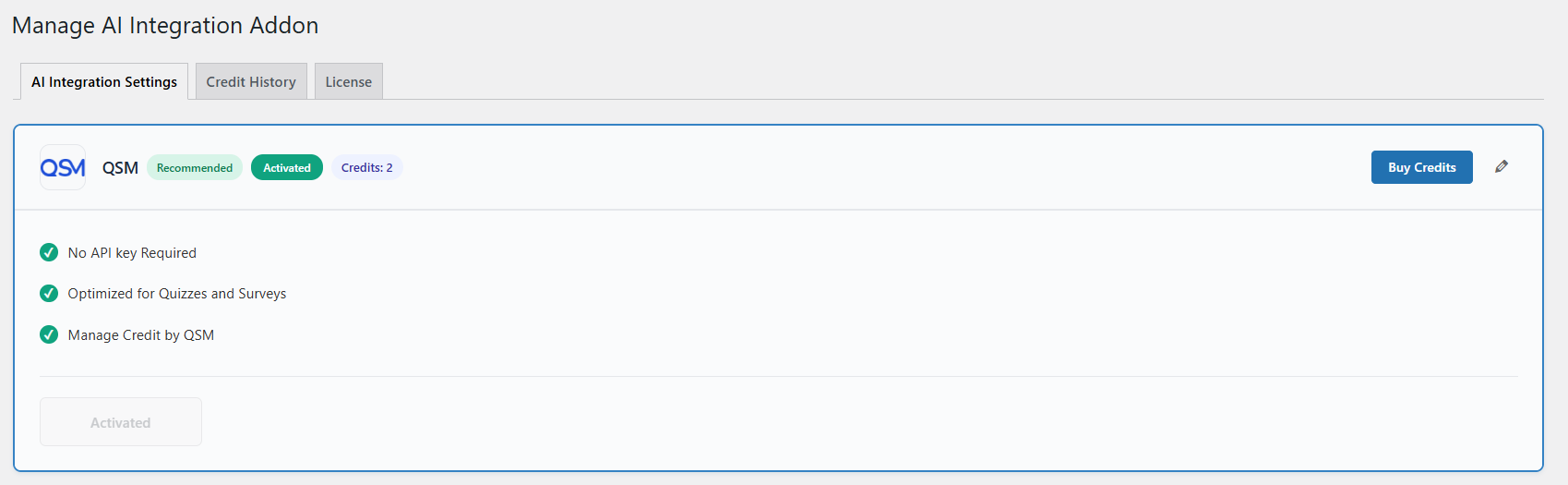
Here you’ll see that QSM’s built-in AI Credits system has been automatically activated for you to use to generate questions & answers using AI.
You’ll receive 20 free QSM AI credits with your license, which you can use to start generating quiz content immediately, no API key or external setup required.
QSM AI credits are fully managed within the plugin, allowing you to create and regenerate questions directly from your dashboard.
How AI Credits Work
The credit system is simple, and it charges based on each AI request you make.
- 1 credit = 1 AI request (input/prompt)
- A request can mean generating new questions or regenerating existing ones
- Each request (prompt used for new questions & answers) can generate up to 30 questions at once.
What Counts as a Request?
- Generating max 30 questions and answers from one prompt → 1 credit
- Regenerating a specific question or its answers → 1 credit per action
Managing Your Credits
You can monitor and manage your available credits directly from the AI Integration settings page.
To purchase additional credits, click the Buy Credits button. This will take you to the AI Credits pricing page, where you can choose and purchase a suitable plan.
Note: The AI Credits pricing page is not an add-on. You can directly purchase credits from there, and once the purchase is complete, they will be reflected in your account.
To track your usage and remaining balance, navigate to the Credit History tab under the AI Integration settings page.
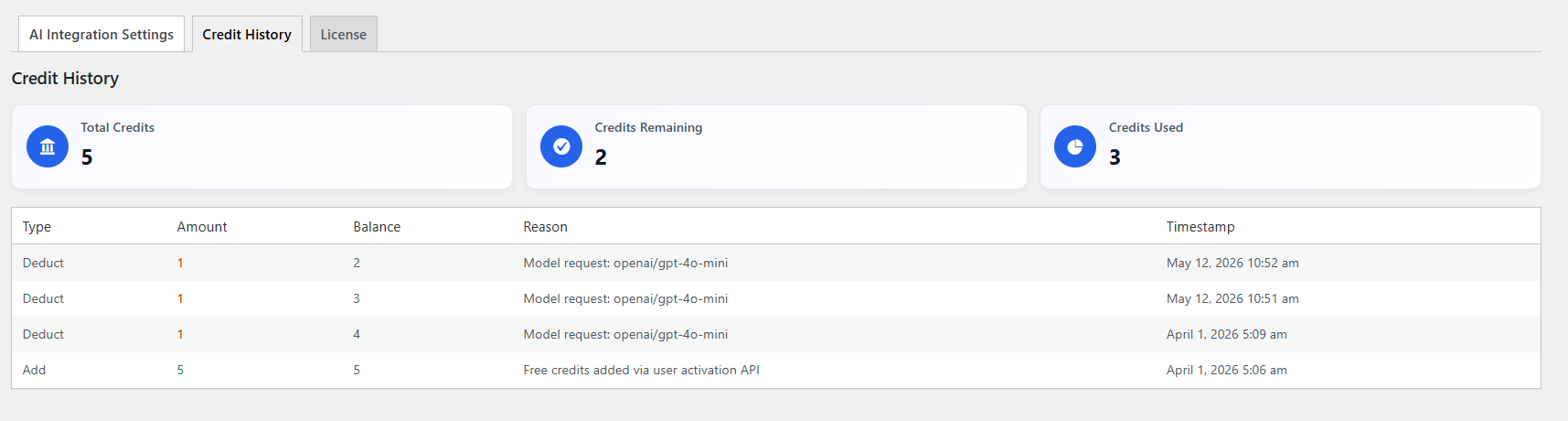
Under the Credit History, you can view the total credits, credits remaining, and credits used. Plus, you get a brief table showing you your credit balance at each timestamp, the reason (where you used credits), type (whether credits were deducted or added), and more.
Set up External AI Service
If you prefer to use your own AI provider, QSM also supports integration with external AI services, like ChatGPT, Gemini, & Claude.
To do so, you’ll need to connect your suitable AI account with the QSM. To connect the plugin with the AI, you’ll require an API key.
Let’s say you have a ChatGPT account and want to connect with the QSM.
Here’s how you can connect:
- Log in to your OpenAI account
- Go to the API Keys section and create a new secret key
- Copy the generated API Key
- Paste it into the API Key text box inside the ChatGPT option in the AI Integration Settings in the QSM.
- Select the model from the dropdown based on the model you’re using in your AI provider (e.g., GPT-3.5 or GPT-4, depending on your API access).
- Click on the Save & Activate button to start using ChatGPT as your AI question generation provider.
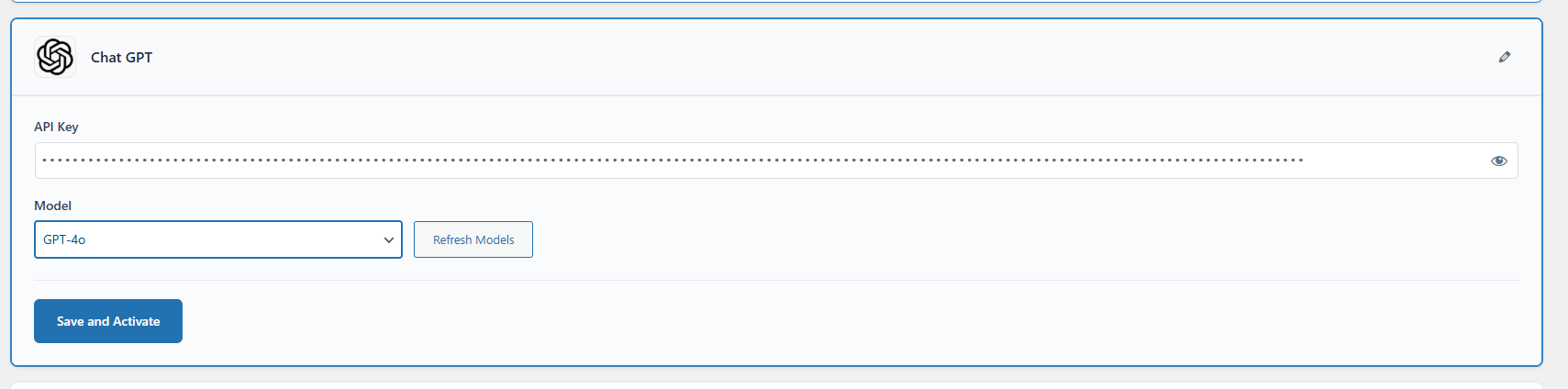
📌 Important Tip – You must have an OpenAI account with sufficient available credits or active billing. Without this, the add-on will not function.
Similarly, you can connect to Gemini AI and Claude with the QSM for your quiz.
All you have to do is the following:
Enter the Gemini API key (you can get the API key from Google AI Studio), select the model, and save and activate to start using Gemini.
For Claude, you can sign in to the Claude Console account, go to the ‘Get API Key’ option, and click on the ‘Create Key’ button.
Select a workspace, name your key, and add it. Then use that key to integrate QSM with Claude.
⚠️ *Note: If you’re using a paid model (like GPT-4), make sure your API key has the appropriate access level for those services.
🔜 Coming Soon: We’re working on bringing support for more AI models like DeepSeek & Grok in future updates—stay tuned for even more flexibility.
Creating Quizzes using AI Integration
When you’re ready to create your first AI-generated quiz, start a new quiz or survey as you normally would in QSM.
In the Questions tab, click the “Generate with AI” button in the top-right corner.
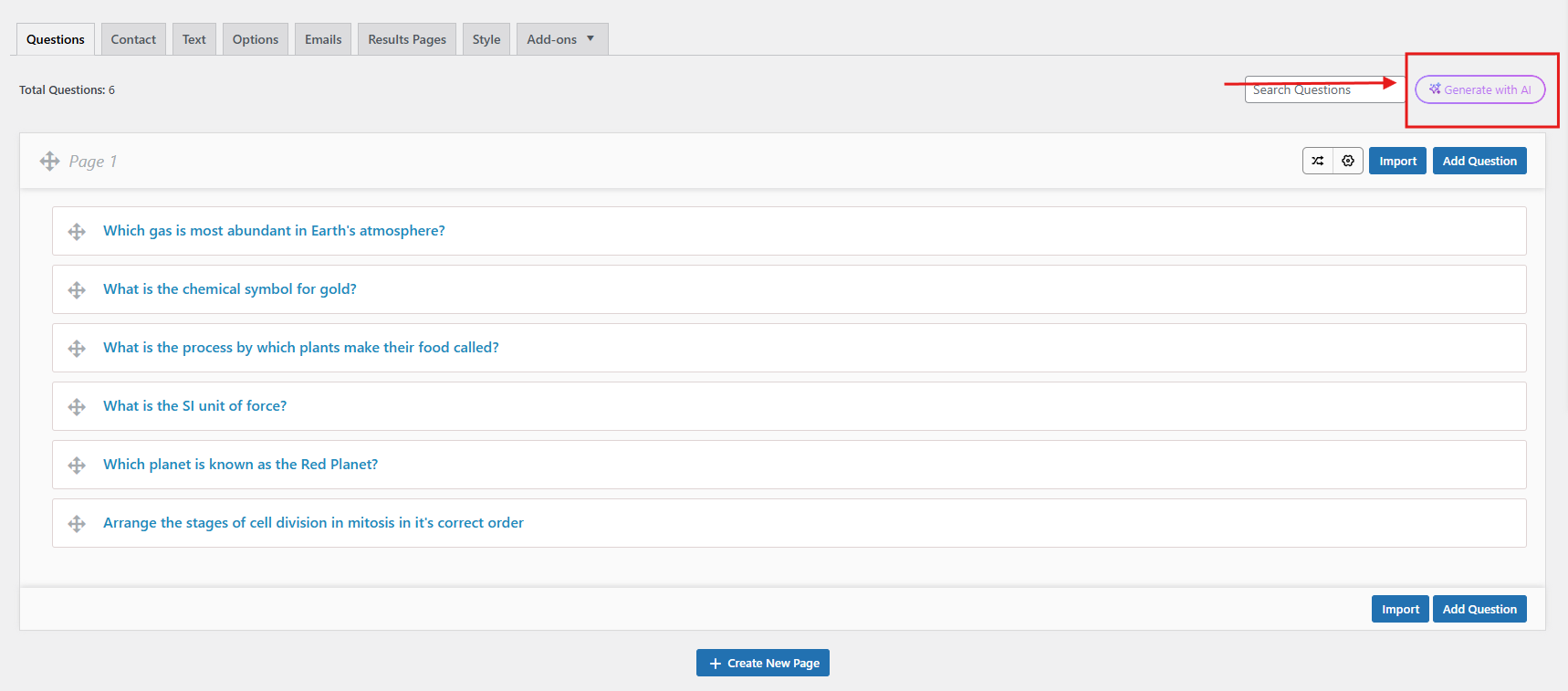
This opens a pop-up box where you can input a description of exactly what kind of quiz questions & answers you need.
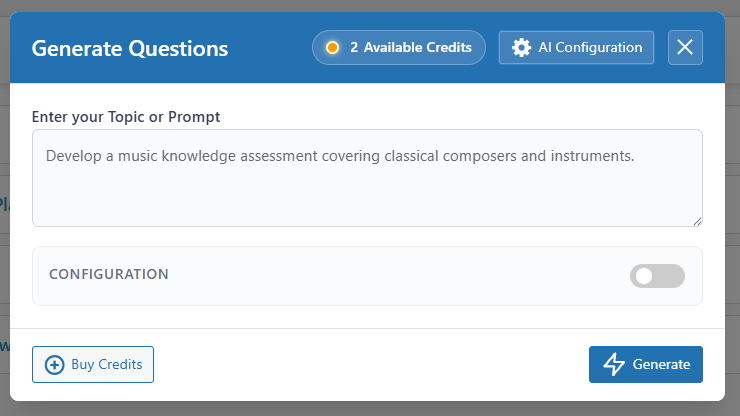
Note — If you click on the Buy Credits button, it will lead you to the AI Credits pricing page, from where you can purchase more credits.
Example Prompt:
‘Create a music knowledge assessment covering classical composers and instruments.‘
Further, to fine-tune the results even more, you can enable “Configuration,” which allows you to:
- Question Type: Choose the questions for the quiz from the populated options, like multiple-choice, true/false, fill-in-the-blank, etc.
- Difficulty: Select the difficulty level for your quiz — easy, medium, or hard.
- Number of Questions: Set how many questions you need. If you’re using QSM AI credits, the limit to generate questions within 1 credit is 30.
- Correct Answer Points – Select the points to be given for the correct answer
- Placement – Choose whether to add all questions to one single page or distribute them equally across multiple pages.
- Number of Pages – If you’ve selected ‘specific page’ in the placement option, select the page number where you want to add the generated questions.
Alternatively, if you want to distribute questions equally, select how many pages you want to split them across.
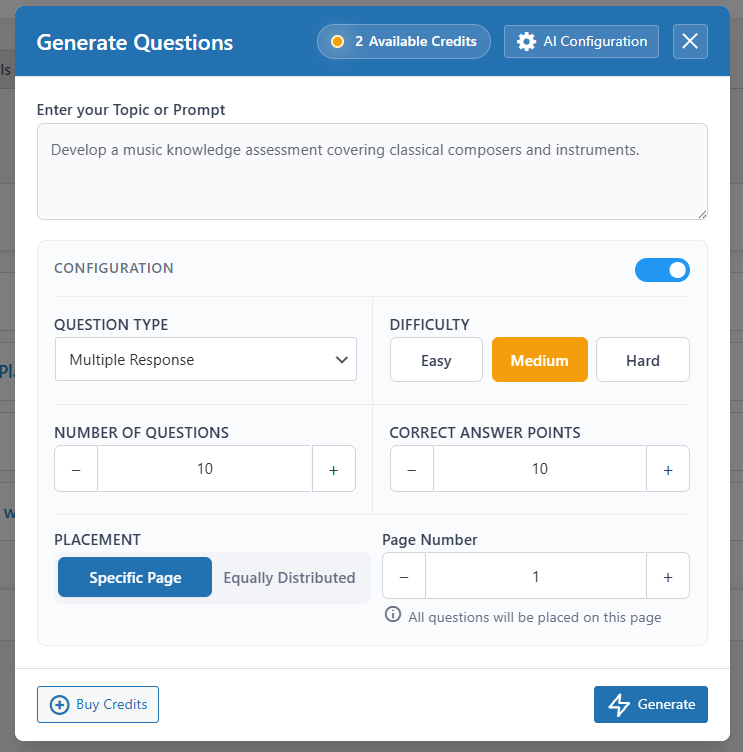
Once you have configured it all, click on the Generate button. It will typically take a few seconds, & you’ll get your questions & answers ready.
Regenerate Individual Questions & Answers
After generating your questions, you might think that you want to make adjustments to individual questions or answer choices to better suit your needs.
You can regenerate individual questions by clicking the Edit option for a specific question and then clicking the “Regenerate” button.
The AI produces a new version of the question with the same topic and difficulty level.
Alternatively, if you want to replace a specific question with an entirely new one, you can do that, too.
In the question editor, clear the existing question text, add a new prompt, and click “Regenerate.” The AI will generate a new question based on your input.

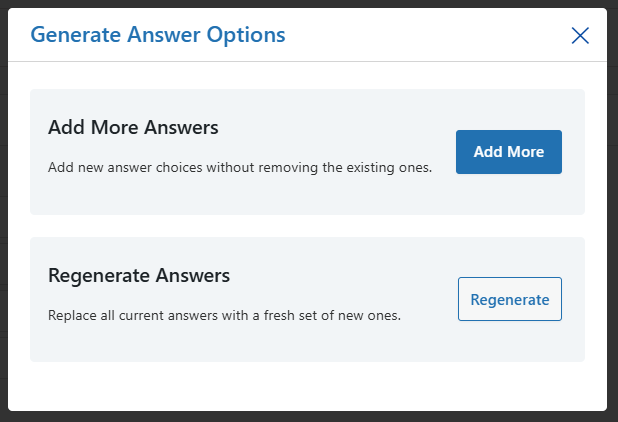
For answers, the Answers with AI option provides two useful functions.
- You can completely “Regenerate” all answer choices for a question, especially if you’ve regenerated a new question.
- Or you can use the Add More Answers option to supplement existing choices with additional options while keeping the other answers as they are.
Make sure to save the question once you have updated it
Once you’re satisfied with your AI-generated questions & answers, proceed with publishing the quiz or survey as usual.
 Still stuck? How can we help?