A Patronus quiz is one of those things people finish and immediately want to share. The questions feel personal, the result feels accurate, and the Harry Potter angle gives it built-in appeal. That combination is exactly what makes it a useful format to build for your own audience.
Personality quizzes work because they make the reader the subject. Instead of consuming information, they are answering questions about themselves and waiting to see how it lands. A Patronus quiz does this particularly well because the result carries weight for anyone who grew up with the series.
If you are a Harry Potter fan, this is also a straightforward quiz to put together for your friends or community.
Take the sample quiz first. Then follow the steps below to build one yourself.
Table of Contents
Key Takeaways
- A Patronus quiz maps personality-based answers to a magical creature outcome using label-based scoring, not a numerical score.
- Scenario-based questions surface personality more reliably than preference-based ones.
- QSM’s Personality Assessment type tallies which label appears most across all answers and surfaces the matching result page automatically.
- The same QSM build works for any personality quiz format, not just Patronus-themed ones.
- JustHyre handles custom WordPress quiz builds if you want the setup done without doing it yourself.
Take the Patronus Quiz
Answer a few questions about your personality and choices to find out which magical creature your Patronus would be.
This is a fan-made quiz inspired by the Harry Potter universe, not the official Pottermore or Wizarding World quiz.
What Is a Patronus in Harry Potter?
A Patronus is a protective charm, conjured using the spell “Expecto Patronum,” that takes the form of an animal unique to the caster. It shields against Dementors, creatures that feed on happiness and strip a person of their most positive memories. The animal form reflects the personality and inner life of the witch or wizard who casts it.
Different characters have notably different Patronuses. Harry’s is a stag, the same animal his father could transform into. Hermione’s is an otter. Luna Lovegood’s is a hare. The animal doesn’t get chosen; it surfaces from who you are.
The quiz above works on the same logic. Your answers to personality-based questions map you to a Patronus type that fits how you think, what you value, and how you respond under pressure. If you want to build something similar for your own audience, whether Harry Potter-themed or entirely different, the steps below show you how.
How to Create a “What Is My Patronus?” Quiz in WordPress
Install QSM from the WordPress plugin directory and activate it on your site. Once activated, go to QSM in your WordPress dashboard and click “Create New Quiz” to get started.
Step 1: Add Patronus-Style Questions and Answers
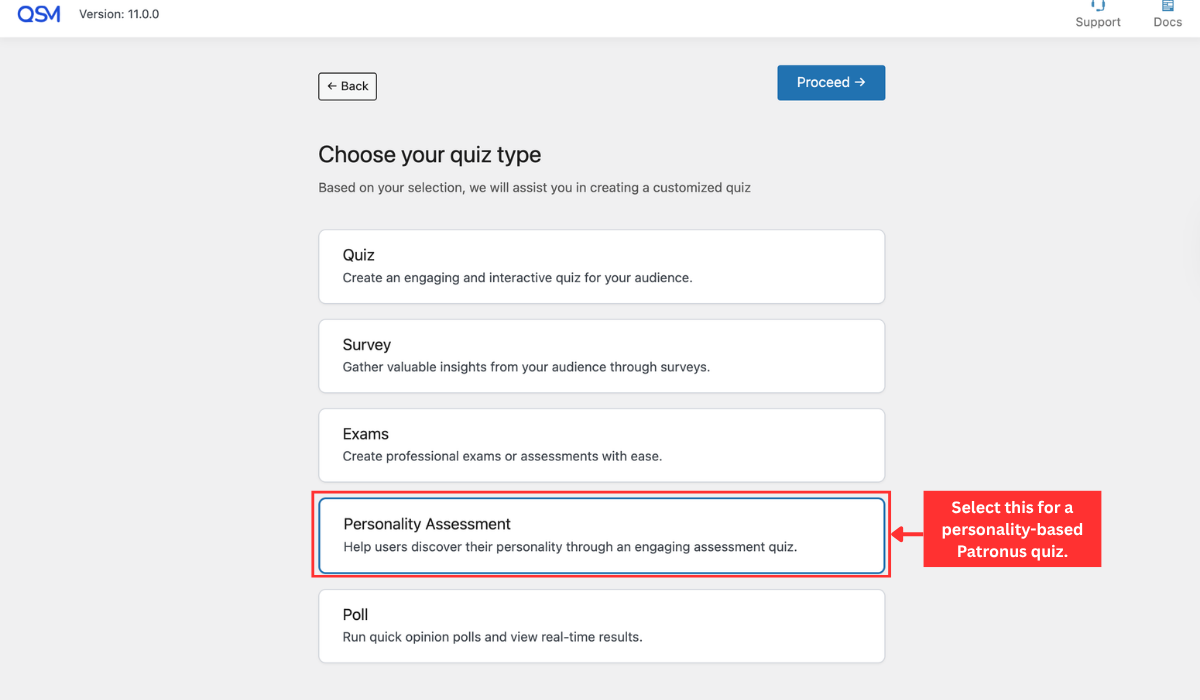
Once QSM is installed, create a new quiz. When the setup prompt appears, select “Personality Assessment” as your quiz type.
Read the “Quick Start Guide” to QSM.
You’ll land on the Questions tab, where you can add your first question. In the question type dropdown, select multiple-choice questions. Add your answer options here. Each option should represent a distinct personality trait or response style, since these are what get mapped to a Patronus outcome in the next step. Once your options are in place, assign a category to the question and click “Save Question.
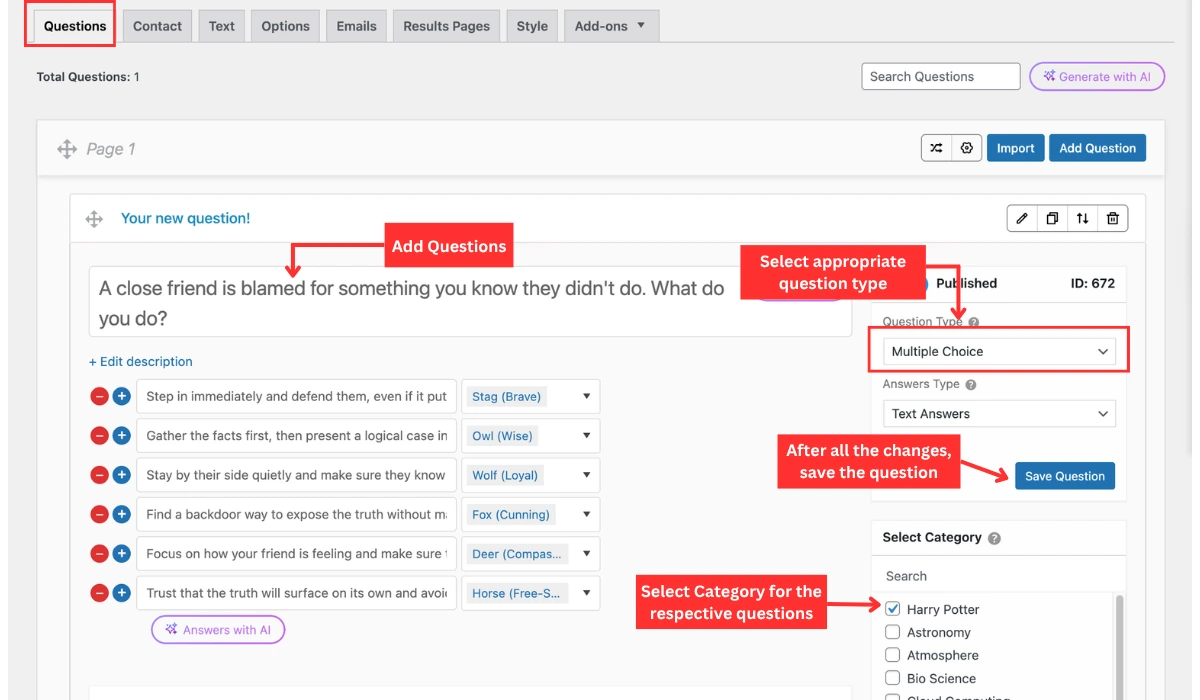
For a Patronus quiz, write scenario or personality-based questions rather than trivia or preference-based ones. They surface personality more reliably. Aim for 7 to 10 questions total. Fewer than that and the results feel arbitrary. More than 12, and most users won’t finish.
Step 2: Assign Labels to Each Answer
Labels are part of QSM’s Advanced Assessment add-on. Once installed, labels let you tag each answer option with a personality type.
For a Patronus quiz, you’d create labels like Brave, Loyal, Cunning, Wise, Compassionate, and Free-Spirited. Each answer option across all your questions gets tagged to one of these labels.
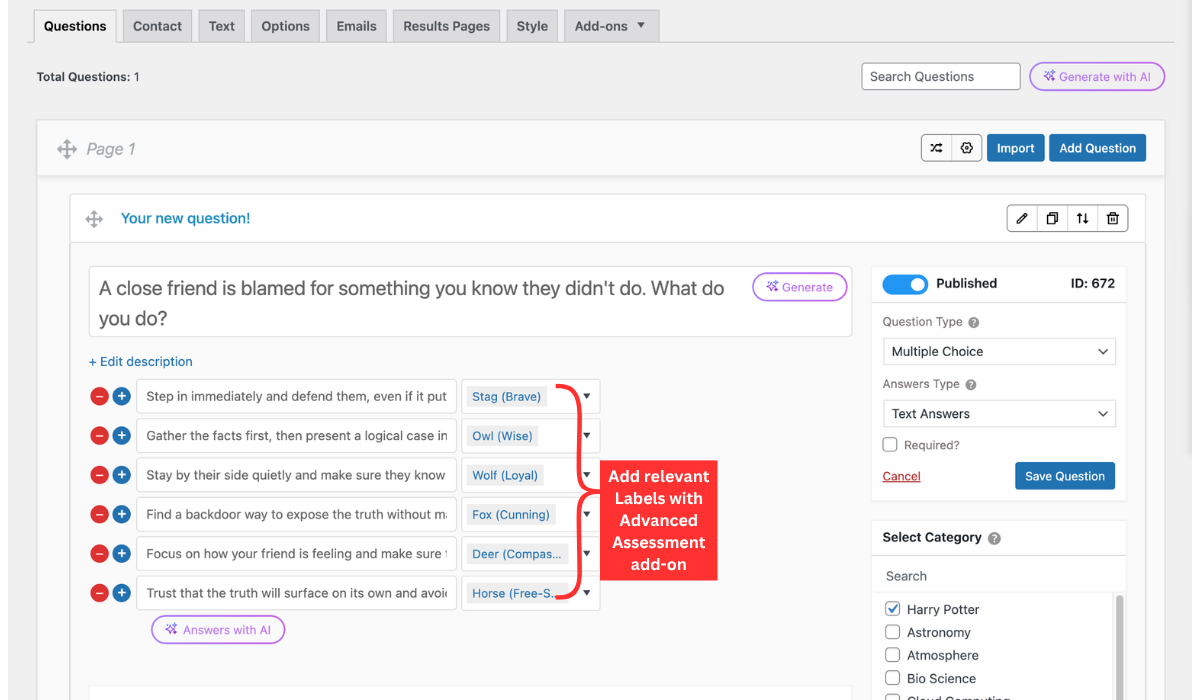
To assign a label, go to each answer option and select the corresponding label from the dropdown.
For a full walkthrough of the Advanced Assessment add-on, refer to the Advanced Assessment documentation.
Step 3: Configure Text, Options, and Contact Tab
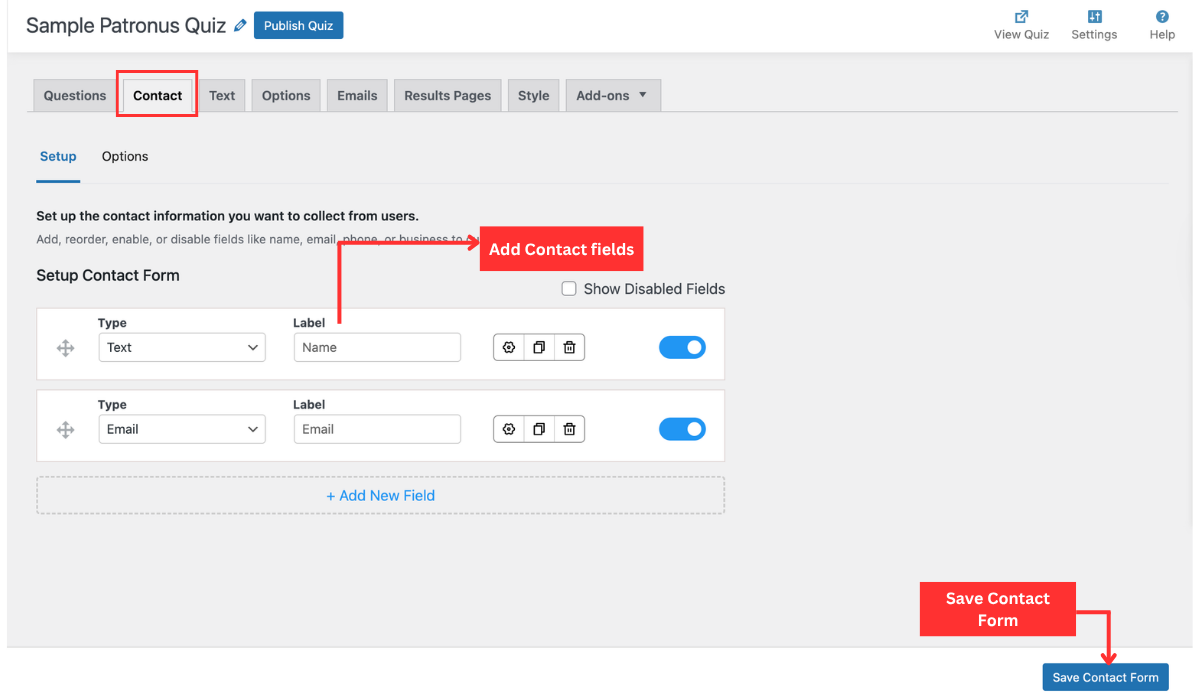
Go to the Contact tab and add fields for Name and Email at a minimum. This contact form links each Patronus result to an individual respondent, which is useful if you want to follow up or build a list from your quiz traffic. You can also configure whether the contact form appears before or after the quiz from the same tab.
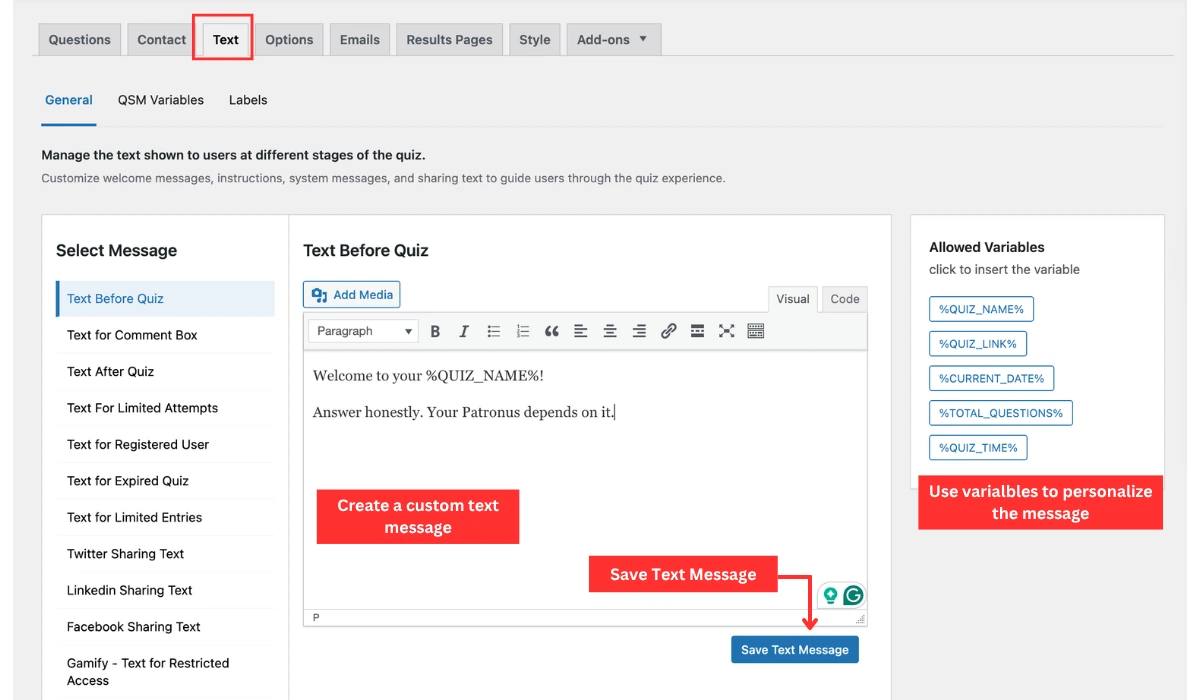
Under the Text Options tab, you can control what users see at each stage of the quiz. You can set the custom text displayed at the start, such as “Answer honestly. Your Patronus depends on it,” the message shown in the comment box, the text shown when a user has reached their attempt limit, and the message displayed after submission.
QSM also provides template variables within these fields to make your messages feel specific rather than generic. Click the Add Variables button inside the text editor to see the full list.
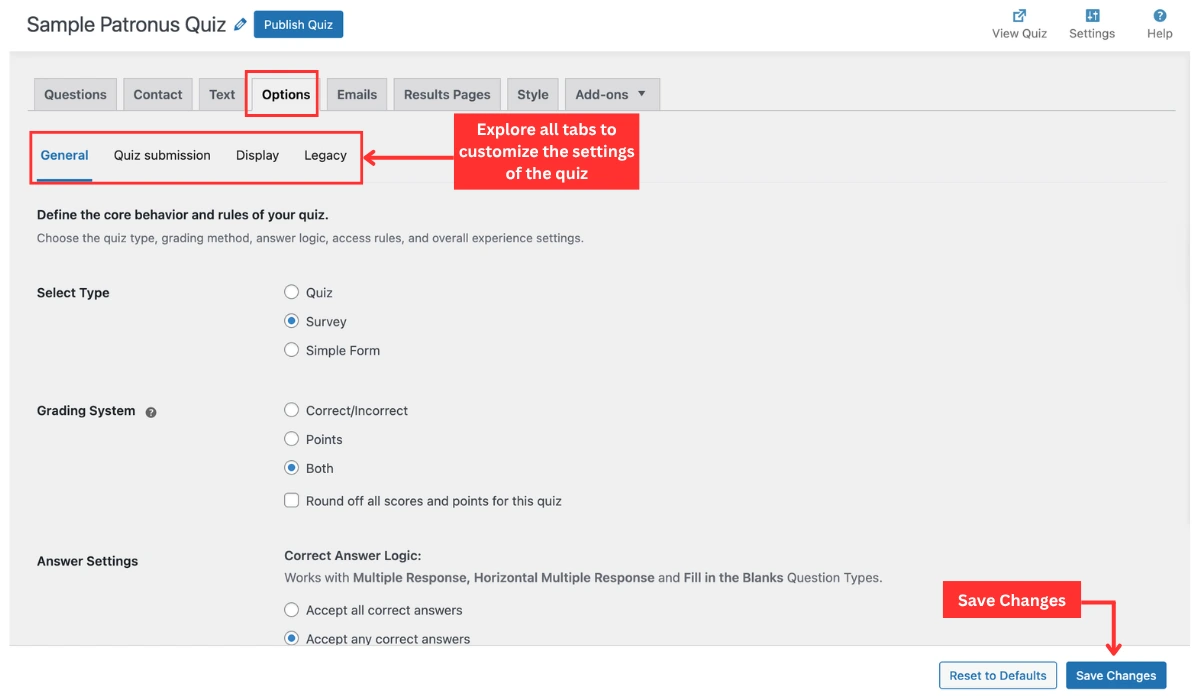
Under the Options tab, configure answer settings, user access controls, and submission behaviour to match how you want the quiz to run.
Step 4: Configure Results and Design
With your questions in place, go to the Results section in QSM and setup a result page for each Patronus outcome you’ve defined. Each result page should include the Patronus name, a short description of what it says about the person, and an image where possible.
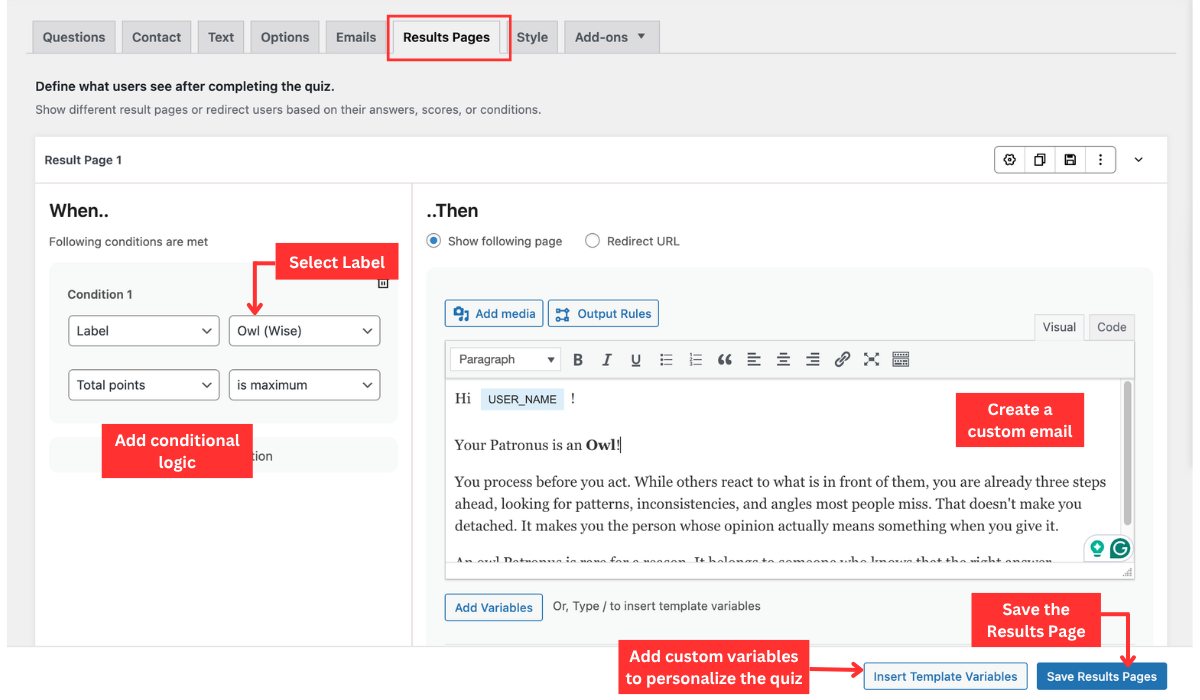
Each result page needs a condition to tell QSM when to show it. On the left side of the result page interface, you’ll find “Add Condition.” Select the label you assigned to that Patronus type, then set the condition to trigger when that label has the maximum points. For example, if a user’s answers lean heavily toward the “loyal” label, QSM shows the result page tied to that label, say, a dog or wolf Patronus, and skips the rest.
The same conditional logic applies to result emails. If you have email notifications set up, you can configure each email to send only when a specific label wins.
Step 5: Publish and Share Your Quiz
Once your quiz is ready, QSM generates a shortcode automatically. Copy it and paste it into any WordPress page or post using the block editor. The quiz embeds inline wherever the shortcode is placed.
To get it in front of people, share the page link on your social media profiles and ask your followers to tag their results. If you have an email list, send it as a standalone email. A subject line like “What’s your Patronus?” tends to get opened. If you are part of a Harry Potter fan community or forum, post it there as well, keeping their self-promotion rules in mind.
What’s the Best Next Step for You?
Personality quizzes take time to plan but not to build, at least not in QSM. The question setup, label assignment, result conditions, and design settings are all managed through an interactive visual dashboard, with no code required.
If you want to go further, adding weighted scoring, connecting quiz results to an email platform, or managing multiple quiz types from one setup, QSM’s add-ons and Pro version cover that without requiring a developer.
If you got through this tutorial and realized the build is more involved than you want to handle yourself, JustHyre is a custom WordPress development service that takes on projects like this. They build quiz platforms, assessment tools, and interactive experiences on WordPress, so if your requirements go beyond what a standard plugin setup covers, that’s worth looking into.
FAQs About Patronus Quizzes
Is this the official Pottermore or Wizarding World Patronus quiz?
No. This is a fan-made quiz inspired by the Harry Potter series and has no affiliation with Warner Bros. or any official Harry Potter property. The official Patronus quiz is on the Wizarding World website and requires an account.
How does this “What Is My Patronus?” quiz work?
Each question is personality and scenario-based. Your answers get mapped to predefined categories, each linked to a Patronus type. QSM tracks which category accumulated the most selections across your answers and shows the corresponding result at the end.
Can I create my own Patronus quiz on my WordPress site?
Yes, and the four-step tutorial above covers the full process. You’ll need WordPress with QSM installed. From there, the build involves writing questions, assigning answer categories to each option, setting up result pages with conditional logic, and embedding the quiz via shortcode on any page or post.
Do I need coding skills to build a Patronus quiz with QSM?
No coding required. Everything from questions to result pages to design settings is managed through QSM’s visual interface in your WordPress dashboard.
Can I use this quiz format for other Harry Potter or personality tests?
Yes. A Hogwarts house sorter, a character match quiz, a brand values assessment, or any other personality-style quiz follows the same build process in QSM. The structure stays the same; you swap the questions, categories, and result descriptions to fit whatever concept you’re working with.