Most surveys ask people what they think. A Likert scale asks how strongly they think it, and that distinction changes what you can do with the data.
Instead of collecting yes or no answers, a Likert scale captures degrees of opinion across a numbered range. The responses are numerical, which means you can calculate averages, spot patterns, and compare groups in ways that open-ended or binary questions do not allow.
This guide covers what a Likert scale is, how the 5-point and 7-point formats differ, real questionnaire examples across multiple topics, and a step-by-step walkthrough for building one in WordPress using the Quiz and Survey Master (QSM) plugin.
Table of Contents
Key Takeaways
- A Likert scale measures attitudes and opinions on a numbered response range, typically 5 or 7 points.
- The 5-point scale is the standard for most surveys; the 7-point scale suits research that needs finer distinctions.
- Likert scales produce numerical data you can analyze statistically, which lets you calculate averages, run comparisons, and identify trends across large samples.
- You can build a Likert survey in WordPress using the Quiz and Survey Master (QSM) plugin without writing any code.
What is a Likert Scale?
A Likert scale is a psychometric rating tool that measures a respondent’s level of agreement, satisfaction, or frequency on a numbered scale, typically ranging from 1 to 5 or 1 to 7. It converts subjective opinions into structured, quantifiable data. The method was developed in 1932 by social scientist Rensis Likert, who needed a reliable way to measure psychological attitudes without reducing complex human responses to a binary yes or no.
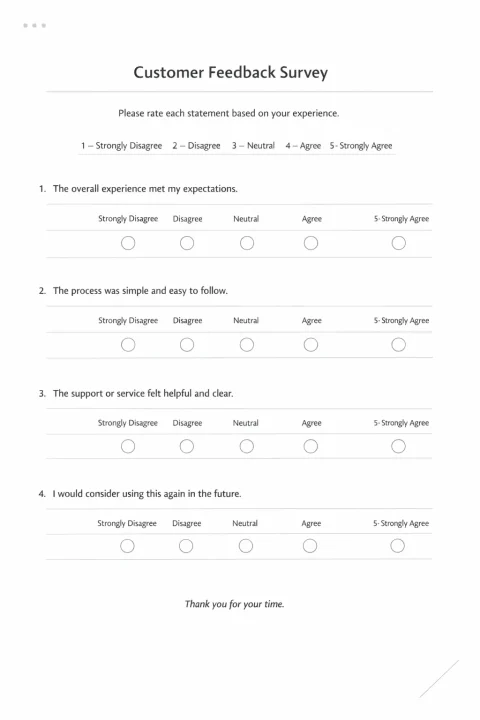
Instead of asking “Are you satisfied with this product?” and accepting only yes or no, a Likert scale asks respondents to indicate how satisfied they are across a range of labeled options. That difference lets you calculate averages, compare groups, and track shifts in opinion over time.
How a Likert Scale is Used in Research
A simple yes/no question tells you that someone disagrees with a statement. A Likert scale tells you how strongly they disagree, which is far more useful when you are looking for patterns across hundreds of responses. Researchers use them when measuring attitudes, opinions, or perceptions across large samples, where binary answers would flatten the data.
In psychometric research, Likert scales are a foundational tool. They appear in personality assessments, employee engagement surveys, academic studies, and customer experience programs. The reason they hold up well across these fields is consistency: every respondent uses the same labeled scale, which makes responses comparable and the resulting data straightforward to aggregate.
Likert scales also reduce survey abandonment. Because respondents can answer each question with a single click, a well-designed Likert questionnaire captures nuanced feedback quickly, which matters when you are trying to collect a large, representative sample.
The 5-Point Likert Scale: The Industry Standard
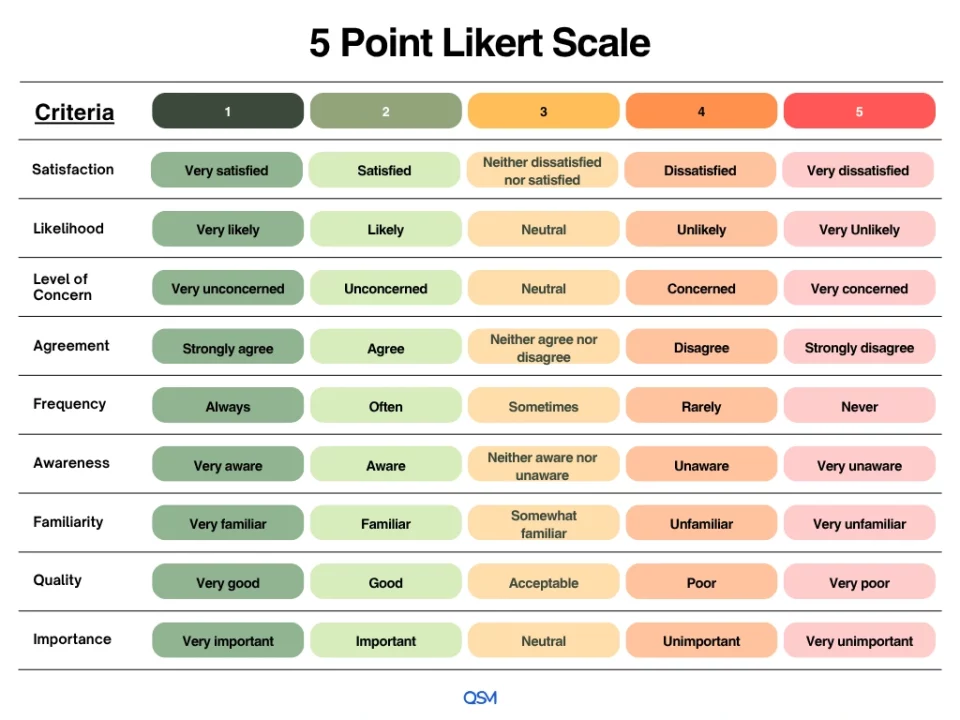
The 5-point Likert scale is the most common format in use. It gives respondents enough options to express a genuine opinion without creating decision fatigue. The five points on a standard agreement scale are:
- Strongly Disagree
- Disagree
- Neutral
- Agree
- Strongly Agree
The structure is balanced: two negative options, one neutral midpoint, and two positive options. Respondents who feel moderately positive are not forced to choose between neutral and fully agreeing, and the neutral midpoint gives people who genuinely have no opinion a valid place to land.
For most business and educational surveys, the 5-point scale produces reliable data without taxing respondents. It performs especially well when your audience spans a wide range of backgrounds, or when the survey will be completed on a mobile device, where longer scales become harder to navigate.
The 7-Point Likert Scale: For Deeper Nuance
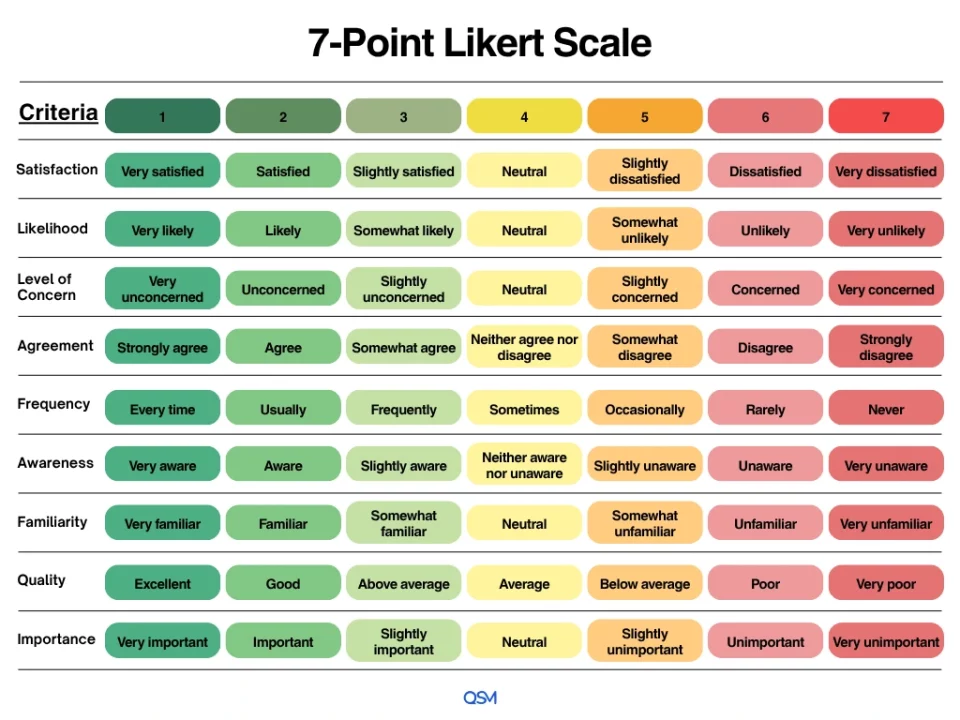
The 7-point Likert scale gives respondents more room to differentiate their answers. Where a 5-point scale has one neutral point and two gradations on each side, the 7-point scale adds a second layer of distinction. The seven options on a standard agreement scale are:
- Strongly Disagree
- Disagree
- Somewhat Disagree
- Neutral
- Somewhat Agree
- Agree
- Strongly Agree
Academic research, clinical studies, and any context where small differences in opinion carry analytical weight benefit most from this format. Measuring customer satisfaction for a product roadmap decision does not require it; conducting a peer-reviewed study on workplace attitudes does.
The trade-off is cognitive load. Asking respondents to distinguish between “Disagree” and “Somewhat Disagree” requires more thought, which can slow completion rates or introduce inconsistency in how different people interpret the labels. The 7-point scale works best when your respondents are familiar with the subject matter and motivated to complete a longer survey.
💡 Pro Tip: Why spend hours formatting your research? Use the Quiz and Survey Master (QSM) plugin to build professional 5-point and 7-point Likert scales in minutes. No coding required.
Likert Scale Questionnaire Examples
The table below shows how a Likert scale adapts across different research contexts. Each row pairs a focused question with the scale type that fits it.
When writing your own Likert questions, keep each one focused on a single idea, avoid loaded or leading language, and match your scale labels to the nature of the question. Agreement scales work for opinion statements; frequency scales work better for behavioral questions.
How to Create a Likert Survey in WordPress Using QSM
Quiz and Survey Master (QSM) is a WordPress plugin built for creating surveys, quizzes, and forms without writing any code. For Likert scale surveys specifically, it gives you horizontal multiple choice question types, contact form collection, conditional results pages, and response export, all from a single dashboard. If you want a tool that handles both data collection and basic analysis inside WordPress, QSM is a practical starting point.
Step 1: Create a New Survey
From your WordPress dashboard, go to the QSM menu in the sidebar and click Create New Quiz/Survey. You will be prompted to select a quiz type. Click Survey, then choose a theme from the available options. QSM offers several built-in themes, and if you want more design control, the Ultimate Add-On includes a full theme customizer.
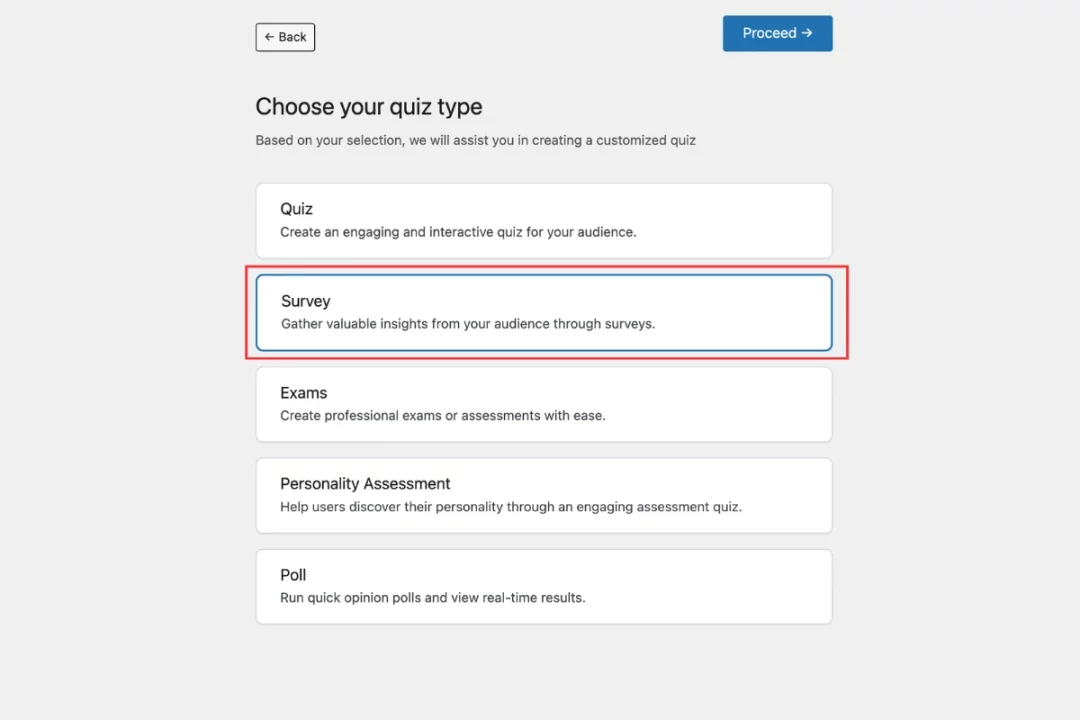
Give your survey a name. This name will appear in your dashboard and can also be referenced inside the survey using template variables. Once named, click Finish to open the survey editor.
Step 2: Add Your Likert Scale Questions
Go to the Questions tab and click Add Question. On the right side of the editor, you will see a list of question types. For a Likert scale, choose Multiple Choice (Horizontal). This displays the response options in a row, which is the standard Likert layout respondents recognise.
Write your question text in the question field, for example: “The onboarding process was easy to complete.”
Now add your answer options one by one. For a 5-point scale:
- Strongly Agree
- Agree
- Neutral
- Disagree
- Strongly Disagree
For a 7-point scale, add all seven options accordingly.
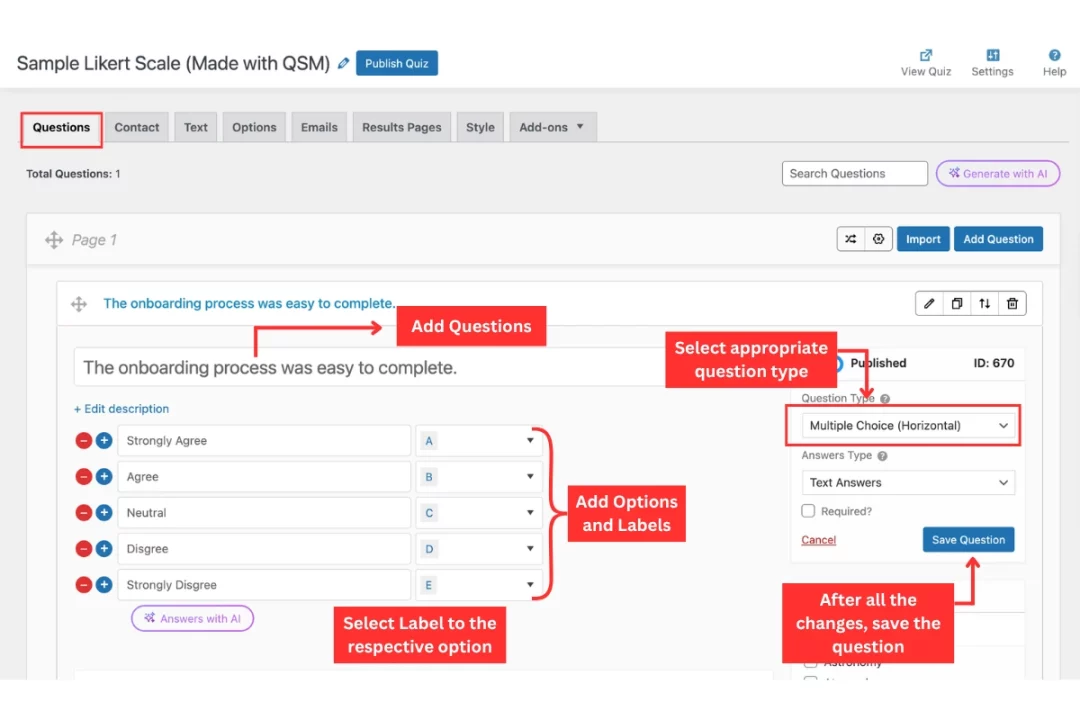
Assigning Labels with the Advanced Assessment Add-On
This is where the Advanced Assessment add-on becomes essential. Once installed and activated, it adds a label field alongside each answer option. Assign a label to each response like this:
- Strongly Agree → Label A
- Agree → Label B
- Neutral → Label C
- Disagree → Label D
- Strongly Disagree → Label E
These labels are what QSM tracks across all responses. Instead of only working with numerical scores, you can later build conditional logic around which label appeared most frequently in a respondent’s answers. Assign a numerical value (1 through 5) to each option as well, so QSM can calculate scores alongside label tracking.
Save the question and repeat the process for each statement in your survey, applying the same label system consistently across all questions.
Step 3: Set Up the Contact Form
Go to the Contact tab. Adding a contact form alongside your Likert survey lets you link responses to individual respondents, which matters when you want to follow up or segment your data. Add fields for Name, Email, and Phone Number at a minimum.
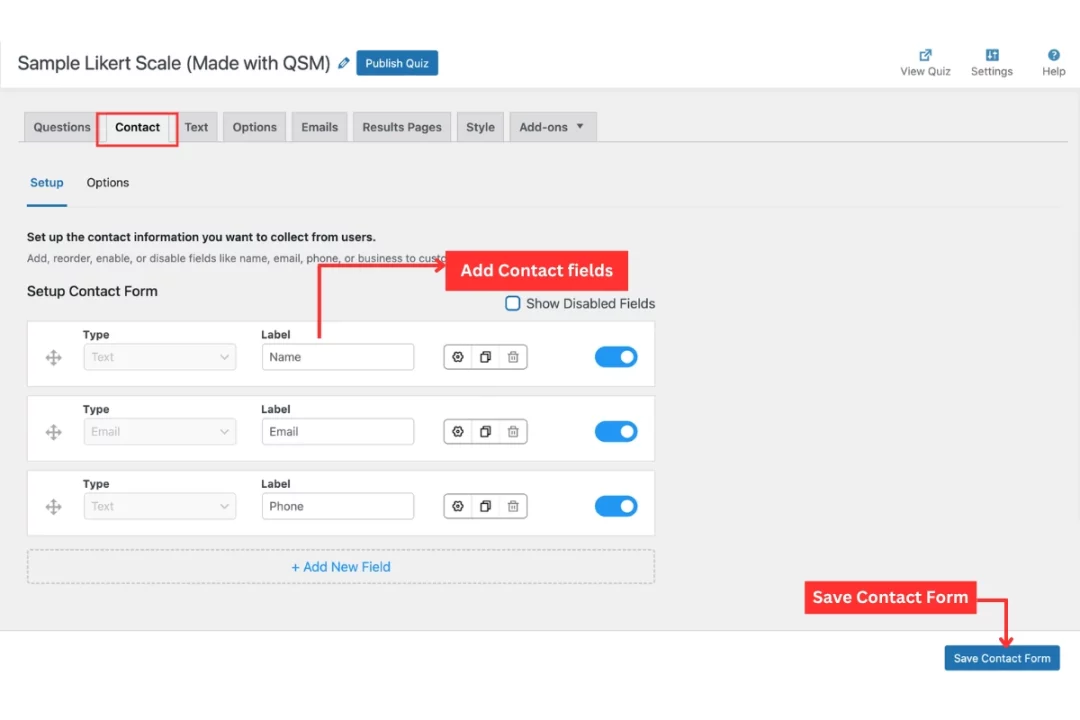
Within the Contact tab, you will also find additional settings: whether to show the contact form before or after the survey, whether to disable specific fields, and whether to disable the first page of the survey. Configure these based on your research setup and what information you need from respondents.
Step 4: Configure Custom Text and Options
Under the Custom Text tab, you can control the text shown to respondents at different stages of the survey. For example, you can set a welcome message before the survey begins, such as “Welcome to [survey name]. This should take under two minutes.” You can also add text shown after submission, and separate messages for registered versus guest users.
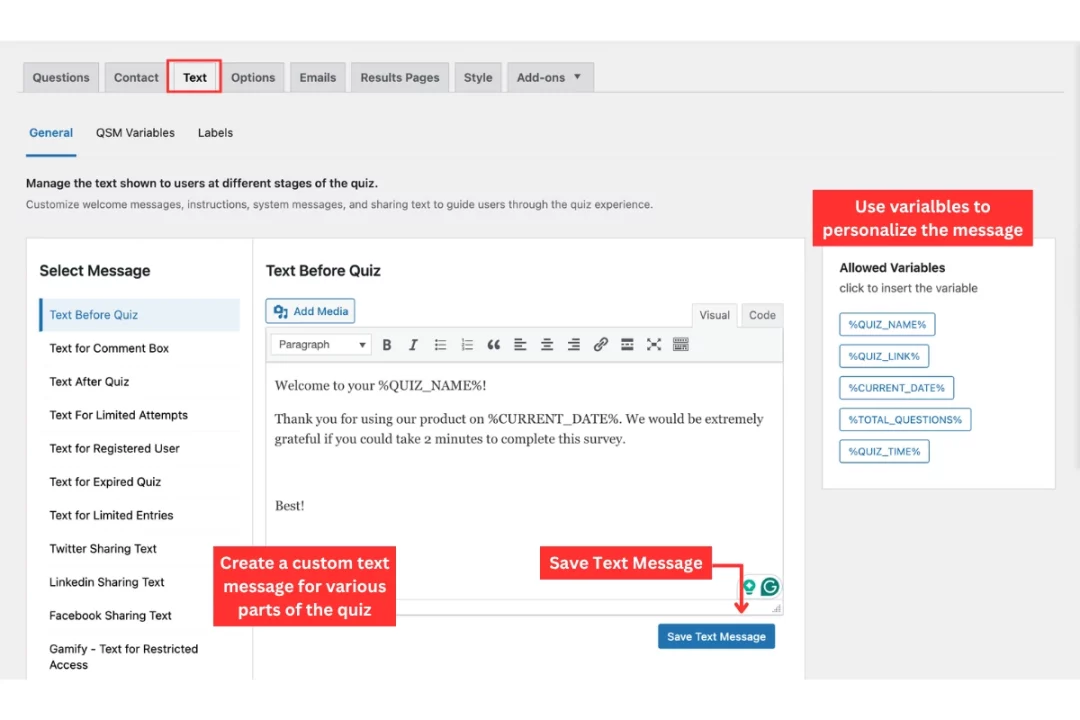
QSM uses template variables throughout these text fields. Variables like %CONTACT_NAME%, %QUIZ_NAME%, and %QUESTIONS_ANSWERS% automatically pull in respondent data and survey content. Click the Add Variables button inside the text editor to see the full list of available variables. Using variables makes your pre- and post-survey messages feel specific rather than generic, without manual editing for each response.
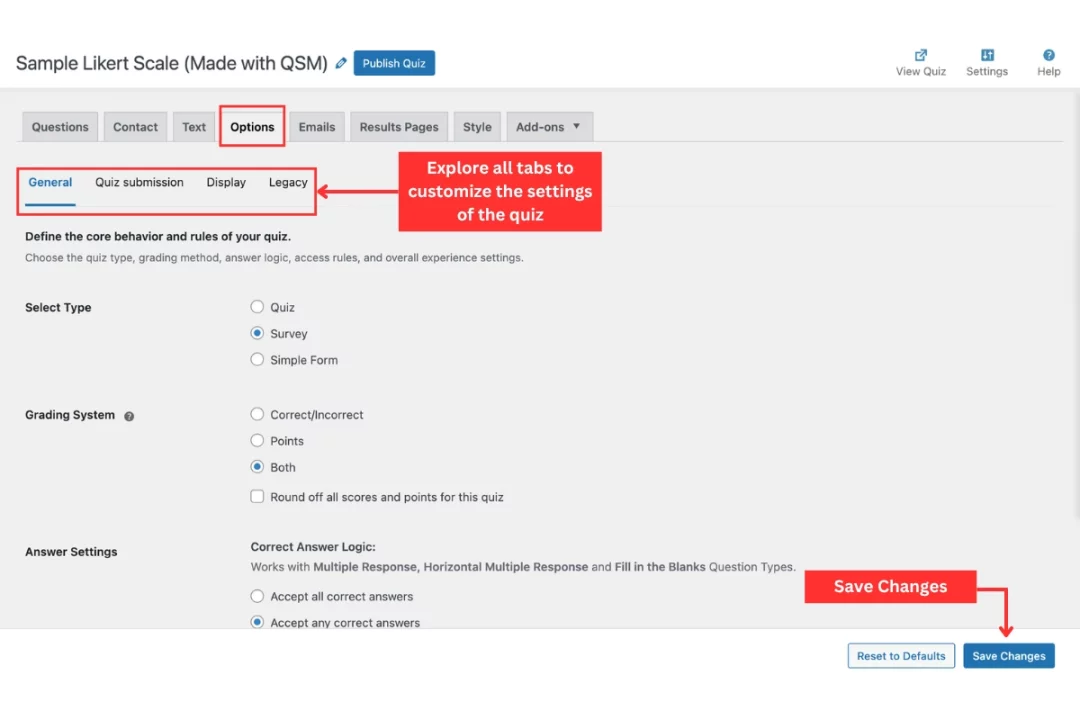
Under the Options tab, you can configure answer settings, date restrictions, user access controls, and submission details. Work through this tab to match the survey behaviour to your research requirements.
Step 5: Set Up Results Pages and Emails
Go to the Results tab. Click Add New Results Page to create multiple pages, one for each possible outcome. For a 5-point Likert survey, you would create five result pages, each tied to a different dominant label.
For each results page, set the condition using the label logic from the Advanced Assessment add-on. For example:
- Results Page 1: Show when Label A (Strongly Agree) has the highest count
- Results Page 2: Show when Label B (Agree) has the highest count
- Results Page 3: Show when Label C (Neutral) has the highest count
- Results Page 4: Show when Label D (Disagree) has the highest count
- Results Page 5: Show when Label E (Strongly Disagree) has the highest count
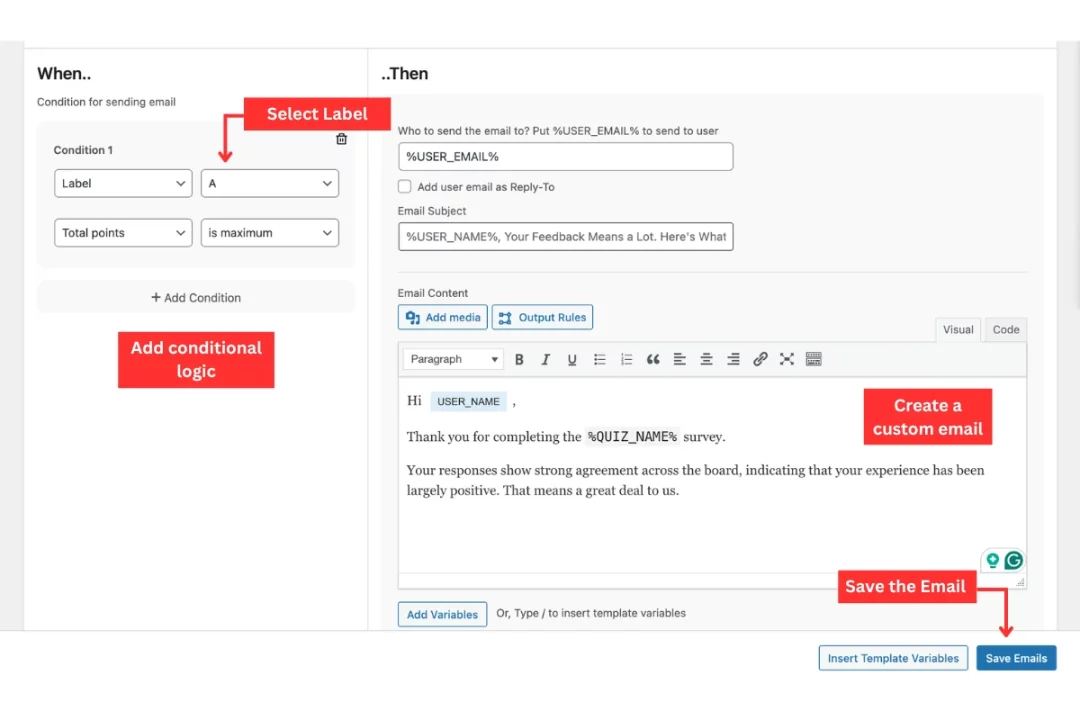
In the condition settings, select Category/Label as the condition type, choose the relevant label, and set the condition to trigger when that label has the maximum count across the respondent’s answers.
Customise each results page with a relevant message. For instance, the Label A results page might read: “Your responses show strong agreement overall. Here is what that means for your experience…” Each page can include custom text, template variables, and any media you want respondents to see.
Enable the Mark as Default checkbox on one results page to serve as a fallback if no label condition is clearly met.
The Emails tab follows the same logic. Set up five separate emails, one for each label outcome, using the same conditional structure.
Each email can be fully customised with a message relevant to that outcome. You can also set up a separate admin notification email that receives all response data regardless of label outcome, using the %QUESTIONS_ANSWERS% and %CONTACT_ALL% variables to include the full submission.
Step 6: Edit the Style
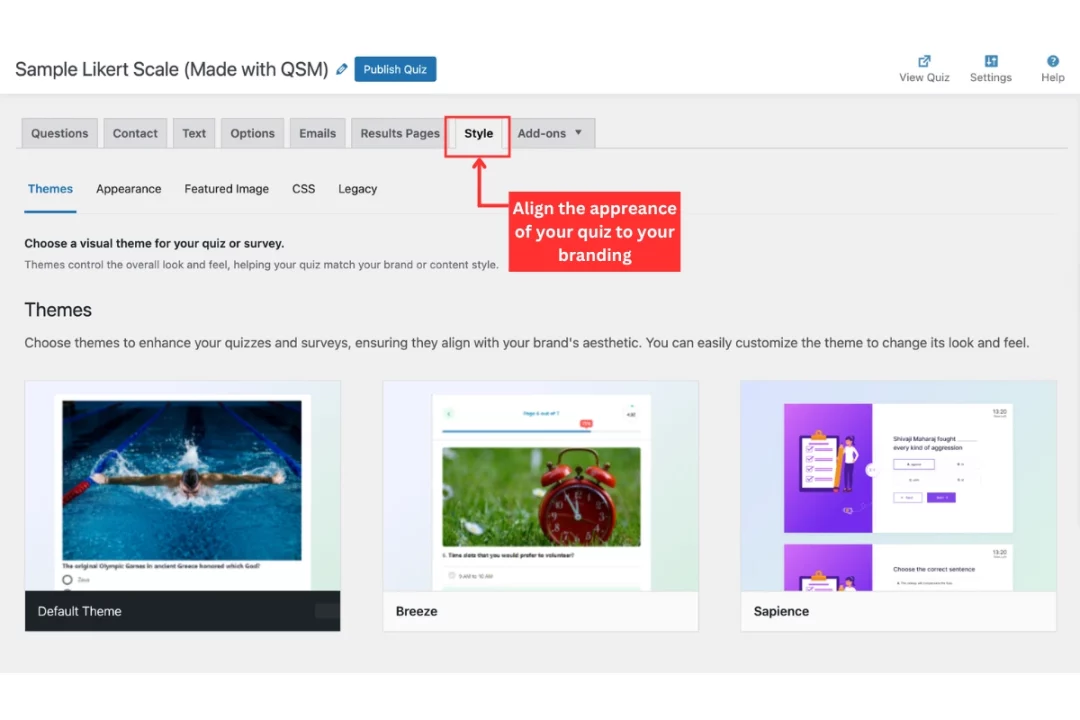
Go to the Styles tab. Here you can select from QSM’s built-in themes to change the visual appearance of your survey and create a mobile-friendly survey. If you want to match your site’s branding more closely, the QSM Ultimate Add-On unlocks a full theme customizer covering background colors, button styles, font settings, and answer choice appearance.
Step 7 (Optional:) Extend with Add-Ons
QSM has a library of add-ons that extend what your Likert survey can do. Here are five relevant to survey use cases:
- Advanced Assessment: Enables label assignment on answer options and label-based conditional logic for results pages and emails. This is the core add-on for running a Likert survey with personalised outcomes.
- Reporting and Analysis: Displays respondent data as charts and graphs, including the percentage of users who selected each answer. Useful for visualising Likert response distributions across your question set.
- Export Results: Exports all survey responses to a CSV or PDF file, so you can run further analysis in a spreadsheet or share results with stakeholders.
- Logic: Adds conditional branching to your survey, so you can show or skip questions based on earlier answers. Useful if your Likert survey is part of a longer research instrument.
- Google Sheets Connector: Syncs survey responses to a Google Sheet in real time, removing the need to manually export data after each collection period.
You can browse the full add-on library at quizandsurveymaster.com/addons.
Before You Launch Your Likert Survey
The 5-point and 7-point formats covered in this guide account for the majority of Likert surveys in active use, across industries, research contexts, and audience types. The reason the format has held up for nearly a century is that it respects both the respondent’s time and the researcher’s need for usable data.
Getting that balance right does not require a complex setup. A clear question, a consistent scale, and a reliable tool are enough to start collecting responses you can act on.
QSM gives WordPress users exactly that. Build your survey inside your existing site, collect responses without a third-party platform, and access your data directly from your dashboard. No coding, no subscription to an external tool, and no migration headaches if your needs grow.
Frequently Asked Questions
What is the most common Likert scale?
The 5-point Likert scale is the most widely used because it provides enough nuance (Neutral, Agree, Disagree) without overwhelming the respondent.
Is a Likert scale qualitative or quantitative?
It is a quantitative tool. It transforms qualitative feelings (attitudes) into numerical data that can be analyzed statistically.
What is an example of a 5-point Likert scale?
A classic example is: Strongly Disagree, Disagree, Neutral, Agree, Strongly Agree.
Why is it called a Likert scale?
It is named after its creator, social scientist Rensis Likert, who developed the method in 1932 to measure psychological attitudes.