With Quiz and Survey Master (QSM), you can create various types of quizzes to engage users and test their knowledge on any topic.
Creating a quiz is simple—select a quiz form type, choose a theme, and add useful add-ons like Quiz Proctor or Advanced Timer. Then, add questions, configure settings, set up emails, and customize the results page.
After installing the QSM plugin, head over to the QSM dashboard to create a quiz.
- Click Get Started beside the Create a Quiz/Survey option.
- Choose the Quiz option from all the form types.
- Select a theme for your quiz. QSM provides a free default theme and multiple high-quality premium themes. You can explore and choose a theme that matches your quiz style. Click Proceed.
- Explore QSM Add-ons suitable for the quiz. QSM offers 40+ add-ons to enhance functionality, including AI integration, quiz proctor, advanced question types, and more.
You can simply click on “See more Add-ons” to view all the add-ons.
Note: If you haven’t purchased an add-on, clicking on it will redirect you to its landing page, where you can learn more and complete the purchase. - Enter a Quiz Name and toggle the Additional Form Settings to expand the settings you can configure for the quiz. Like, a grading system, progress bar, timer, and more.
- Once you have configured the settings, click on the “Start Adding Questions” button.
At this stage, you have a blank quiz to add questions and answers.
The next steps involve:
Adding Questions – Create engaging questions for your quiz. Choose from 20 question types (five of them are advanced question types), set correct answers, and customize answer input types.
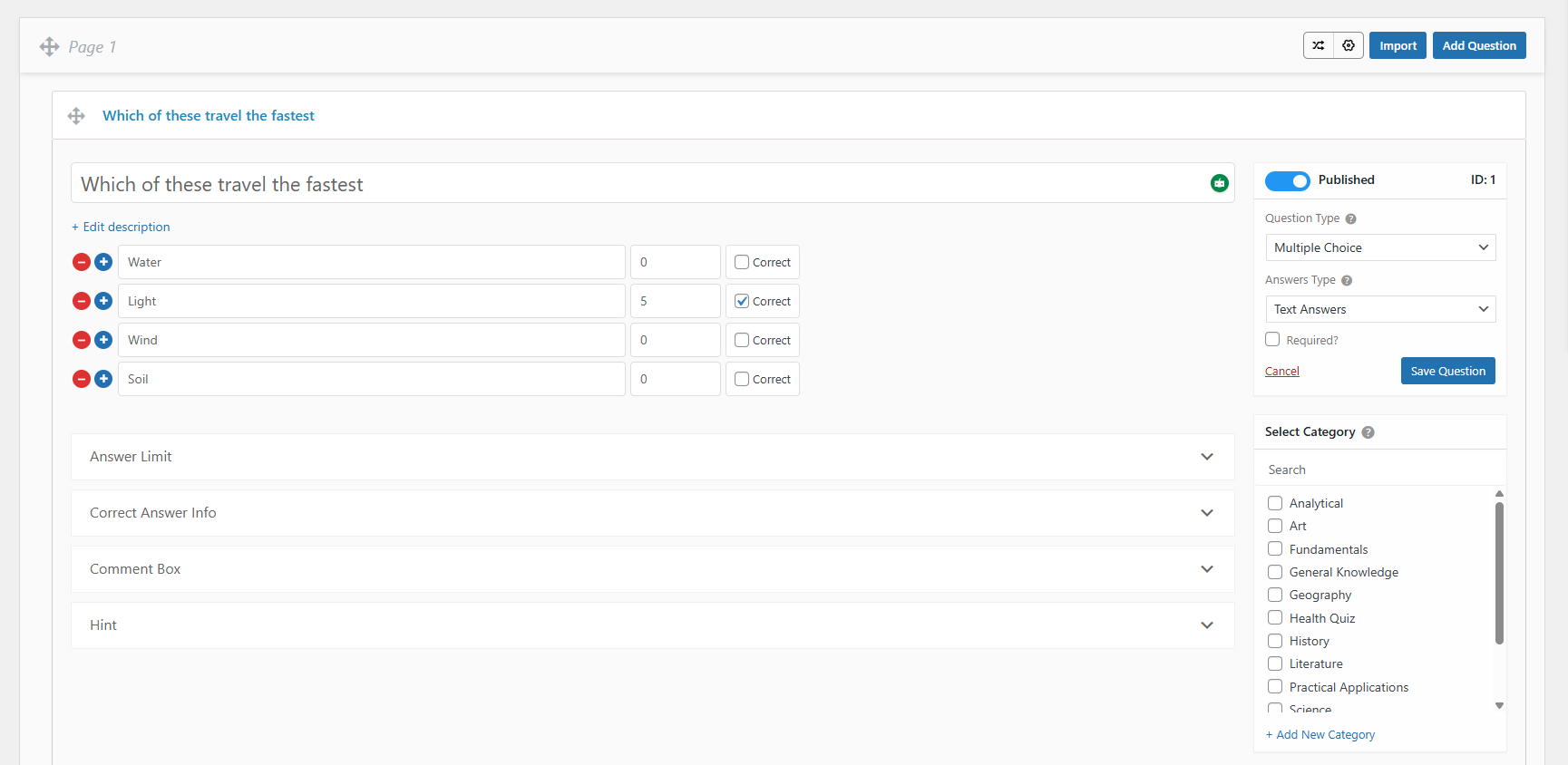
Setting Up a Contact Form – Collect user details such as name, email, or phone number before or after the quiz. Customize form fields based on the information you need.
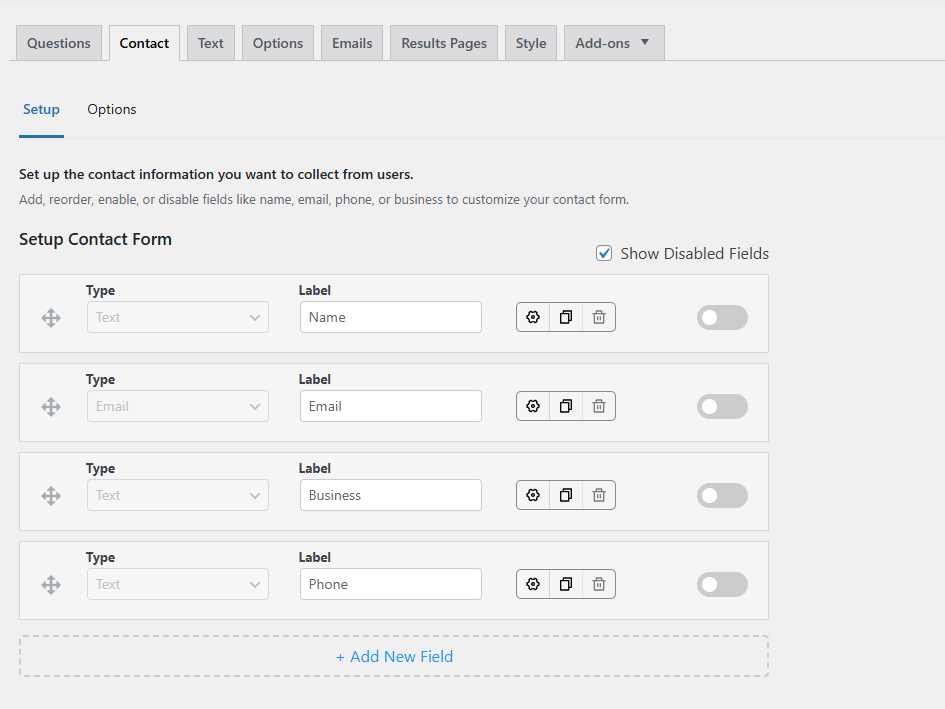
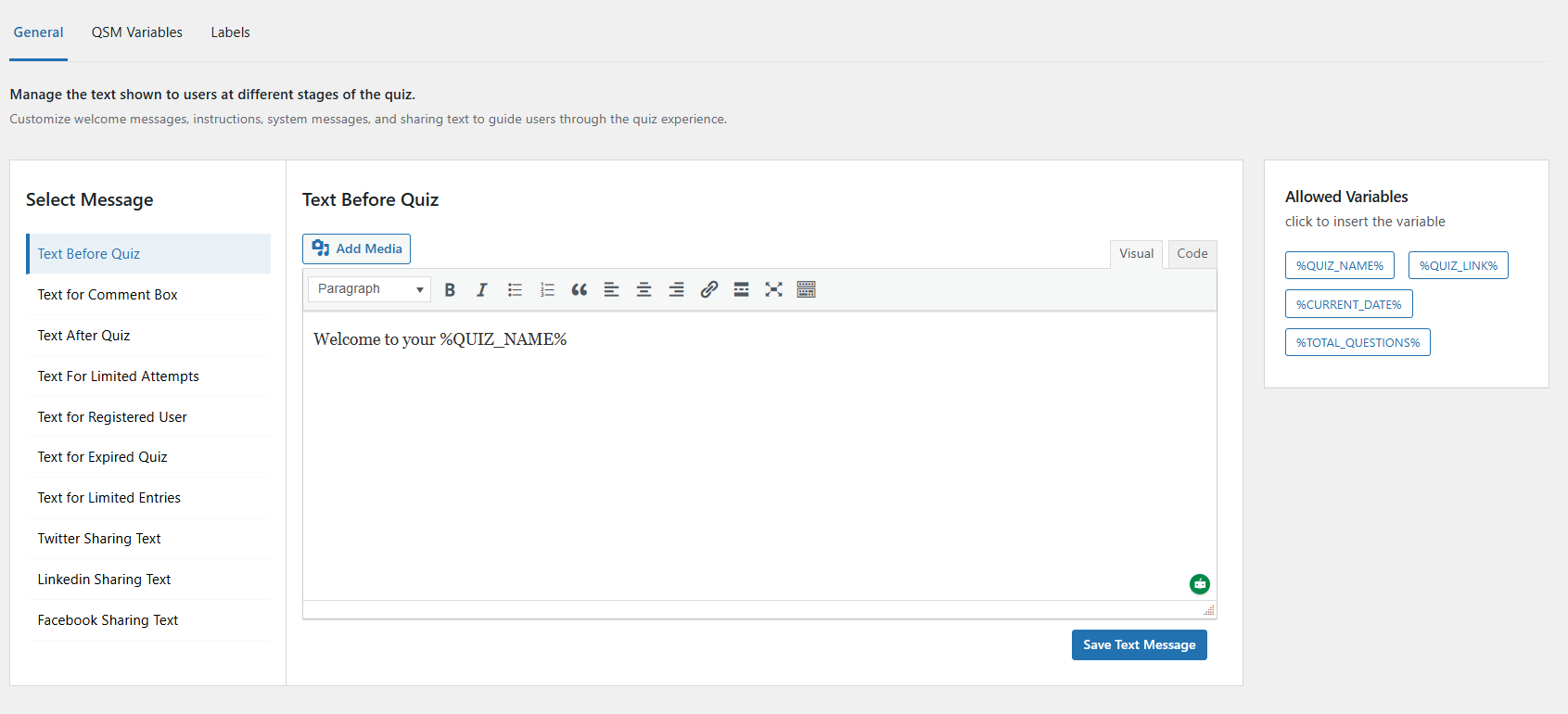
Adding Custom Text Messages – Display personalized messages during or after the quiz, such as instructions, success messages, or feedback based on the user’s performance.
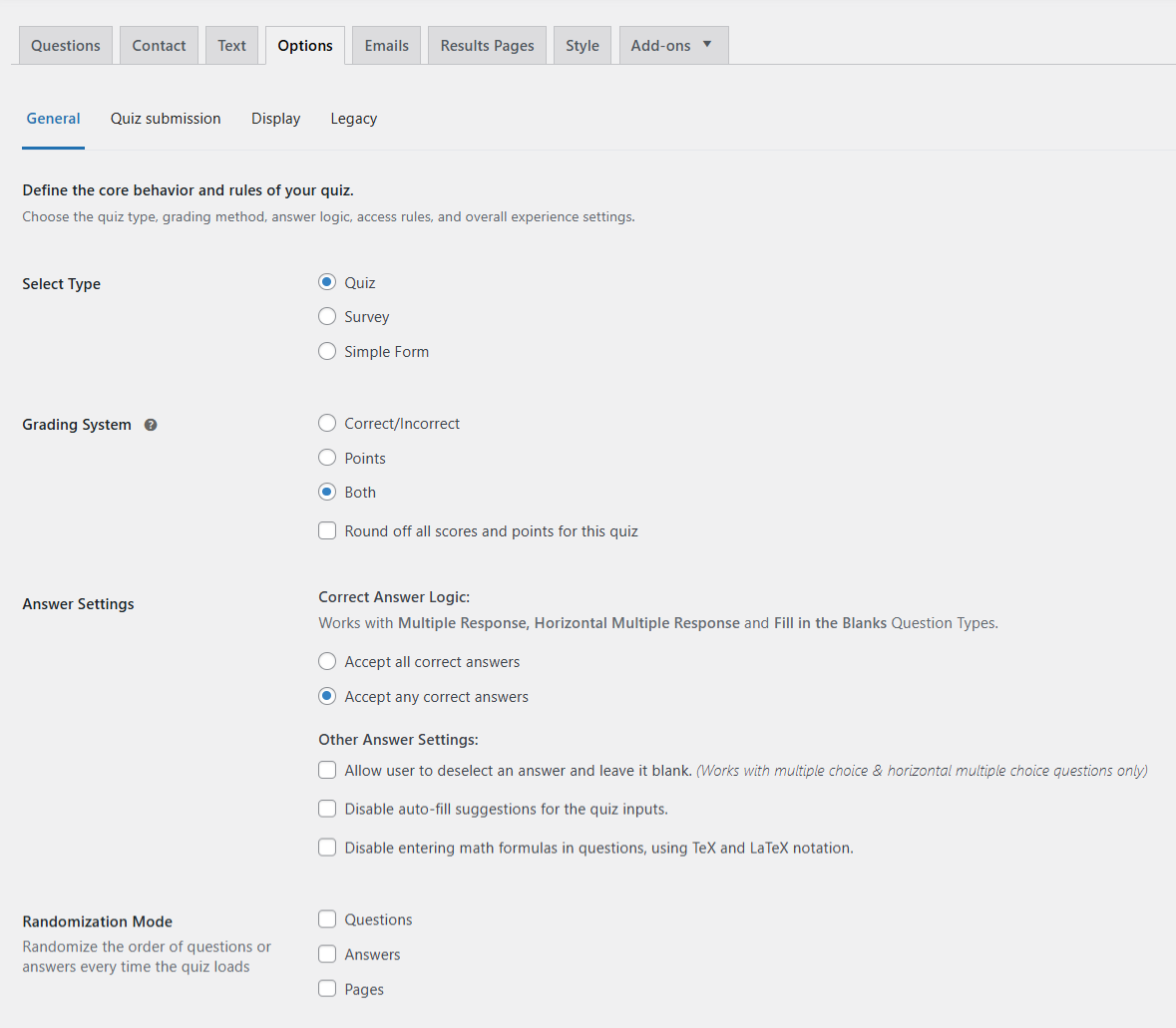
Configuring Quiz Settings – Adjust quiz behavior, including time limits, navigation options, retake permissions, and scoring methods, to align with your requirements.
Setting Up Emails – Enable automatic email notifications to send quiz results, thank-you messages, or follow-up emails to participants and admins.
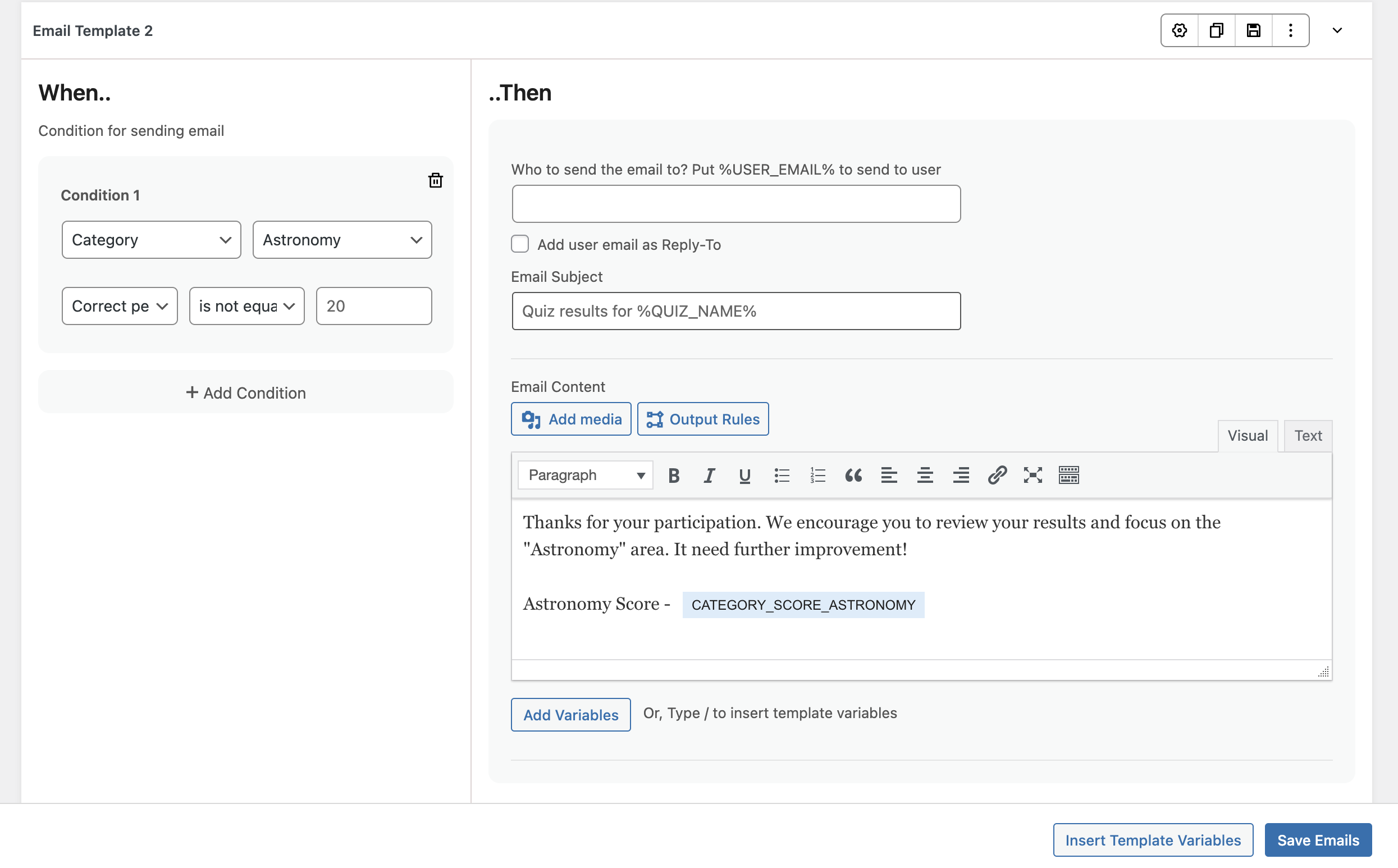
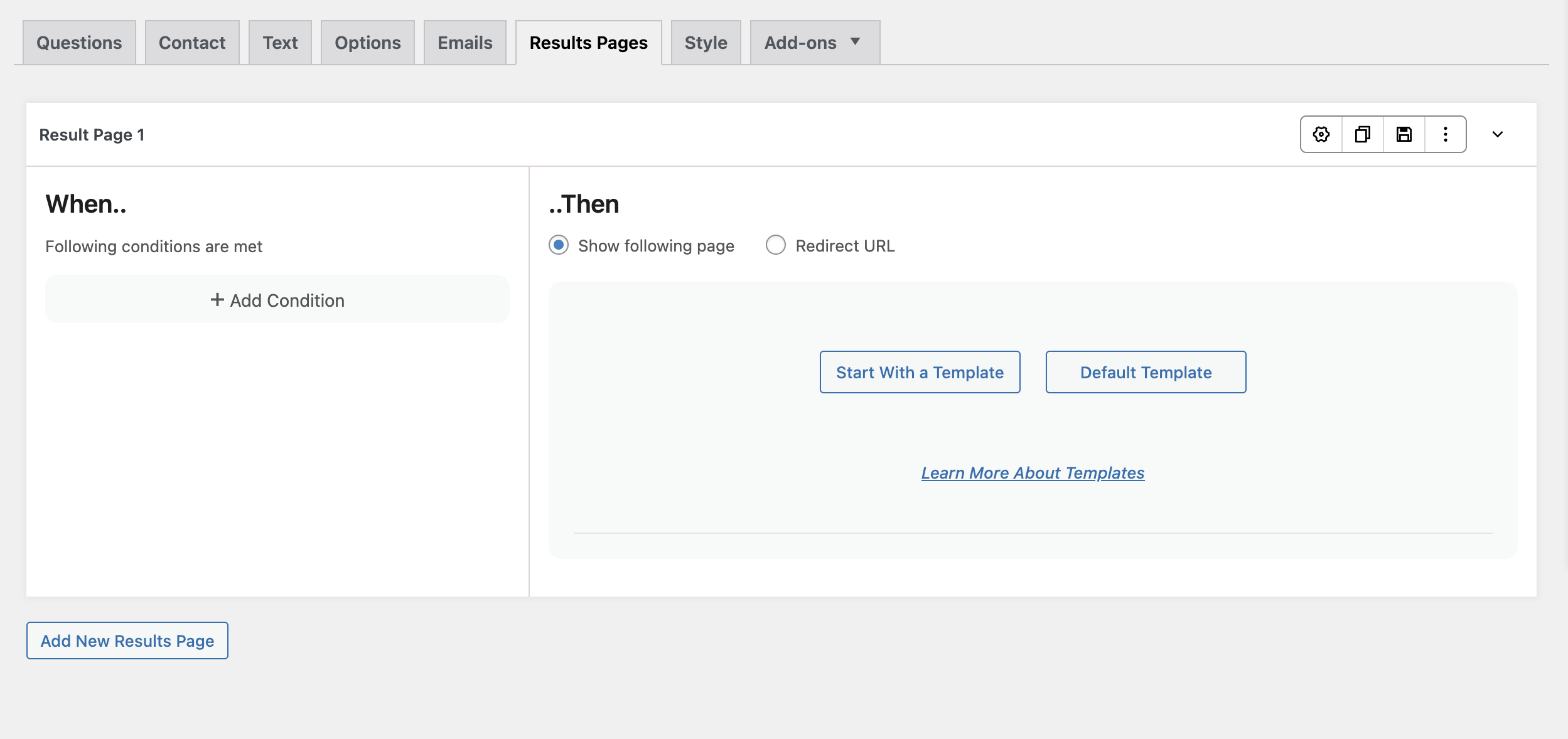
Customizing the Results Page – Define how results are displayed by setting up conditions based on percentage or points.
📌 QSM core plugin and themes now fully support the RTL (Right to Left) language format. Benefit from improved usability for right-to-left language users.
 Still stuck? How can we help?