Google Forms is one of the easiest tools for creating quizzes, exams, surveys, and feedback forms. It is simple, free, and works well for both beginners and professionals. But there is one major limitation that many users run into.
Google Forms does not have a built-in timer.
This becomes a real issue if you are a teacher, trainer, recruiter, or anyone who needs to add a timer to Google Forms for time-bound activities. Without time control, results can become inconsistent, submissions can stretch beyond limits, and evaluations lose fairness.
By the end of this guide, you will know how to add a timer to Google Forms, understand how timed forms work for respondents, set up auto submission when time ends, and manage a timed test without coding. If you’ve been searching for how to add timer in google forms, you’re in the right place.
Table of Contents
Can You Add a Timer to Google Forms?
Quick answer: Yes, you can add a timer to Google Forms, but not directly. Google Forms itself does not offer any timer or countdown feature. To make this possible, you need to use a Google Forms add-on.
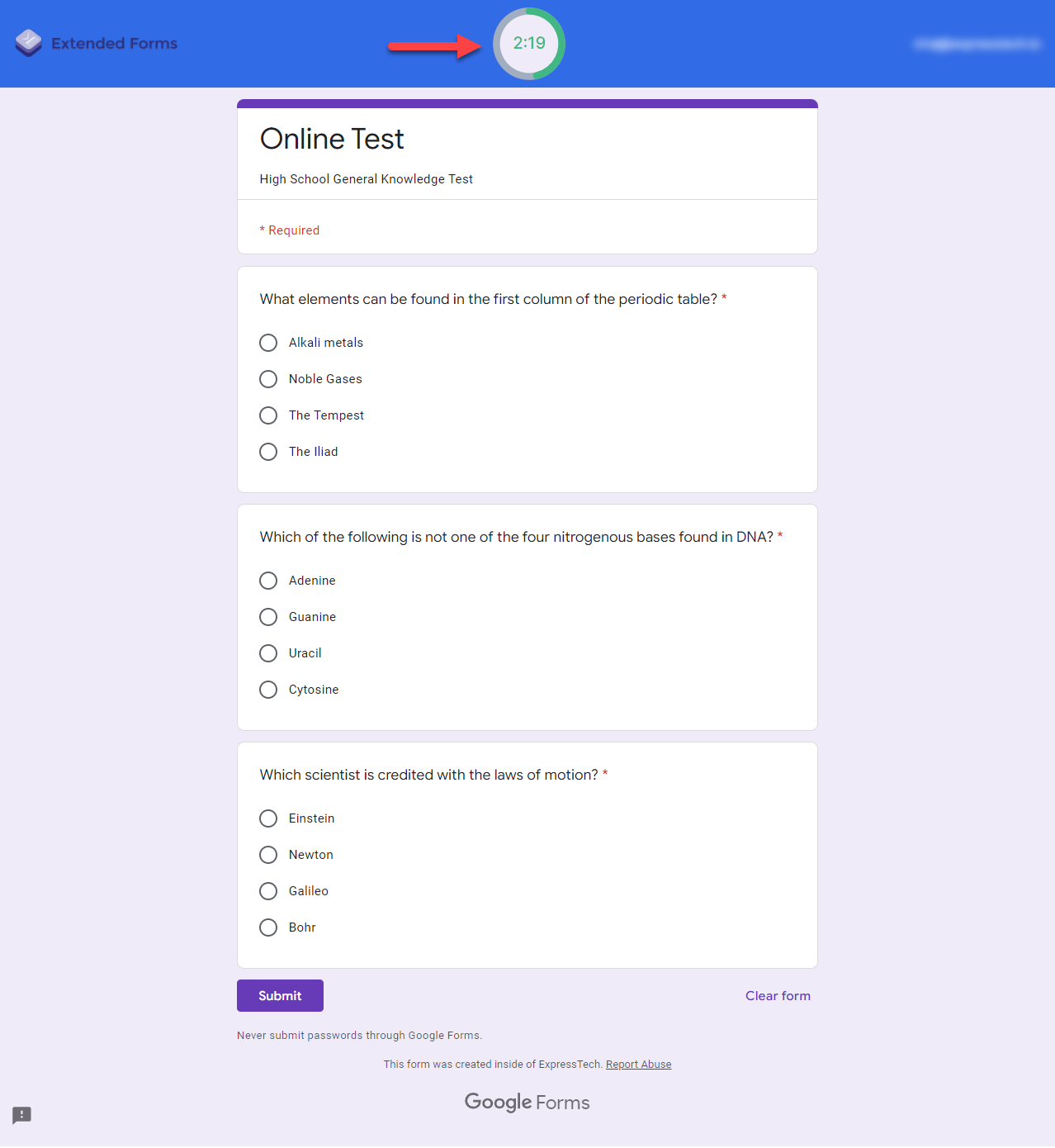
In this guide, we use Extended Forms, an add-on built specifically to add a timer to Google Forms for quizzes, exams, and assessments. It works inside Google Forms and enables time control, auto submission, and exam-level features without technical setup. This makes it a practical timer for Google Forms in real-world use cases.
Note: If you use WordPress and want to add a timer to your quizzes, you can read How To Set a Timer on Individual Quiz Pages in QSM.
Step-by-Step: Add a Timer to Google Forms Using Extended Forms
To add a timer to Google Forms, start by installing Extended Forms from the Google Workspace Marketplace using the same Google account that owns your form. Timer controls, response tracking, and exam settings are tied to form ownership, so this step matters more than people realise.
Installing the add-on does not change your existing questions or structure. You can safely add a timer to Google Forms even if your form is already created or partially shared.
Before proceeding, make sure your form structure is final. Add all questions, sections, and scoring rules first. Extended Forms work best when the base form is ready, because the logic for timing and submission sits on top of it.
Step 1: Open Extended Forms from inside Google Forms (this confirms it’s linked)
Once installed, open your Google Form and click the puzzle-shaped add-ons icon at the top. Select Extended Forms and click Configure. This opens a settings panel on the right side of your screen.
This step confirms that you are about to add a timer to Google Forms for the correct form. Many users mistakenly adjust settings in the dashboard without linking the form properly. Always open the add-on from inside the form you want to time.
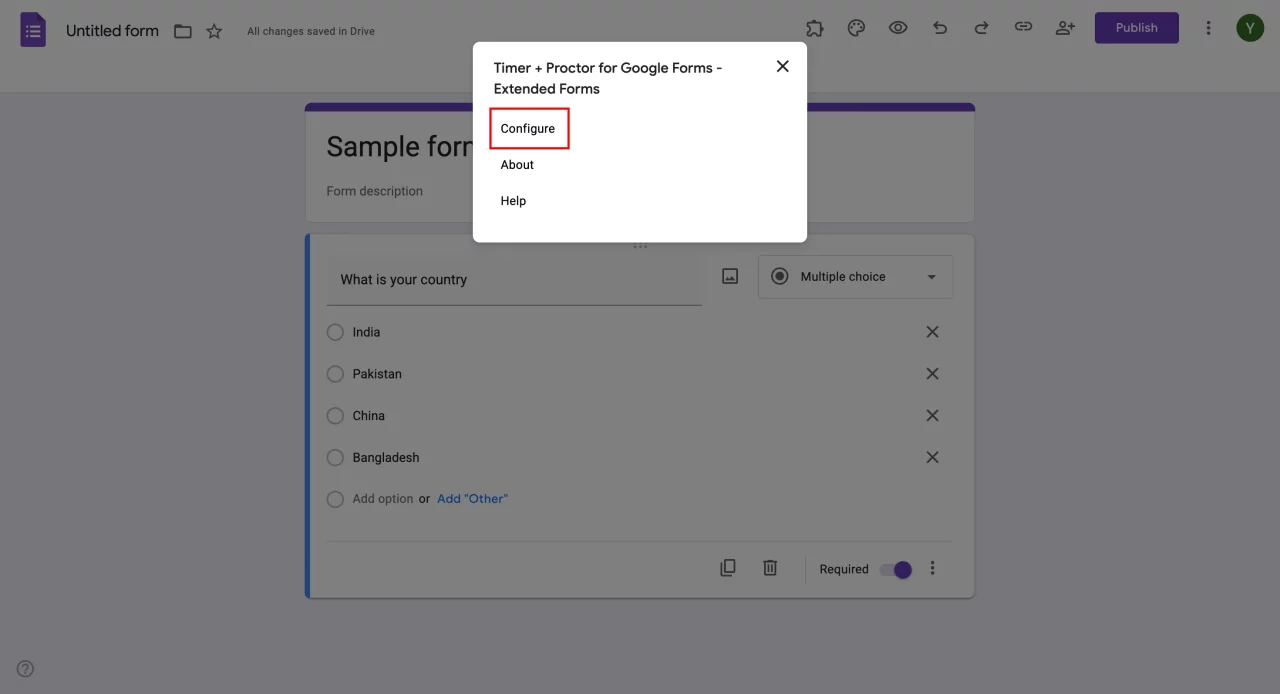
If the panel does not appear immediately, refresh the page once. After that, the configuration panel should load consistently.
Step 2: Set the overall timer for the form (most users need only this)
The most important step when you add a timer to Google Forms is setting the total time limit. This defines how long a respondent can work on the form after clicking Start. The timer does not begin when the link is opened, which prevents accidental time loss.
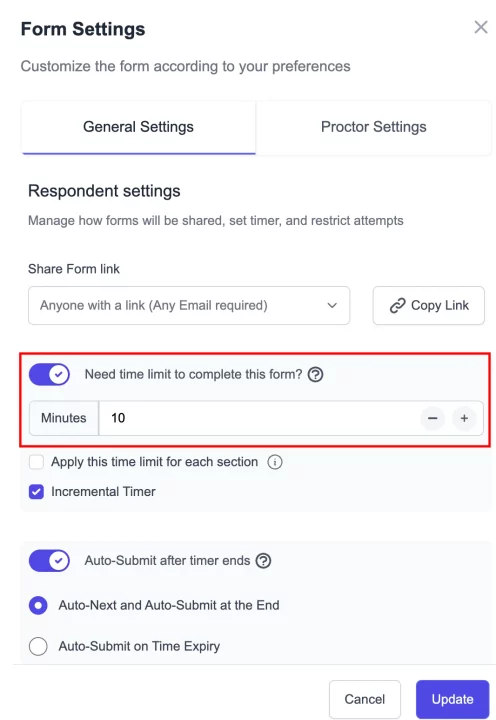
For most use cases, including quizzes, classroom tests, and recruitment screenings, this single setting is enough to add a timer to Google Forms effectively. Once the timer starts, the countdown is enforced automatically.
Why this matters: Without an enforced timer, users can pause, leave the tab open, or submit late. With a form-level timer, every participant works within the same boundary.
Step 3: Use section-based timers
If your form has multiple sections and each section tests a different skill, Extended Forms allows you to add a timer to Google Forms at the section level. This prevents users from spending too much time on one part and rushing through others.
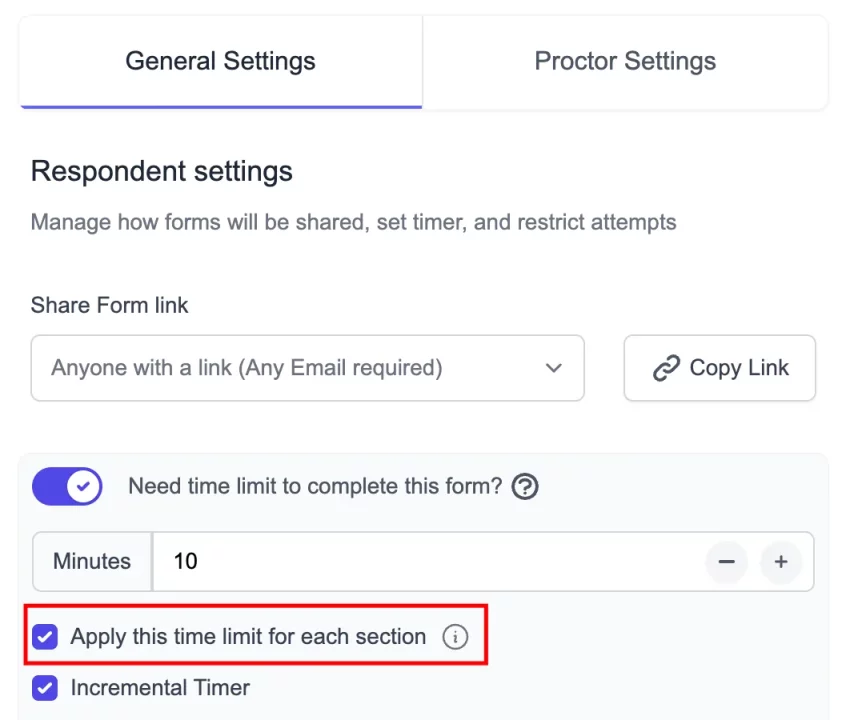
When section timers are enabled, you must decide how the form behaves at the end of each section. You can either move users automatically to the next section or submit the form when time expires. This is especially useful for formal exams or training assessments.
Expert tip: Avoid section timers for simple quizzes or surveys. They are powerful, but best used only when structure and fairness are critical.
Step 4: Decide what happens when time runs out (this defines exam integrity)
One of the most important reasons people want to add a timer to Google Forms is automatic submission when the time runs out. Extended Forms gives you full control over this behaviour.
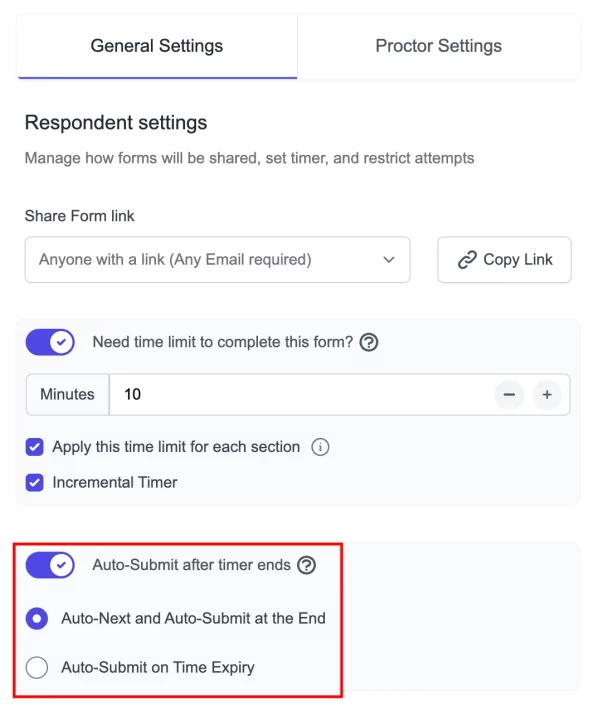
You can enable Google Form timer auto submit, which submits responses immediately when the timer ends. This removes manual dependency and ensures no participant gets extra time due to delay or hesitation. For exams and recruitment tests, auto submission should always be enabled.
Step 5: Review access rules and response limits before sharing
Before sharing your timed form, open the full settings view using the gear icon. This is where you can define when the form starts accepting responses, when it stops, and how many attempts are allowed.
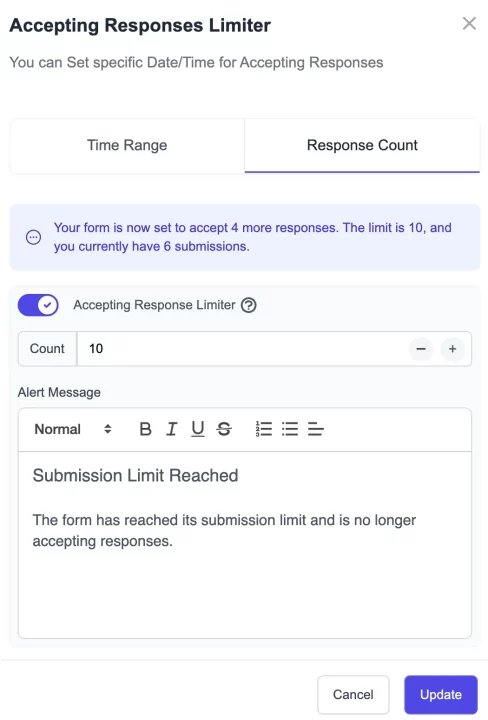
These settings are important when your form is time-sensitive or shared with a large group. You can prevent early access, block late submissions, and restrict multiple attempts without any manual monitoring.
Always combine a timer with response restrictions for exams. A timer alone controls duration, but access rules control fairness.
Step 6: Preview the form exactly as a participant will see it
Do not rely only on Google Forms’ default preview when you add a timer to Google Forms. Use the Extended Forms preview option to see the actual test experience. This shows you where the timer appears, how visible it is, and how the form behaves when time is close to ending.
You will also notice that the remaining time appears in the browser tab title. This helps users stay aware of time even if they switch attention briefly.
Before going live, complete one full test run using a different email. This is the fastest way to catch small issues before real users encounter them.
More Ways Extended Forms Improve Google Forms
Beyond timers and exam settings, Extended Forms includes several features that solve common problems users face when running assessments, surveys, or internal workflows at scale. These tools help improve fairness, presentation, and coordination—areas where standard Google Forms often falls short.
Advanced Proctoring for Google Forms
When forms are used for exams or evaluations that happen remotely, supervision becomes a concern. Extended Forms addresses this by offering advanced proctoring options that help maintain test integrity without needing physical monitoring.
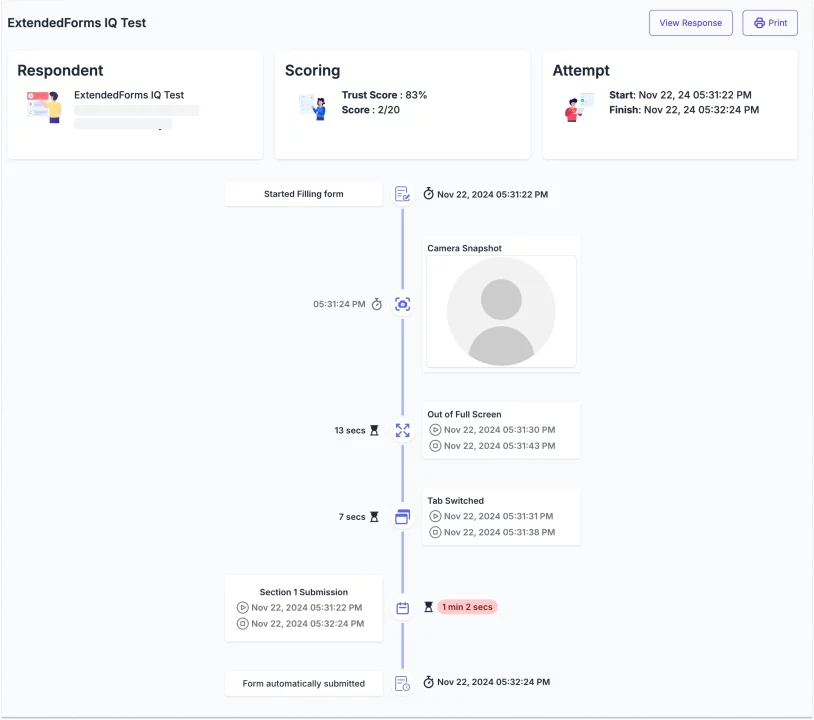
You can apply full-screen checks to discourage users from switching away during a test, detect tab changes, and block copy-paste actions where required. Camera-based proctoring adds another layer of oversight by capturing snapshots during the attempt. Along with this, activity reports help you review how users interacted with the form, making it easier to identify irregular behaviour after the test is complete.
These features are most useful for online exams, certifications, and recruitment assessments where fairness and consistency matter.
Custom Branding for Google Forms: Logos, Timer Themes, and More
Presentation plays a bigger role than many people realise. Forms that look generic or unbranded often feel informal, which can reduce trust and engagement. Extended Forms allows you to customise the look and feel of your Google Forms so they align with your organisation or institution.
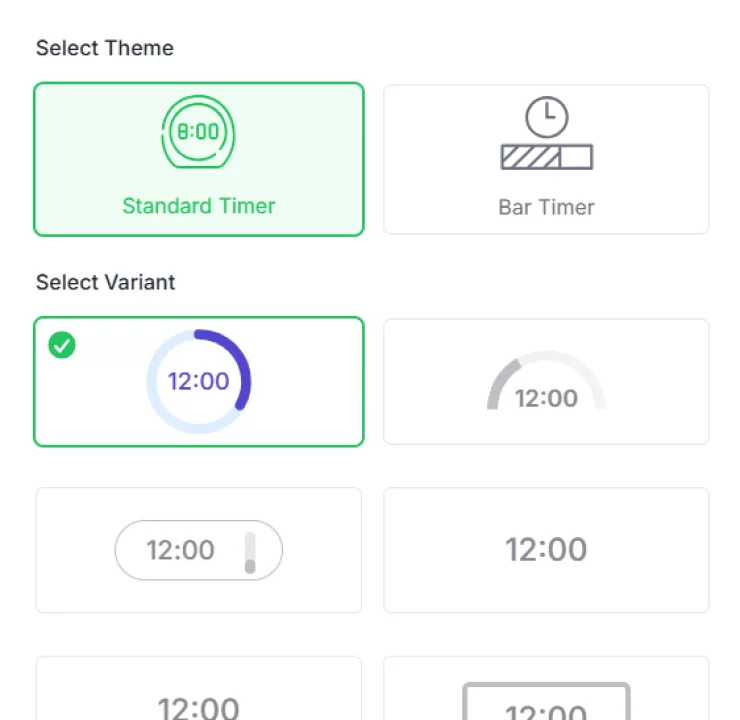
You can add custom branding elements like brand logos, apply custom colours and timer themes, personalise welcome messages, and even use tailored URLs. This creates a more professional experience for users and helps set clear expectations before they begin. For external audiences such as students, candidates, or clients, branded forms feel more reliable and intentional.
This is especially helpful for organisations that want consistency across all digital touchpoints.
Assign and Manage Work Better with Teams Management
When multiple people are involved in creating, sharing, or reviewing forms, coordination can quickly become messy. Extended Forms includes team management features that help organise work more effectively.
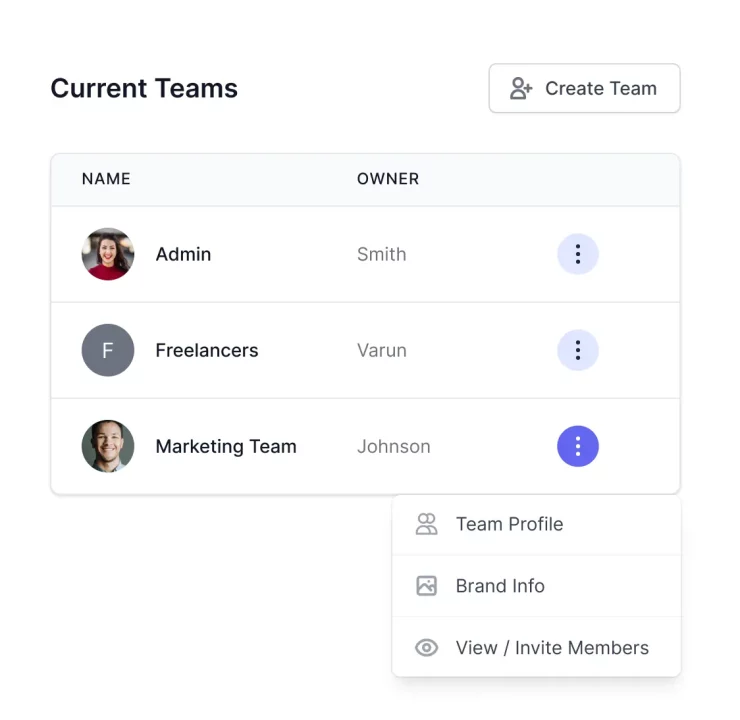
You can group users into teams, assign forms to specific teams, and manage access without confusion. Each team can maintain its own identity with unique icons, logos, and support contact details. This makes it easier to run department-wise assessments, manage internal workflows, or handle multiple projects at the same time.
For growing teams or organisations handling many forms, this structure reduces errors and saves time.
When You Should Use a Timer in Google Forms
- Online Exams and Classroom Tests: A timer is useful when all participants must complete the form within the same time limit. It helps keep exams fair and avoids late or extended submissions.
- Recruitment and Screening Assessments: Timers work well for remote hiring tests where candidates are evaluated on speed and accuracy. Everyone gets the same duration, which makes comparison easier.
- Internal Training and Skill Checks: When assessments are used to measure progress or readiness across teams, a timer helps keep results consistent and focused.
- Scheduled or Session-Based Activities: For live workshops, training sessions, or fixed-time activities, a timer ensures forms are completed only within the intended window.
Can I add a timer in Google Forms?
Google Forms does not have a built-in timer. To add a countdown timer or auto-submit responses when time runs out, you need to use an add-on like EF (Extended Forms). This is commonly used for quizzes, exams, and timed forms.
Can you schedule a Google Form to stop accepting responses?
Yes. Google Forms allows you to stop accepting responses manually. You can also schedule this using Google Workspace tools or third-party add-ons that support response scheduling.
How to make a form no longer accept responses?
To stop a Google Form from accepting responses, open the form, go to the Responses tab, and turn off the Accepting responses toggle. You can also add a custom message to inform users that the form is closed.
Can you set a time limit on Google Forms?
Not directly within Google Forms. You can set a time limit by using tools such as EF (Extended Forms), which allow you to control how long a user can take to complete the form.
Using a Google Forms Timer the Right Way
If you reached this guide looking for a way to control time in Google Forms, the takeaway is simple: it is possible, and it does not require technical work. With the right setup, you can move beyond open-ended forms and create experiences that are structured, predictable, and easier to manage.
The real value comes from using time limits intentionally. When applied to the right situations, a timer helps improve consistency and decision-making without adding friction for users. Set it up once, test it properly, and you can rely on it for any time-sensitive form going forward.