Quiz Navigator 2.0 introduces a smarter way for quiz takers to navigate, track progress, and manage complex quizzes with ease.
This update adds real-time question status tracking, a new sidebar layout, section-based navigation, and a Mark for Review system, making longer quizzes easier to navigate and manage.
Below is a breakdown of what’s new and how to configure it.
What Changed from Version 1.0
Before getting into the new features, here’s a quick look at what’s different from the previous version:
| Feature | Version 1.0 | Version 2.0 |
| Status updates | Only on Next/Prev click | Updates on question interaction in real time |
| Layout options | Horizontal, Grid | Horizontal, Grid, and Sidebar |
| Question states | Responded, Skipped, Required | Six states, including Partially Answered, Not Visited, Marked for Review, Marked & Answered |
| Section navigation | Not available | Full section-wise navigation with dropdown |
| Status labels | Fixed | Fully customizable |
| Status counts | Not available | Shows count per status type |
Now, let’s discuss how these new updates will be configured. So, to show how these Quiz Navigator features work in practice, we’ll use a hypothetical certification exam.
📌 If you want to set up Quiz Navigator from scratch and explore all layout and status options, refer to the Quiz Navigator add-on documentation for a complete setup walkthrough.
1. Mark for Review Button
Immediately after you’ve enabled the navigator, you’ll see the Enable Review Button, which adds a flag option on every question so test takers can mark questions they’re unsure about and come back to before submitting.
Once the Enable Review button is checked, quiz takers will see a Mark for Review button on every question while taking the quiz.

Here’s how it works in practice for our certification exam:
A test taker reaches Question 12 — a tricky one, they’re not fully confident about. They select their best answer and click Mark for Review. The button immediately switches to “Unmark,” so they always know the current state of that question.
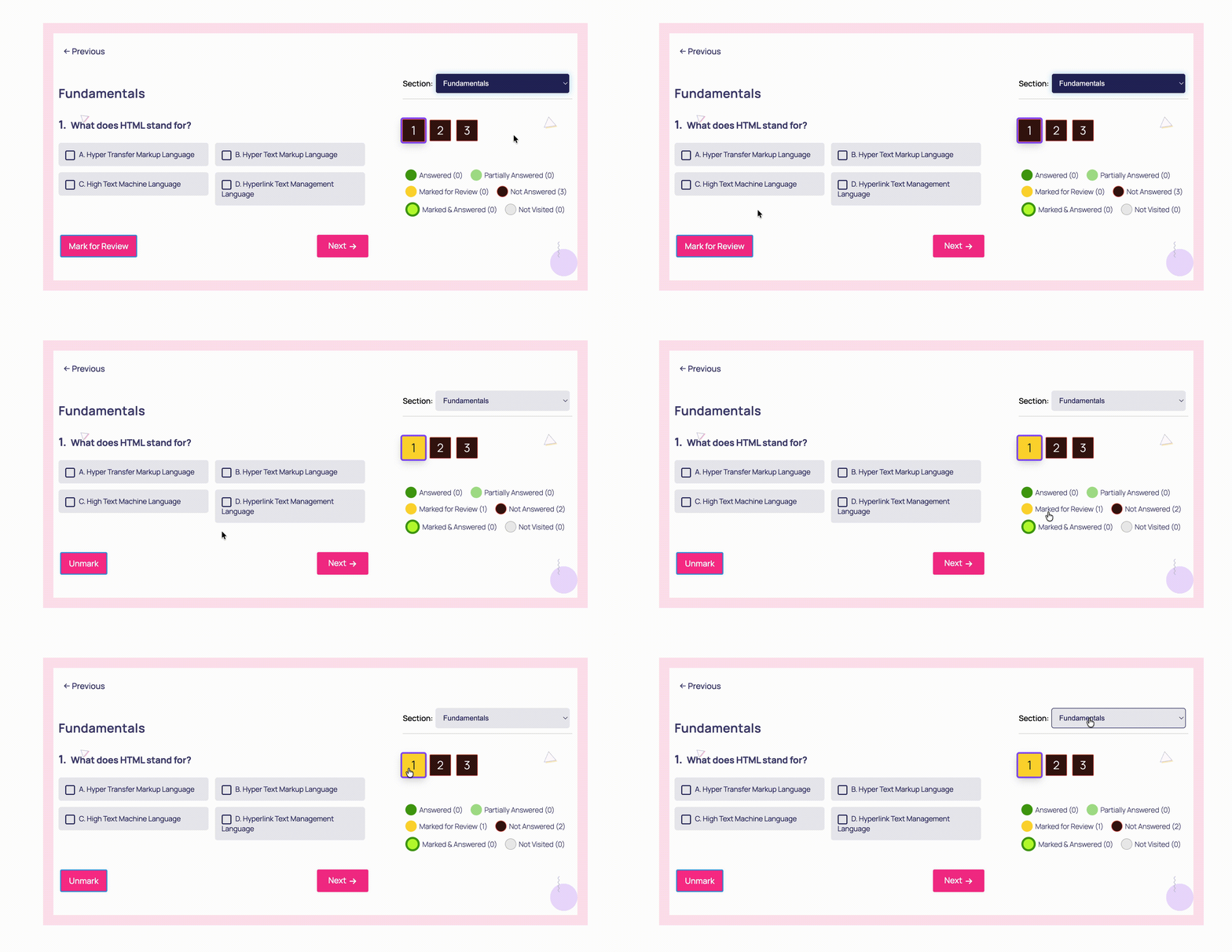
In the navigator panel, the question appears in a distinct color based on its status — either Marked for Review or Marked & Answered — making it easy to spot at a glance.
Without this feature, they’d either have to mentally track uncertain questions or go back through every page manually.
2. Section-wise Navigation
Section-wise navigation is brand new in 2.0 and works specifically with manual pagination. Enabling it means your quiz shows one section at a time, each with its own navigation panel.

For our three-section exam, this means a test taker knows exactly which section they’re in. A dropdown lets them jump between sections, and within each section, they can navigate to any specific question with a single click. No more guessing which page a question is on or scrolling through the entire quiz to find it.
However, if you want the section panel hidden and prefer to only show individual question navigation, there’s a Hide Section-wise Navigator option to handle that.
3. The New Sidebar Layout
Under the Layout, you’ll find three options.
Quiz Navigator Version 1.0 offered horizontal and grid layouts. However, with v2.0, you now get the option to add a ‘Sidebar’ layout that keeps the navigator panel fixed to the side of the quiz at all times.

In case you’ve created an exam of over 50 questions, this is the strongest choice. The sidebar stays visible as test takers move through questions, so they always have a live overview of their progress without needing to scroll up or down.
For shorter quizzes, horizontal or grid still works well, depending on how your page is structured.
4. Page Status and Customizable Labels
Quiz Navigator v2.0 introduces Page Status, a feature that gives quiz takers a real-time view of their progress.
In the earlier version, question statuses only updated when users clicked “Next” or “Previous.” So if someone answered a question but stayed on the same page, the navigator wouldn’t reflect that change right away.

However, when you enable the Page Status option in the settings, the navigator updates question statuses as soon as a quiz taker interacts with a question. Whether they answer it, partially complete questions from that page, or mark it for review, the status updates instantly in the navigator.
For example, if the user answers question 3, the navigator status will immediately update as “Answered” without requiring them to move to another page.
Note: If a page contains multiple questions, the navigator shows a single combined status based on the overall state. For example, if one question is answered and another is left unanswered, the page will be marked as “Partially Answered.”
Because of this, it’s important to decide how you structure your quiz. You can keep one question per page for more precise tracking or include multiple questions per page, depending on what works best for your use case.
Once you enable ‘Page Status,’ you can adjust how it looks to fit your quiz design. You can control elements like width, height, spacing (gap), and overall layout to match your interface.
Customize Status Labels
You can also customize the six status labels shown in the navigator:
- Answered – the question is fully completed
- Partially Answered— some answers are selected, but not all
- Not Answered – the question was visited but left blank
- Not Visited— the question hasn’t been opened yet
- Marked for Review— the question is flagged but not answered
- Marked & Answered— the question is flagged and answered
You can keep these labels as they are for clarity and consistency. But they are customizable, so for fun quizzes or training modules, you can rename them and make them different.
5. Expanded Color Customization for Each Status
The Quiz Navigator update expands the color customization significantly. Beyond the basic Normal, Hover, Active, and Responded states, you can now set distinct background, text, and border colors for every new status state.

For instance, we’ve set our certification exam, and a clear color system gives test takers an instant visual map of where they stand.
- 🟢 Answered
- 🟡 Partially Answered
- 🔴 Not Answered
- ⚪ Not Visited
- 🟨 Marked for Review
- 🟩 Marked & Answered
With 50 questions across three sections, this color system means our test taker can scan the navigator in seconds and know exactly where to focus their remaining time. This gives test takers an instant visual map of where they stand at any moment.
Benefits and Use Cases
Online Exams and Certifications
The combination of section navigation, Mark for Review, and real-time status tracking mirrors the experience of professional exam platforms. Test takers can manage time better, flag uncertain questions, and review before submitting, all without leaving the quiz.
Corporate Training Assessments
For multi-section training quizzes, section-wise navigation lets employees focus on one topic area at a time. Managers can structure content clearly, and employees can track their progress through each module.
Competitive Quizzes
For timed competitive quizzes, the real-time status panel helps participants make quick decisions about which questions to attempt first and which to flag for later, like how you take competitive exams like SATs.
Quick Reference: What’s New vs What Was There Before
New in 2.0:
- Sidebar layout option
- Section-wise navigation with dropdown
- Mark for Review with dynamic button state
- Real-time status updates on question interaction
- Page Status with count indicators
- Customizable status labels
- New color states: Partially Answered, Not Visited, Marked for Review, Marked & Answered
Carried over from 1.0:
- Horizontal and Grid layouts
- Basic button size and style customization
- Shortcode placement option
- Allow skipping required questions
- Core color customization for Normal, Hover, Active, and Responded states
Ready to try this feature on your exams? Follow the Quiz Navigator add-on documentation to configure it in your quiz.