It is 2026, and the landscape of WordPress development has shifted fundamentally. If you are still managing sites with manual dashboard clicks and endless command-line entries, you are essentially working in the 90s.
In 2026 and the years to follow, AI for WordPress is no longer a futuristic trend; it is the industry standard. Modern developers are now commanding their sites through natural language. Whether it is listing all posts, updating complex taxonomies, or auditing plugin security, it can all be done with a single prompt inside ChatGPT or Claude.
This guide will show you how to step into the future using the WordPress MCP Server to turn your AI into a powerful, site-managing partner.
Why Developers and Agencies Should Connect ChatGPT to WordPress
In the fast-paced digital landscape of 2026, the traditional “manual” approach to site management is no longer just slow; it’s a competitive liability. Connecting ChatGPT to your WordPress site via a WordPress MCP server moves you from being a “builder” to an “orchestrator.”
Here is why this integration is essential for modern professionals:
1. Hyper-Scale Efficiency
Agencies managing 50+ client sites can now perform bulk actions, like updating SEO metadata for a specific category or auditing plugin versions, across their entire portfolio using a single conversational prompt. What used to take a junior developer 10 hours now takes 10 seconds.
2. Context-Aware Content Ops
Unlike a generic AI assistant, a connected ChatGPT “knows” your site. It understands your existing taxonomies, your brand voice from previous posts, and your current inventory.
This allows it to draft content that is strategically aligned with your site’s current state, rather than generic output.
3. Technical Troubleshooting in Plain English
Developers can use ChatGPT as a real-time debugging partner. By granting the AI access to read site logs or code snippets via the MCP server, you can ask, “Why did the checkout page slow down after the last update?” and receive a technical analysis based on live site data.
4. Proactive Site Maintenance
Instead of waiting for a client to report a broken link or a layout shift, you can task your AI assistant to run daily “site health crawls.” It can detect anomalies, flag security risks, and even draft the necessary CSS fixes before a human even opens the dashboard.
5. New Revenue Streams
Agencies can productize this technology. By offering “AI-Managed Retainers,” you can provide clients with 24/7 automated content optimization, instant support bots trained on their specific documentation, and real-time performance reporting; all with minimal overhead.
By bridging the gap between LLM reasoning and WordPress execution, you aren’t just automating tasks; you are building an intelligent infrastructure that scales your expertise.
Prerequisites for Connecting ChatGPT With WordPress
Before you can command your WordPress site through ChatGPT, you need to ensure your infrastructure meets the 2026 standards for AI-to-CMS communication. Connecting an LLM to a live database isn’t just about “plugging it in; it requires a specific environment that prioritizes security and protocol compatibility.
Here is the essential checklist for developers and agencies:
1. WordPress MCP Server
The most crucial prerequisite for connecting ChatGPT to WordPress is a WordPress MCP server.
To understand the WordPress MCP Server, think of it as a specialized translator sitting between two different worlds. On one side, you have ChatGPT (which speaks the language of human intent and natural language).
On the other side, you have WordPress (which speaks the language of PHP, SQL, and REST API).
The role of the MCP Server is to allow ChatGPT to “see” your WordPress dashboard and “act” on it as if it were a human administrator.
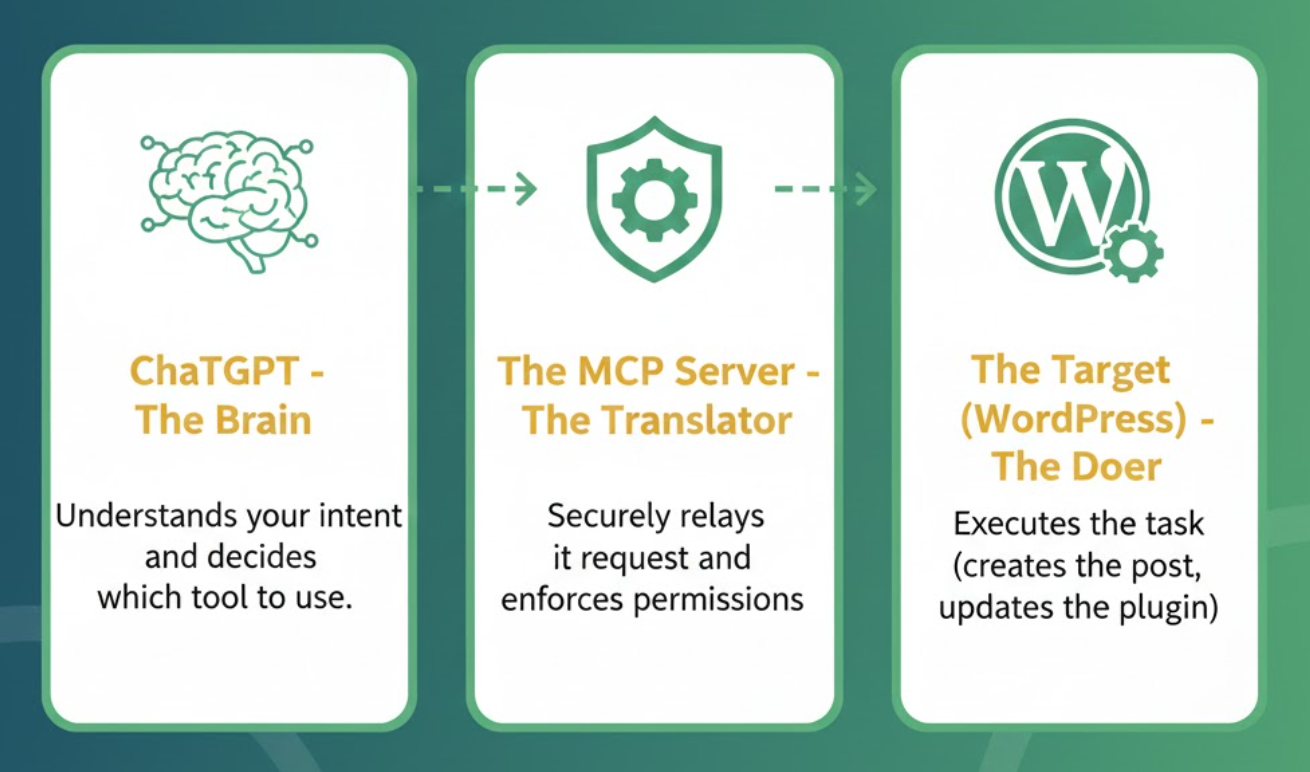
Without an MCP server, you would have to manually copy-paste data between ChatGPT and WordPress. You would ask ChatGPT to write a post, copy the text, log into WordPress, create a new post, paste the text, and hit save.
With the MCP Server, that entire 5-minute manual process becomes a 5-second conversation.
Now, you have the official WordPress MCP server to connect ChatGPT with WordPress. While it is an open-source solution, it’s not ideal for an enterprise-grade, developer-friendly implementation.
For those looking to integrate AI quickly and safely, InstaWP’s built-in WordPress MCP server offers significant advantages:
Zero-Config Setup: A Developer’s Dream
Unlike the self-hosted official server, which requires npm installs, environment variables, and a wp-sites.json file configurations, InstaWP’s WordPress MCP server is literally a one-click enable feature within their dashboard.
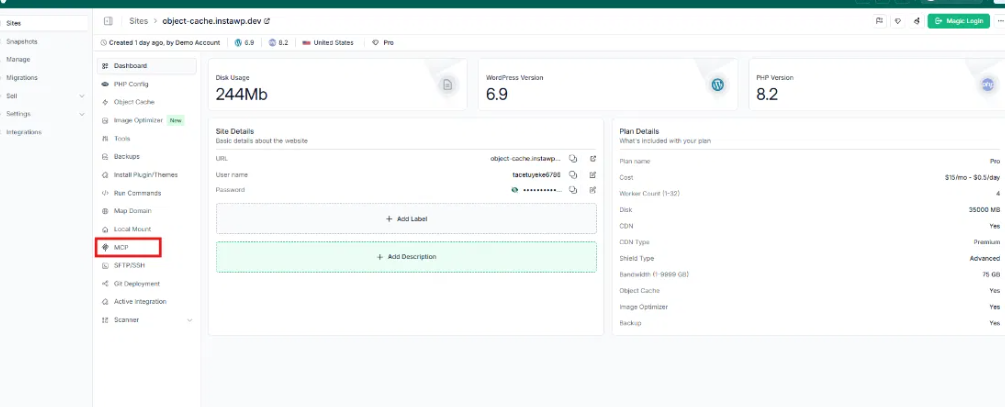
No command line, no manual configuration files; just instant AI readiness.
This drastically cuts down setup time, allowing developers to focus on building AI workflows, not infrastructure.
Built for WordPress-Native Tooling
InstaWP’s WordPress MCP server isn’t a generic MCP implementation; it’s purpose-built for WordPress. This means it comes with pre-mapped tools for all core WordPress functionalities:
- Posts, Pages, Media
- Users, Comments, Categories
- Plugins and Themes
- Custom post types and taxonomies (via REST API extensions)
This native tooling ensures that your AI commands are seamlessly translated into the most efficient and secure WordPress API calls, without you having to define every endpoint.
Seamless Integration with AI Clients (ChatGPT, Claude, etc.)
With a unique, pre-authenticated URL generated for each site, connecting your WordPress instance to AI clients like ChatGPT or Claude Desktop is remarkably straightforward.
The complexities of token management, authentication headers, and API endpoint discovery are handled under the hood, presenting you with a simple copy-and-paste integration.
Safe Staging and Testing Environments
For any developer, testing is paramount. InstaWP’s platform shines here, offering disposable WordPress sandbox environments. You can experiment with AI commands, build intricate workflows, and test custom tools without any risk to live client sites.
This safe staging environment is invaluable for iterating rapidly and confidently deploying AI solutions.
In essence, InstaWP provides a production-ready, modular, and developer-first implementation of the WordPress MCP server, making AI integration accessible, secure, and efficient.
2. Technical Environment Requirements
The WordPress MCP Server relies on modern REST API handling and secure transport.
- WordPress Version: You should be running WordPress 6.4 or higher. This ensures full compatibility with the latest REST API blocks and performance optimizations.
- PHP Version: PHP 8.2+ is highly recommended for the asynchronous processing speeds required by AI tool calls.
- SSL Certificate (HTTPS): Non-negotiable. MCP servers will refuse connections over insecure HTTP to prevent token interception.
3. ChatGPT Pro or Enterprise Subscription
To use the Model Context Protocol (MCP), you need more than the free version of ChatGPT.
- Custom Connectors Access: You must have a ChatGPT Plus, Team, or Enterprise account to access “Apps & Connectors” and enable Developer Mode.
- Developer Mode Enabled: Within ChatGPT settings, you must toggle on Developer Mode to allow the AI to ping external MCP endpoints.
4. Authentication: Application Passwords
You should never provide ChatGPT with your main administrator password.
- Dedicated User Role: Create a specific WordPress user (e.g., “AI-Admin”) with a role limited to the tasks you want the AI to perform (Editor or Author).
- Application Password: Generate a unique 24-character Application Password (found under Users > Profile in WordPress). This acts as the secure key that the MCP server uses to authorize ChatGPT’s requests.
While the official WordPress MCP Server is an open-source solution, platforms like InstaWP have taken the concept and built an enterprise-grade, developer-friendly implementation. For those looking to integrate AI quickly and safely, InstaWP’s approach offers significant advantages:
Step-by-Step Guide: Connecting ChatGPT to Your WordPress Site
Let’s get hands-on and connect ChatGPT to your WordPress site in minutes. For the sake of this guide, we assume that you’ve an active InstaWP account. If you don’t have one, you can sign up for free.
Step 1: Create or Access Your InstaWP Site
Log into your InstaWP dashboard. If you don’t have a site, create a new site one instantly. For testing, a fresh sandbox environment is ideal.
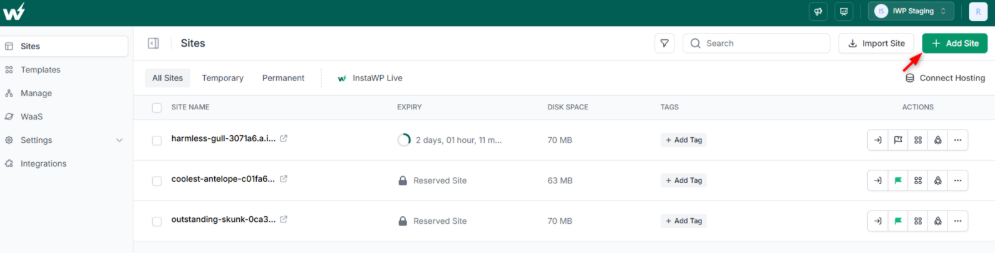
Step 2: Enable MCP in Your InstaWP Dashboard
From your InstaWP dashboard, navigate to the specific site you want to connect. On the left-hand menu, look for the “MCP” option. Click “Enable MCP.”
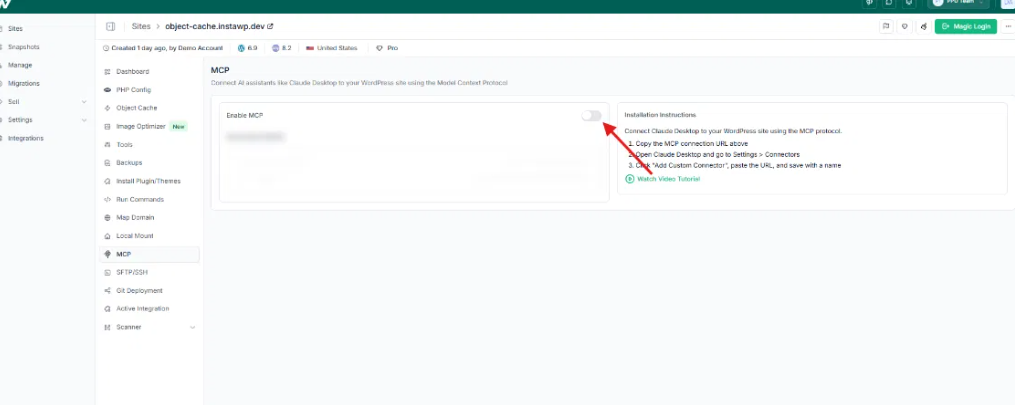
InstaWP will automatically install the necessary WordPress MCP plugin on your site and generate a secure authentication token for you. This abstracts away all the usual setup complexities.
Step 3: Copy Your Unique MCP URL
Once MCP is enabled, remain on your site’s detail page in the InstaWP dashboard. You’ll see your unique MCP URL prominently displayed.
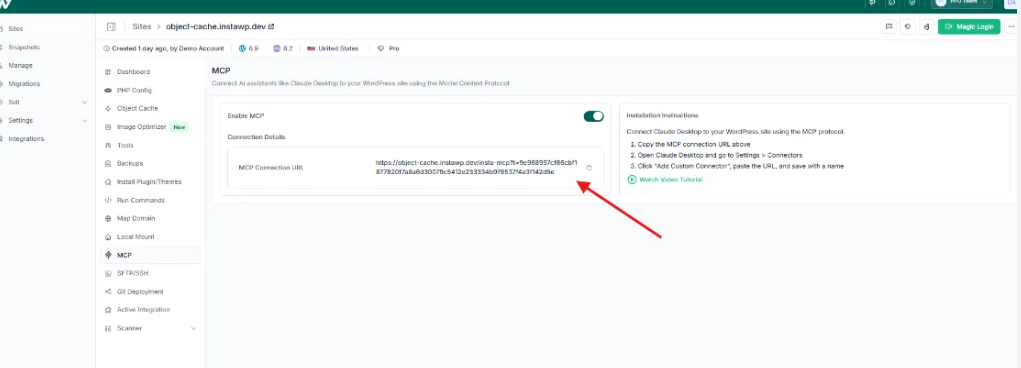
Click the “Copy” button next to the URL. This URL contains your site’s endpoint and the secure token, ready for direct use with AI clients.
Step 4: Configure ChatGPT to Connect with Your Site
Now, let’s bring ChatGPT into the loop.Open ChatGPT (ensure you’re using a version that supports custom connectors, typically ChatGPT Plus with Custom GPTs enabled).
Go to Settings → Apps →Create App. Paste your copied InstaWP MCP URL into the provided field.
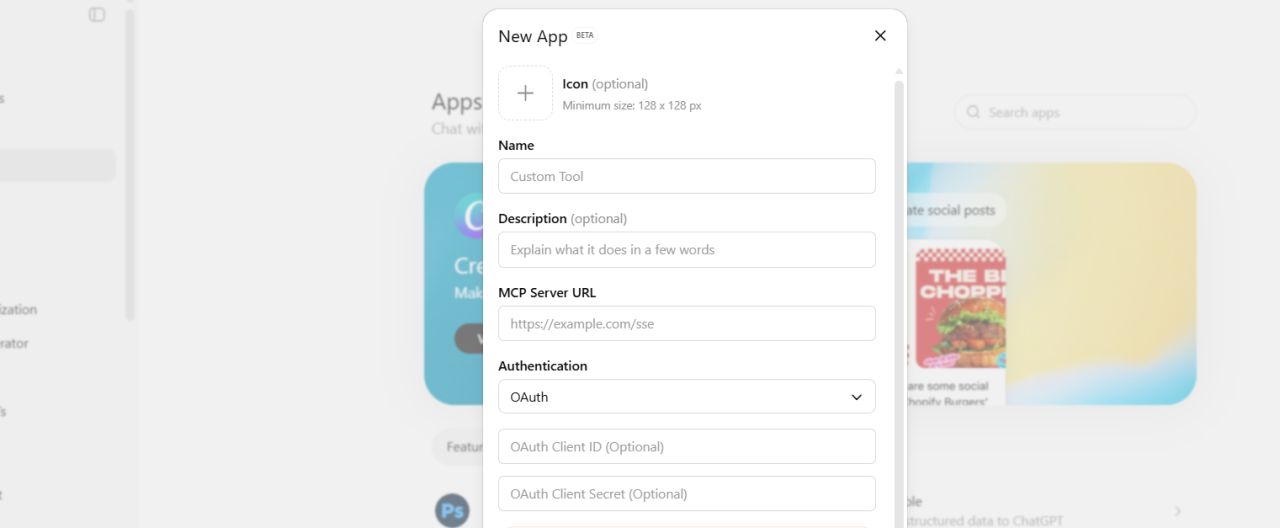
Give your connector a descriptive name (e.g., “My InstaWP Blog Site,” “Client Site Alpha”).
For authentication, select “No authentication” if the token is embedded in the URL (which InstaWP’s MCP URL does by default for simplicity). If your ChatGPT version prompts for it, confirm any necessary permissions.
Click “Create” or “Add.”
ChatGPT is now connected to WordPress site. You can use it to automate multiple WordPress site management tasks. For instance:
“List all active plugins on this site. If any are outdated, give me a summary of the changelog for the latest version.”
“Update all posts in the ‘Tech’ category to include a custom field called ‘read_time’ based on their word count.”
“Find all users who haven’t logged in for 6 months and list their email addresses.”
“Draft a PHP snippet to add a custom post type for ‘Portfolio’ and deploy it as a new plugin file.”
Final Thoughts: Lead the AI Revolution in WordPress
The developers who thrive in 2026 are those who embrace AI as a core part of their stack. By using the InstaWP WordPress MCP server, you’re not just saving time; you’re building a scalable, future-proof business.
Ready to stop clicking and start commanding?
Try InstaWP’s WordPress MCP Server today and launch your first AI-first site in seconds.
FAQs
Q: Does this work with any AI?
A: It works with any AI that supports the Model Context Protocol, including ChatGPT, Claude Desktop, and IDEs like Cursor or VS Code.
Q: Is it safe for live sites?
A: Yes, but we recommend using InstaWP staging sites to validate your prompts. InstaWP’s implementation uses secure, encrypted tokens and application passwords.
Q: Can I manage multiple sites?
A: Absolutely. You can add multiple MCP connectors to ChatGPT, allowing you to switch between client sites or manage them in bulk.