The Spotlight Theme is a focused, distraction-free quiz experience designed to guide your quiz takers’ attention naturally as they move through questions.
It works by keeping the active question fully visible while subtly dimming the opacity of previous and upcoming questions, creating a clean and uncluttered experience from start to finish.
The Spotlight Theme requires QSM 11 with the New Render option enabled. To enable it, go to QSM Global Settings and turn on “Enable New Render” under the main settings tab.
📌 Please note that the Spotlight theme is not compatible with the Quiz Navigator add-on.
How the Spotlight Theme Works
The Spotlight theme uses opacity to direct focus across all question navigation modes, whether your quiz scrolls through questions, uses pagination, or displays one question at a time.
- The current (active) question is always displayed at 100% opacity, fully visible, and in focus
- Upcoming (unanswered) questions are displayed at 90% opacity, visible but subtly dimmed
- When a quiz taker moves to the next question, the previous question smoothly transitions from 100% to 90% opacity, and the newly active question transitions to 100%
- The Spotlight theme supports keyboard navigation; you can use the up and down arrow keys to move between questions, press ‘Enter’ to advance to the next question, and ‘Ctrl + Enter’ to submit the quiz.
The opacity changes are designed to maintain text readability and contrast compliance, so accessibility is never compromised.
Theme Customization
You can customize the Spotlight theme by navigating to Style Tab > Themes > Spotlight > Activate > Customize.
The Theme Settings panel gives you full control over the theme’s visual appearance. Here’s a breakdown of every customization option available:
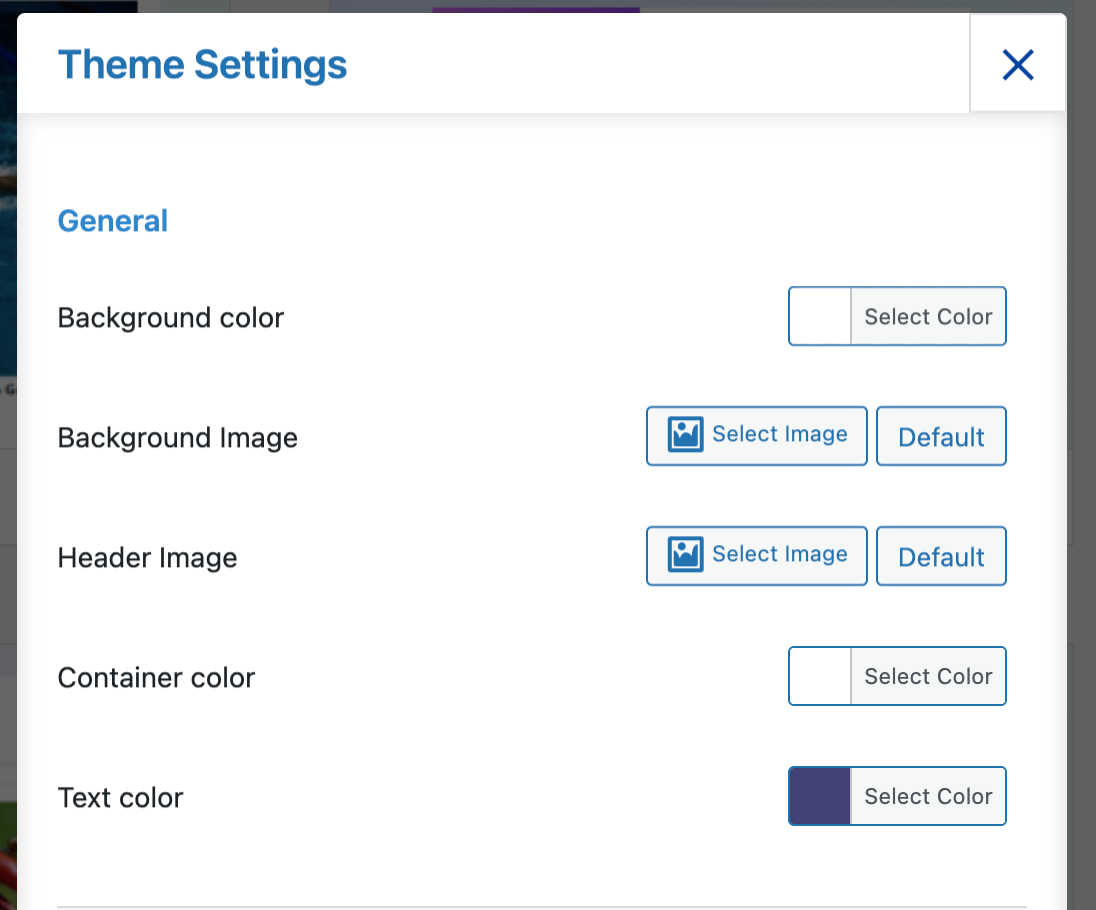
General
- Background color — Set the overall background color of the quiz
- Background image — Upload a custom background image or revert to the default
- Header image — Set the header image for the quiz
- Container color — Set the color of the quiz container
- Text color — Set the default text color across the quiz
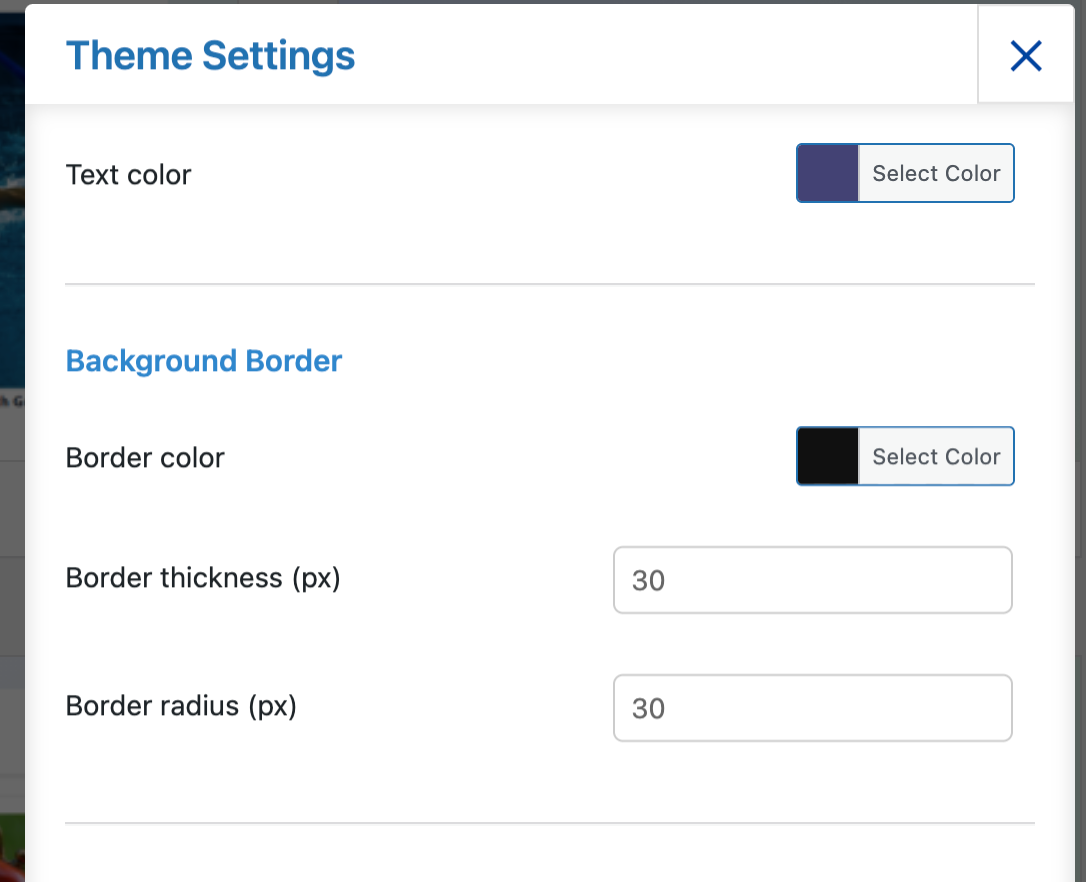
Background Border
- Border color — Set the color of the container border
- Border thickness (px) — Control how thick the border appears
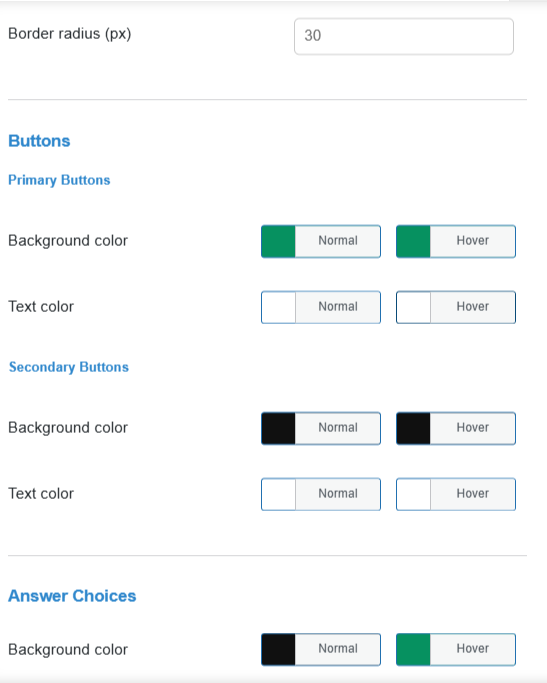
- Border radius (px) — Control how rounded the container corners are
Buttons
- Primary Buttons — Set background and text colors for both Normal and Hover states
- Secondary Buttons — Set background and text colors for both Normal and Hover states
Answer Choices
- Background color — Set the answer choice background color for Normal and Hover states
- Text color — Set the answer choice text color for Normal and Hover states
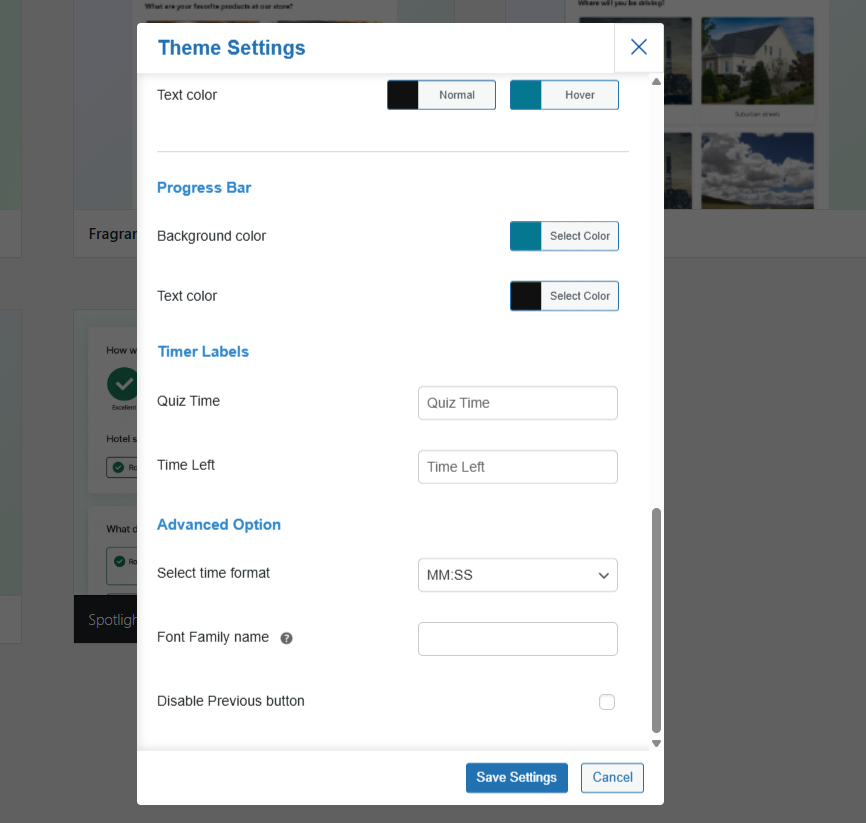
Progress Bar
- Background color — Set the progress bar fill color
- Text color — Set the progress bar text color
Timer Labels
- Quiz Time — Customize the label shown for the total quiz time
- Time Left — Customize the label shown for remaining time
Advanced Options
- Select time format — Choose between MM:SS, HH:MM, or HH:MM:SS
- Font family name — Enter a custom font family to override the default
- Disable Previous button — Toggle to prevent quiz takers from going back to previous questions. [This option is added in the theme settings because the ‘Hide previous button’ setting in the questions tab ‘Edit page’ option will not work with the Spotlight theme.]
📌 Note: All color changes can be reverted to their default values by clicking the “Default” button inside the color picker.
A Visual Breakdown
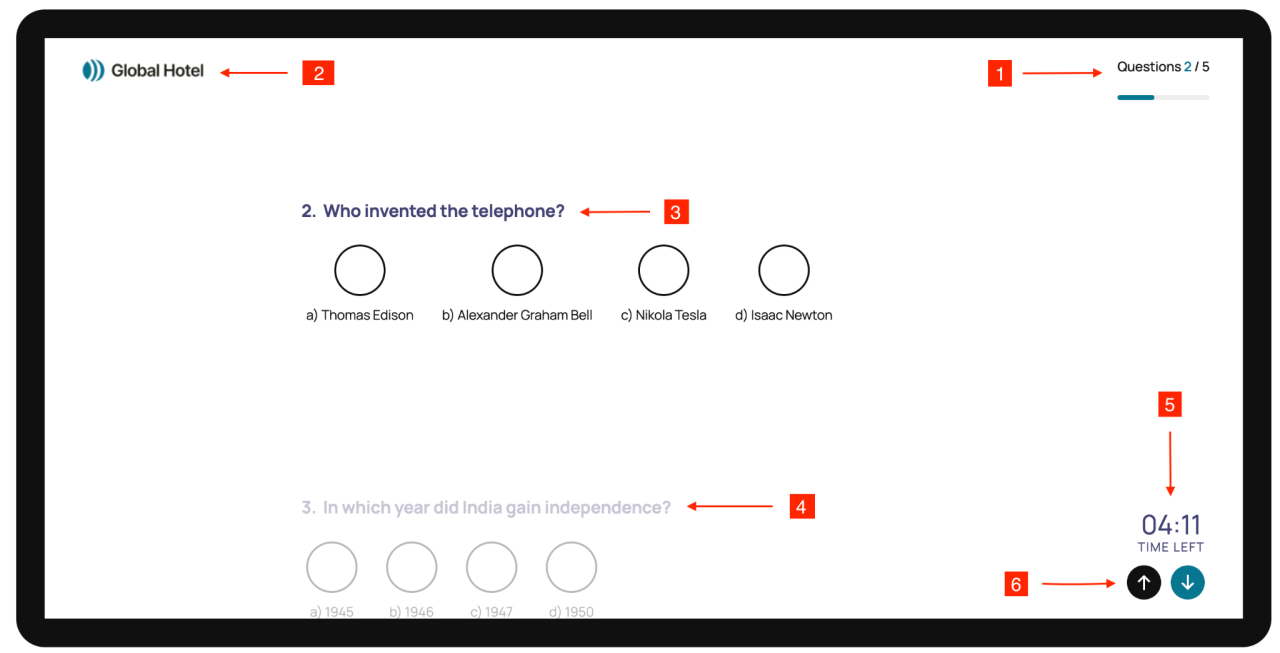
- Progress Bar — Displayed at the top right of the quiz, showing the current question number out of the total (e.g., Questions 2/5) alongside a visual progress indicator.
- Header Image — The image depicts the header image that can be used for the brand logo.
- Active Question — The current question is displayed at 100% opacity, fully visible with crisp text and answer choices.
- Upcoming Question — The next unanswered question appears slightly dimmed at 90% opacity, visible but not competing for attention.
- Timer — Displayed at the bottom right, showing time remaining in your chosen format (e.g., 178:55 TIME LEFT).
- Navigation Buttons — Up and down arrow buttons at the bottom right allow quiz takers to move between questions. However, you can also use the ‘OK’ button given for different question types like multiple response or fill-in-the-blanks (except for radio question types) or the ‘Enter’ key to move to the next question.
 Still stuck? How can we help?